> For the complete documentation index, see [llms.txt](https://docs.perfectscale.io/llms.txt). Markdown versions of documentation pages are available by appending `.md` to page URLs; this page is available as [Markdown](https://docs.perfectscale.io/2.0-self-hosted-or-perfectscale-documentation/visibility-and-optimization/trends-monitoring.md).
# Trends monitoring
Unlocks granular visibility and in-depth insight into costs, waste, and risk metrics over time
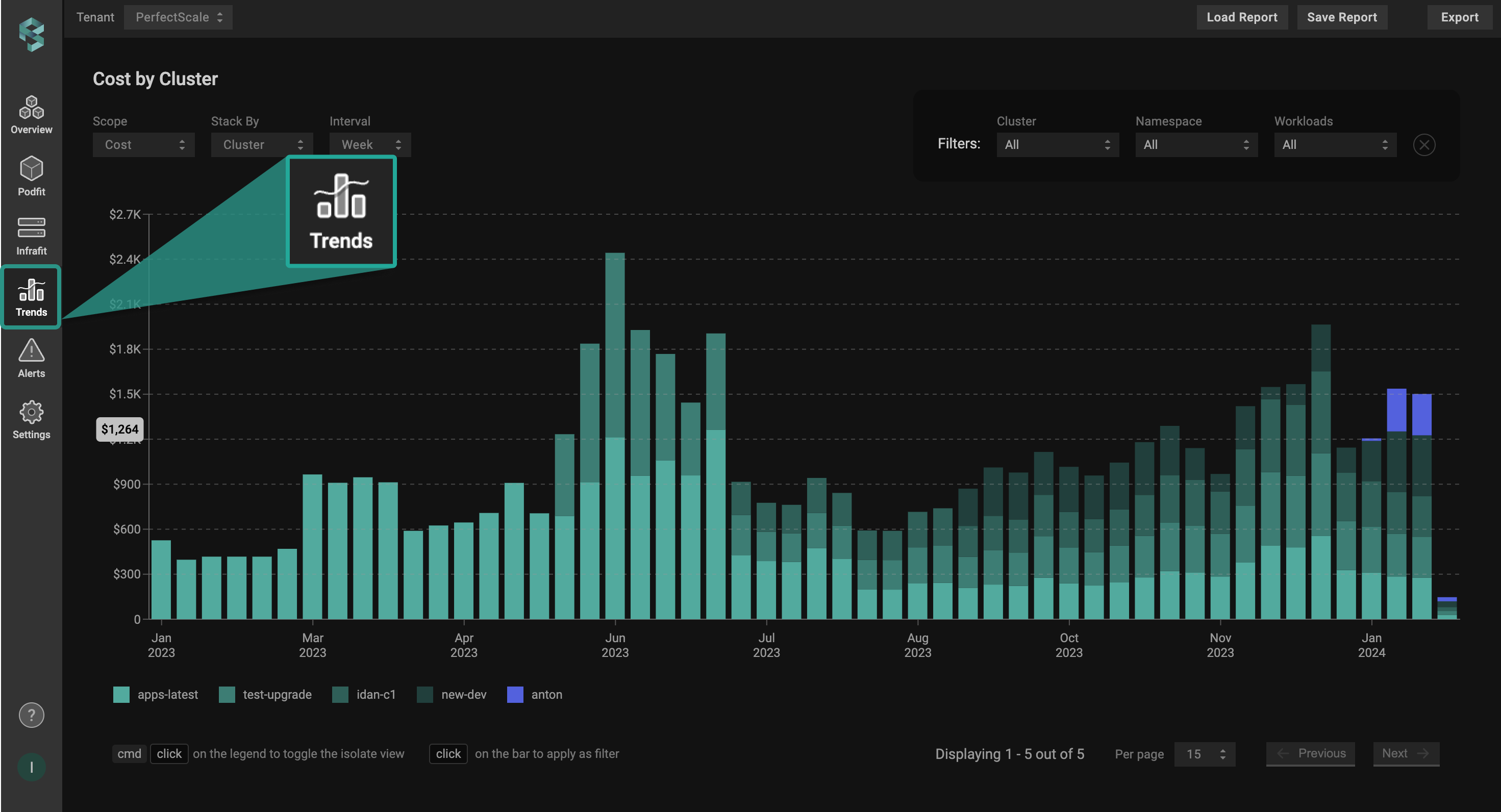
To navigate to the **Trend Reports** page, simply click on the **`Trends`** tab located on the left panel.
Trends screen
{% hint style="info" %}
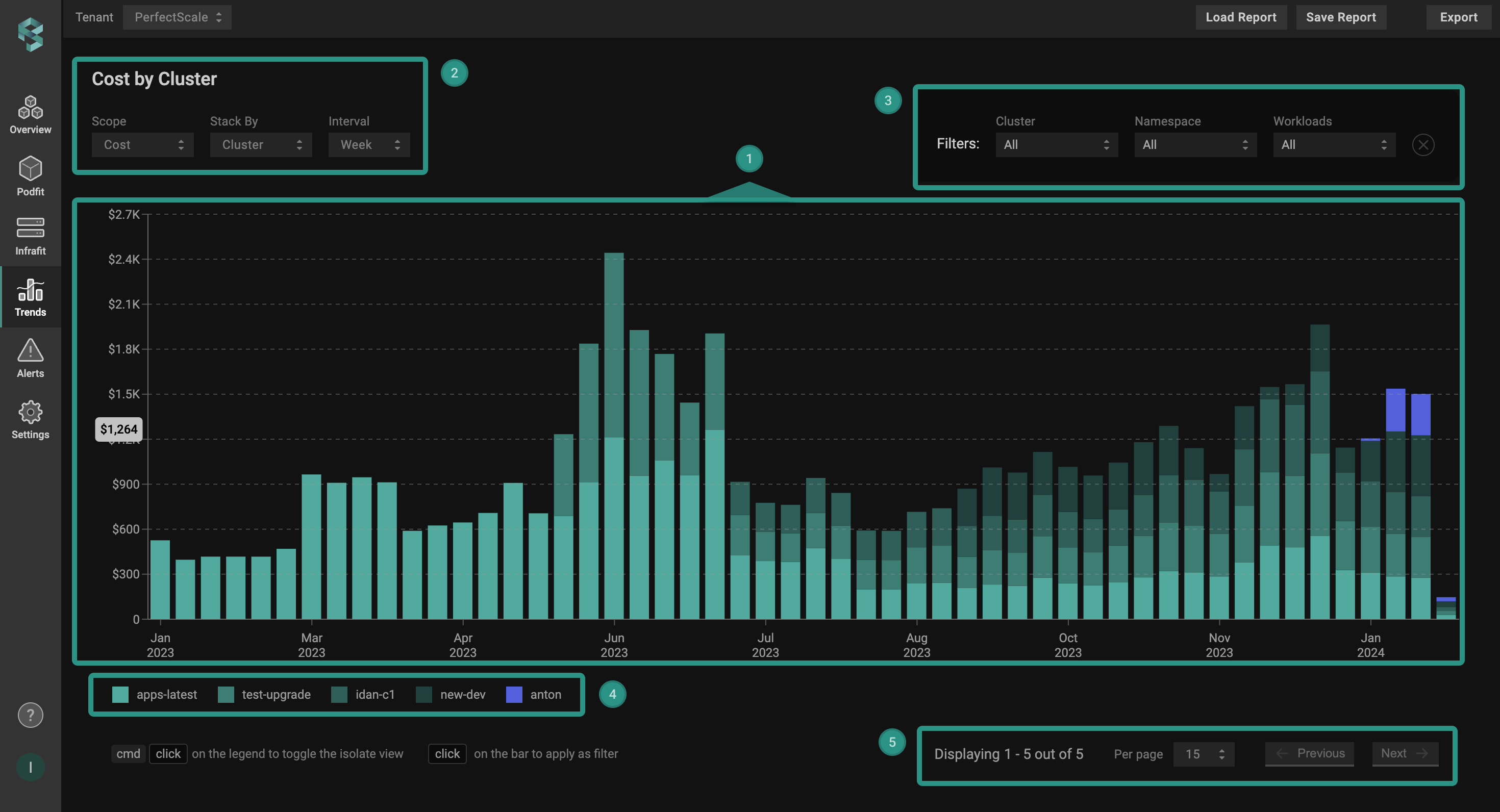
Each bar in the chart contains slices representing entities defined in the [Stack By](#stack-by) section.
{% endhint %}
Trends report
## Trends Report
Reporting highlights trends and seasonality across your Kubernetes environment, directing focus to the most valuable aspects.
You can customize the view for your particular needs and get a clear understanding of your optimization progress, which components of your environment are well-optimized, and what requires attention.
To build your perfect report, we recommend following a few simple steps:
1. Select the [scope](#scope) that you would like to focus on;
2. Select the desirable [entity to stack](#stack-by);
3. Select the [interval](#interval) for the data representation;
4. Include or exclude the particular entities if needed with [filters](#filters) or [entities legend](#entities-legend).
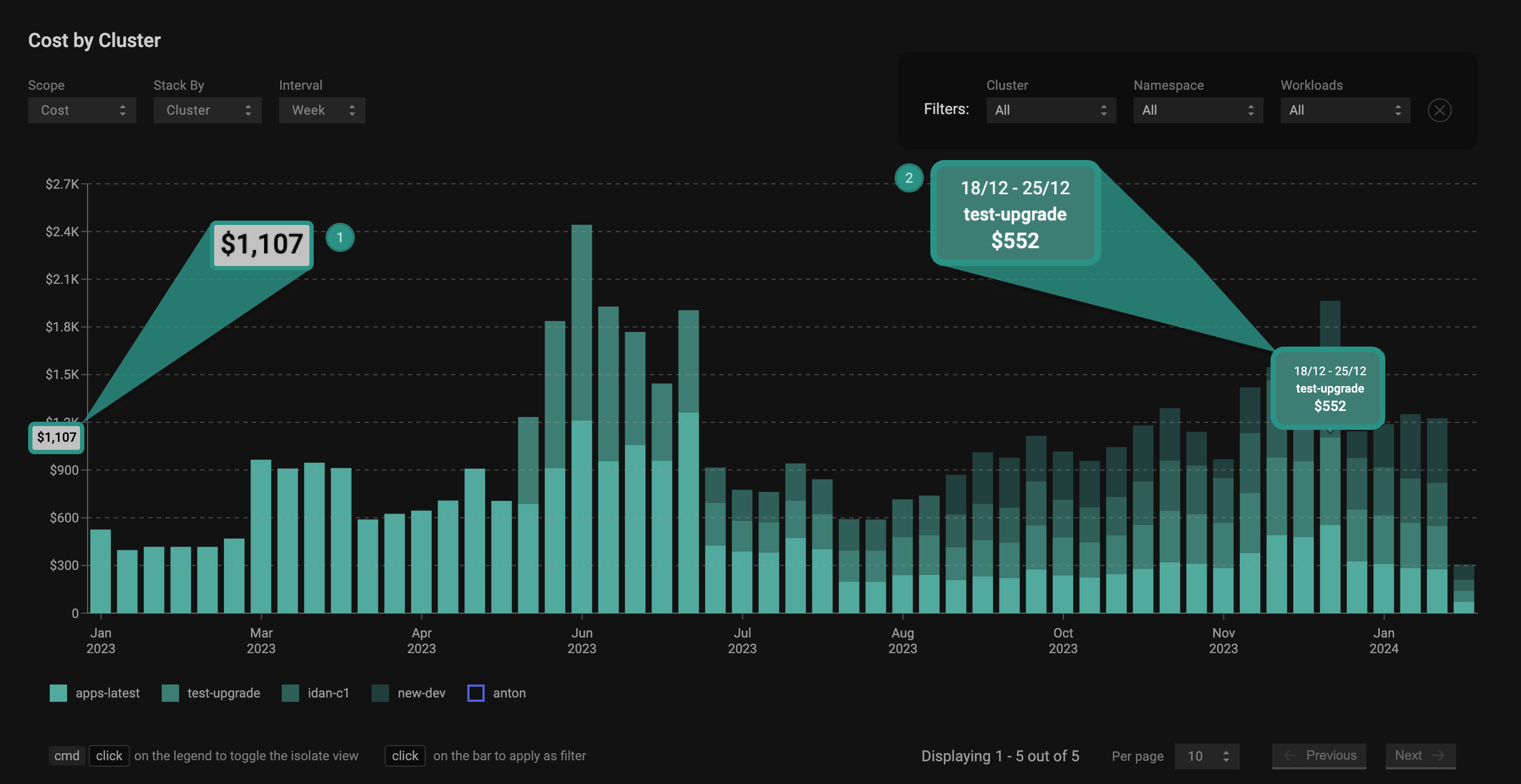
The following example illustrates the trend of cost for the clusters. The bars in the chart are arranged in a stack, each representing the clusters' weekly cost.
1️⃣ - the total costs of the clusters from the lowest to the highlighted ones.
2️⃣ - the cost of the highlighted cluster.
Cost by cluster
## **Scoping parameters**
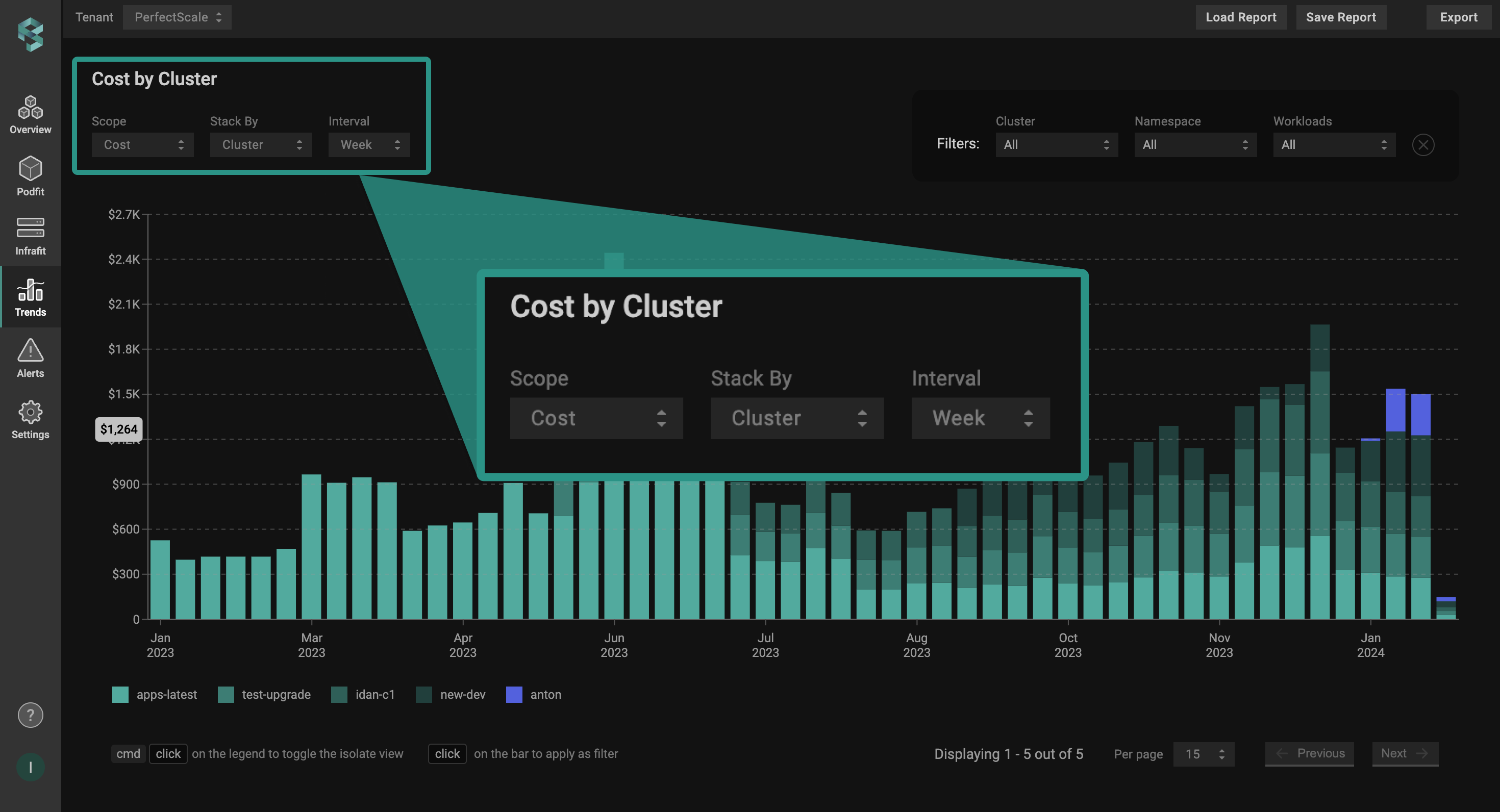
The display data selector defines which data to show. Get the data you want in just a few clicks. Choose the [entities](#stack-by), [scope](#scope), and [timeframe](#interval) to display stacked data.
Scoping parameters
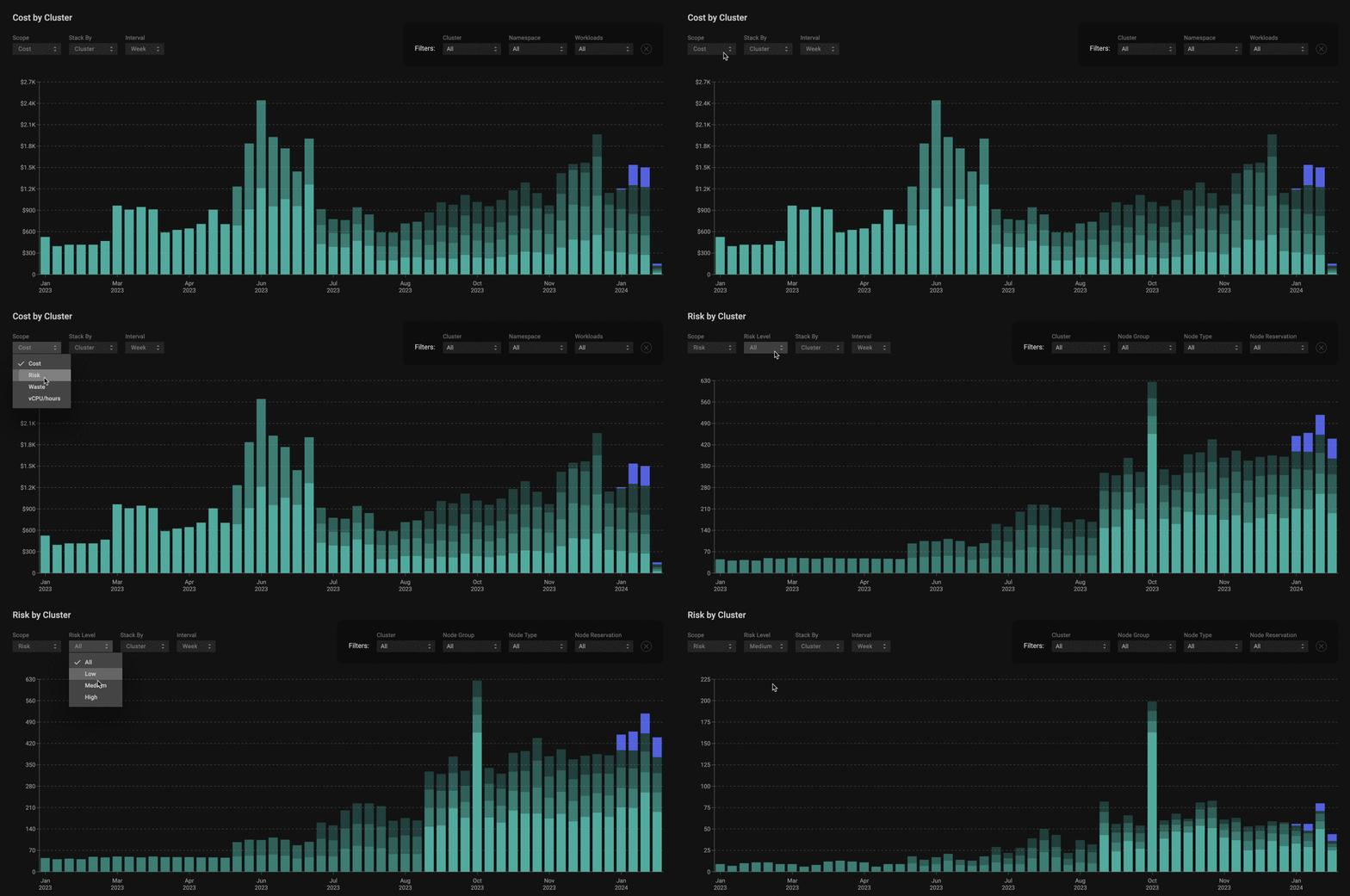
#### Scope
A drop-down list enables a quick selection of displayed data scope. It includes the following options:
* Cost
* Risk
* Waste
* vCPU/hours
{% hint style="info" %}
**Risk Level** (available with **`Risk`** scope only)
Allows filtering and displaying the data related to the entities with the relevant risk level:
* All
* Low
* Medium
* High
{% endhint %}
Risks chart
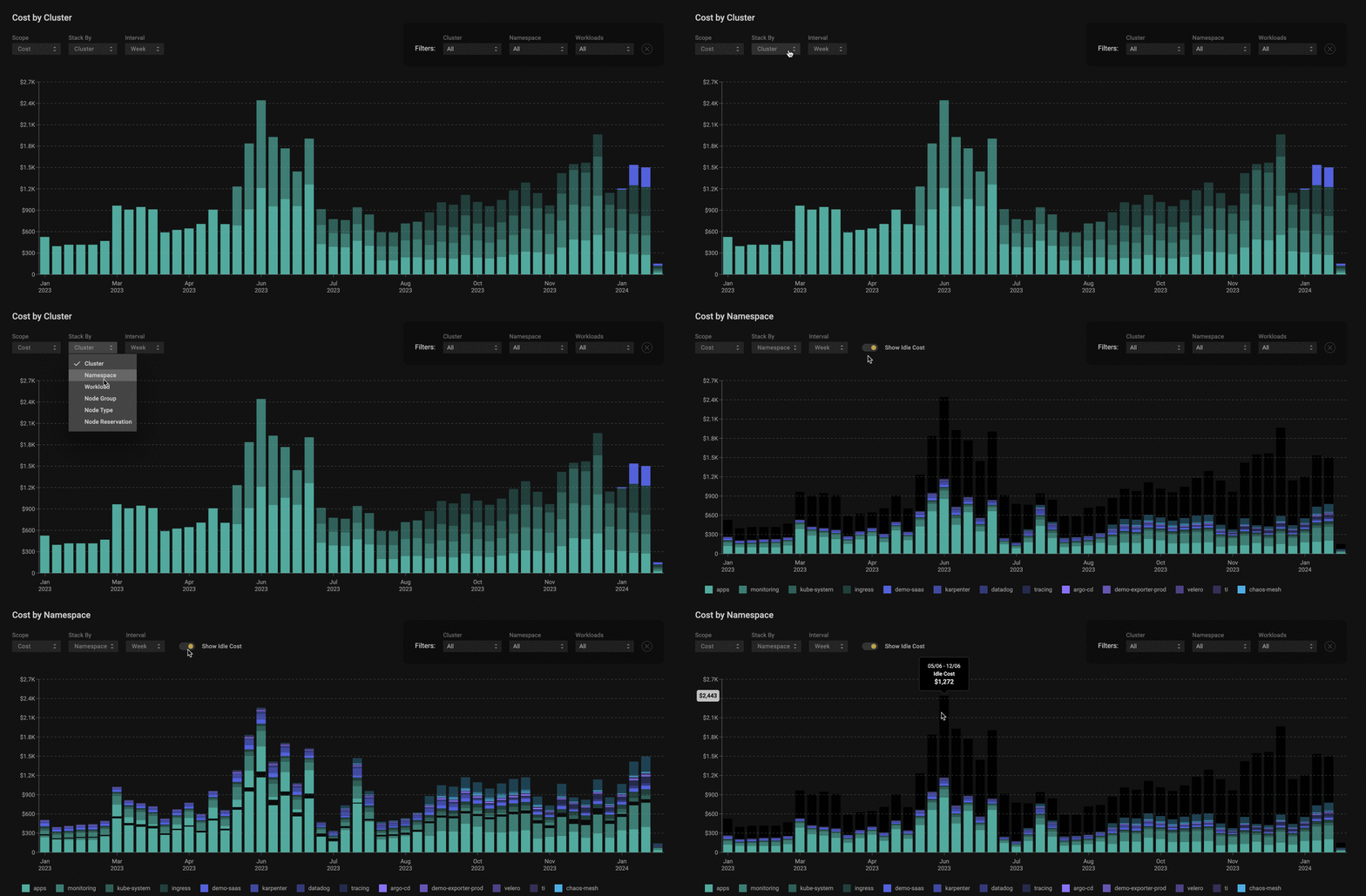
#### **Stack By**
A drop-down list enables one to define how the data should be stacked. It includes the following options:
* Cluster
* Namespace
* [Workload](#dive-into-the-workload-details)
* [Node Group/Type/Reservation](#drill-down-into-nodes)
{% hint style="success" %}
When selecting Cost stacked by Workload or Namespace, the **Show Idle Cost** feature is available.
**Idle Cost** identifies a spare cluster capacity on top of what was requested by particular workloads.
Select the relevant value in the **Scope By** list (Workload or Namespace), and **`Show Idle Cost`**toggle will appear. By default, the toggle is in the **on** position.
{% endhint %}
Idle cost
### :mag: Dive into the workload details
To explore identified anomalies or specific trends in depth, seamlessly access detailed information on their causes, and/or obtain actionable recommendations for eliminating them, simply jump into the workload [Zoom-in](/2.0-self-hosted-or-perfectscale-documentation/visibility-and-optimization/podfit-or-vertical-pod-right-sizing.md#zoom-in-window) window, which provides all the necessary information directly from the Trends Report. This allows you to effortlessly switch from questions to answers, enabling you to make quick, data-driven decisions.
Workload details
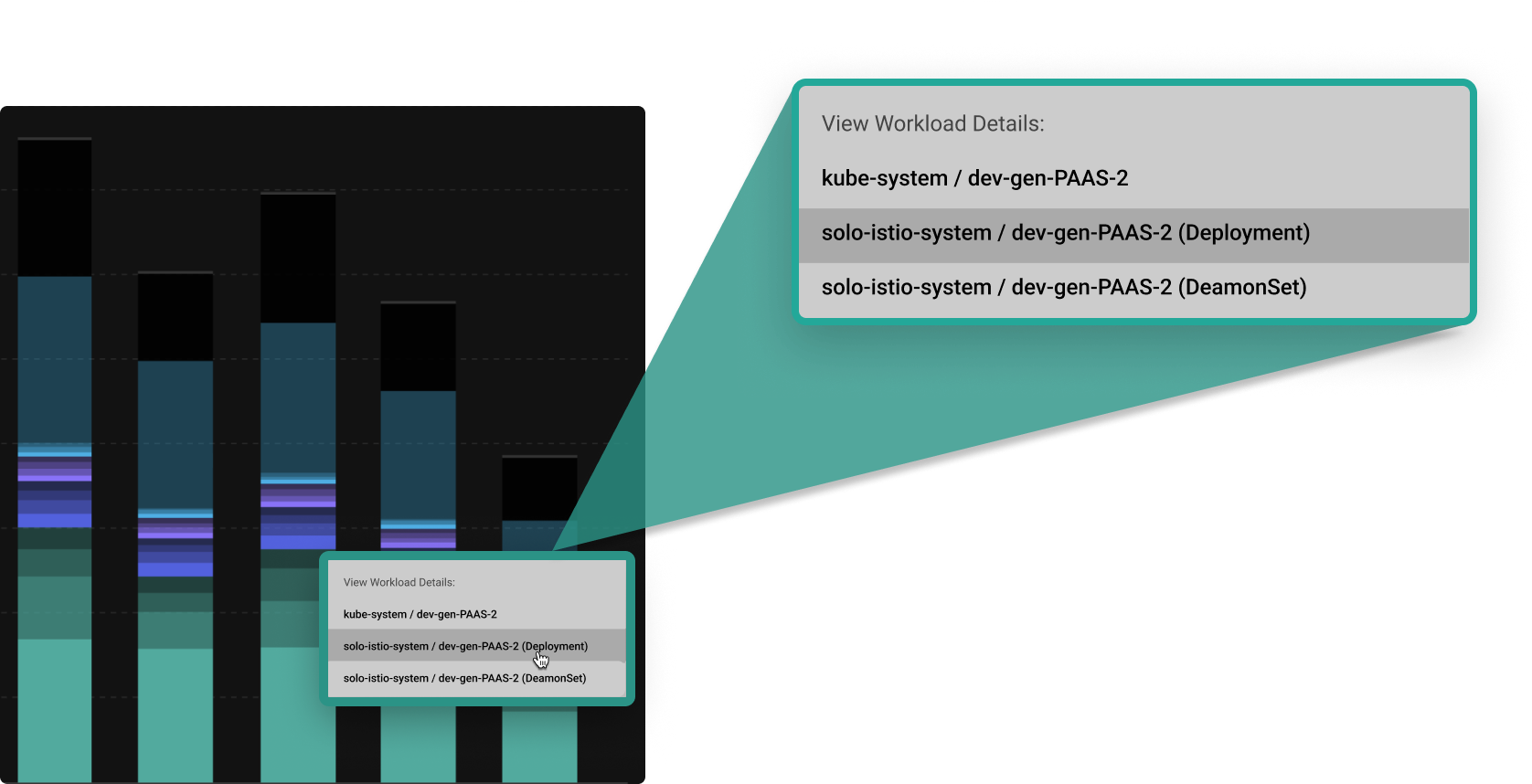
Stack the data by **`workload`** to get the overtime cost, waste, or risk trend insights for each workload in your environment. Right-clicking on a workload in the chart will open a **Workload Details** tooltip, displaying a list of the namespaces where this workload exists.
By clicking on a specific namespace from the list, a Zoom-in window of the workload in that namespace will open.
Workloads in a namespace
{% hint style="info" %}
If there are duplicate workload names inside the same namespace, a workload type will be displayed to differentiate them.\
\
Workloads last seen over 4 weeks ago are displayed in gray.
{% endhint %}
{% hint style="info" %}
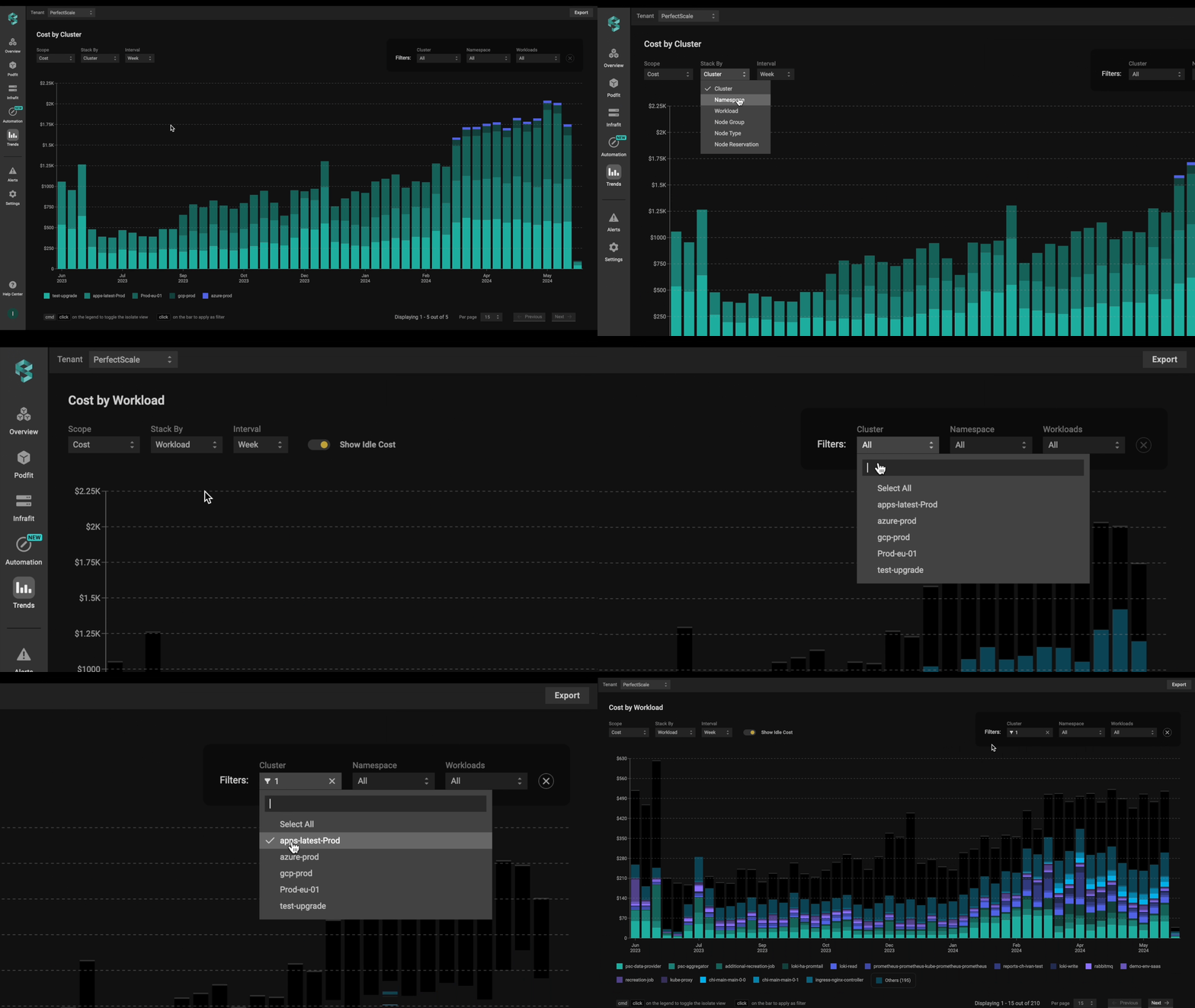
If you have multiple clusters, filter a specific one to access the **`View Workload Details`** tooltip.

{% endhint %}
### :mag: Drill down into node cost analysis
Seamlessly access detailed views of your K8s instances from different perspectives (Node Type, Node Group, or Node Reservation) and quickly identify anomalies or specific trends with just a few clicks.
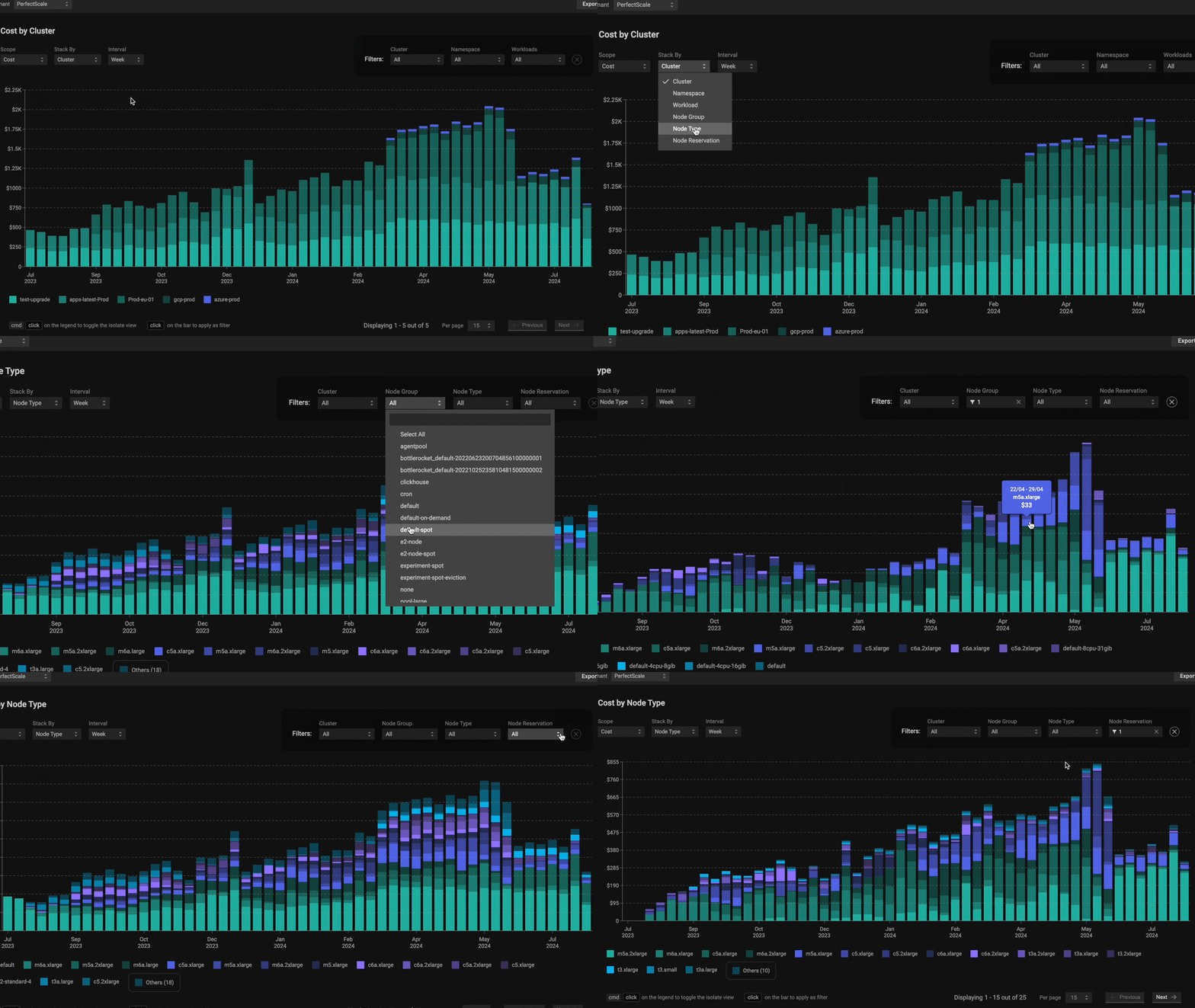
Stack the data by `Node Type`, **`Node Group`**, or **`Node Reservation`** to get the overtime cost insights. Once the data is stacked, new filters will be available to apply. These filters will provide a more granular and customized view of your infrastructure, enabling you to precisely monitor and manage different aspects of your K8s instances.
Node cost insights
#### Interval
You can use a drop-down list to change the interval that each bar in a chart represents. The following options are available:
* **Hour** - data for the last week is presented, with each bar representing a 2-hour data aggregation.
* **Day** - data from the past 60 days are displayed, with each bar depicting a single day.
* **Week** - data spanning 52 weeks is exhibited, with each bar representing a calendar week.
* **Month** - data from the past 13 months are displayed, with each bar representing a calendar month.
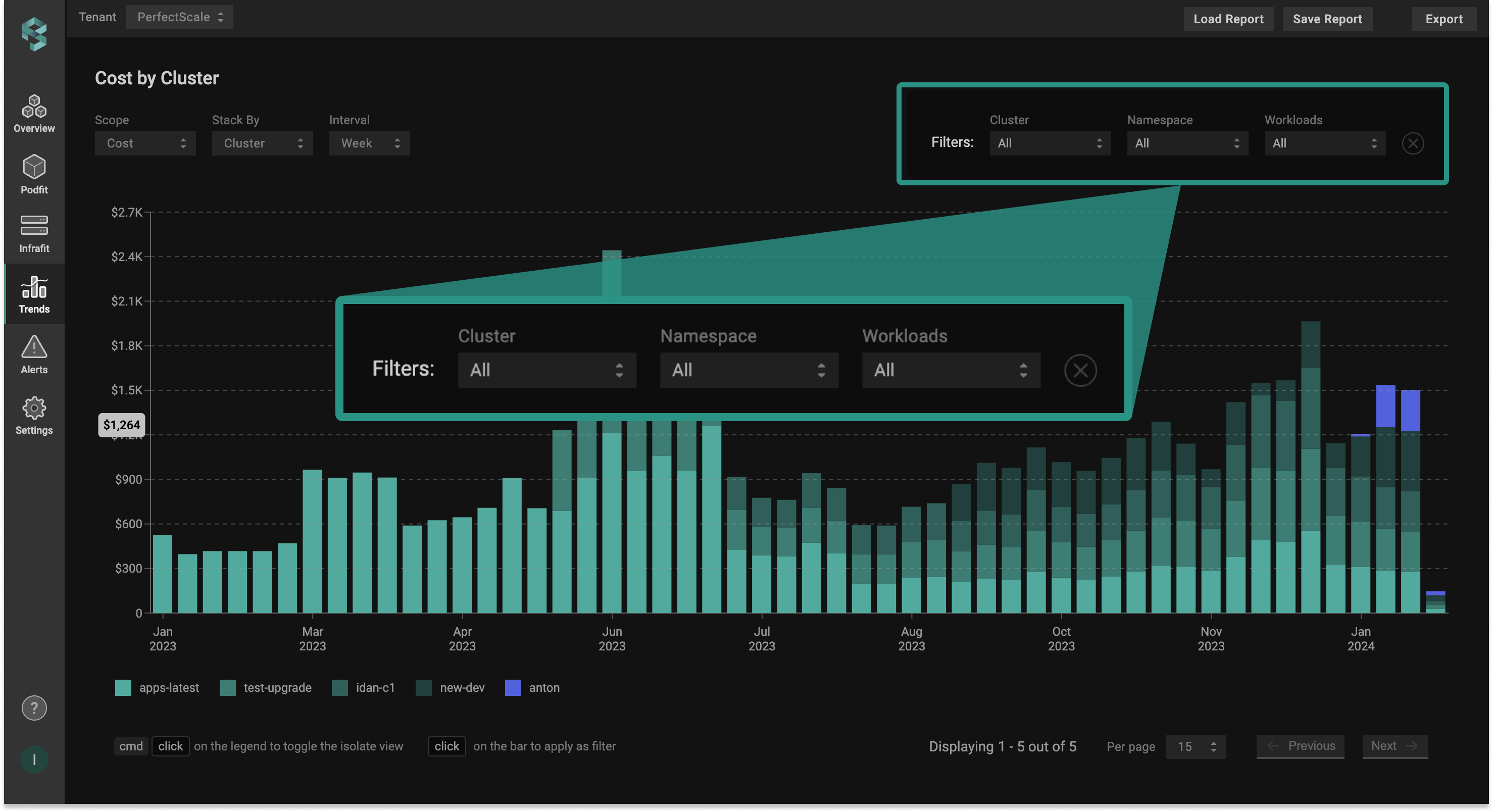
### Filters
Trends filters
You can customize your Trends Report by choosing which clusters, namespaces, and workloads you want to include or exclude.
{% hint style="info" %}
* Click the entity to add/remove it from the chart
* Click **`Select All`** to select or deselect all the entities from the chart
* Use the search bar to find the needed entity quickly
* Multiselect is available
* Use the ✖️ button to clear filters in a single click
{% endhint %}
{% hint style="warning" %}
If PerfectScale does not detect any workload in the Namespaces for 7 consecutive days, those Namespaces will be consolidated into separate Namespace `__deleted-namespaces__`
{% endhint %}
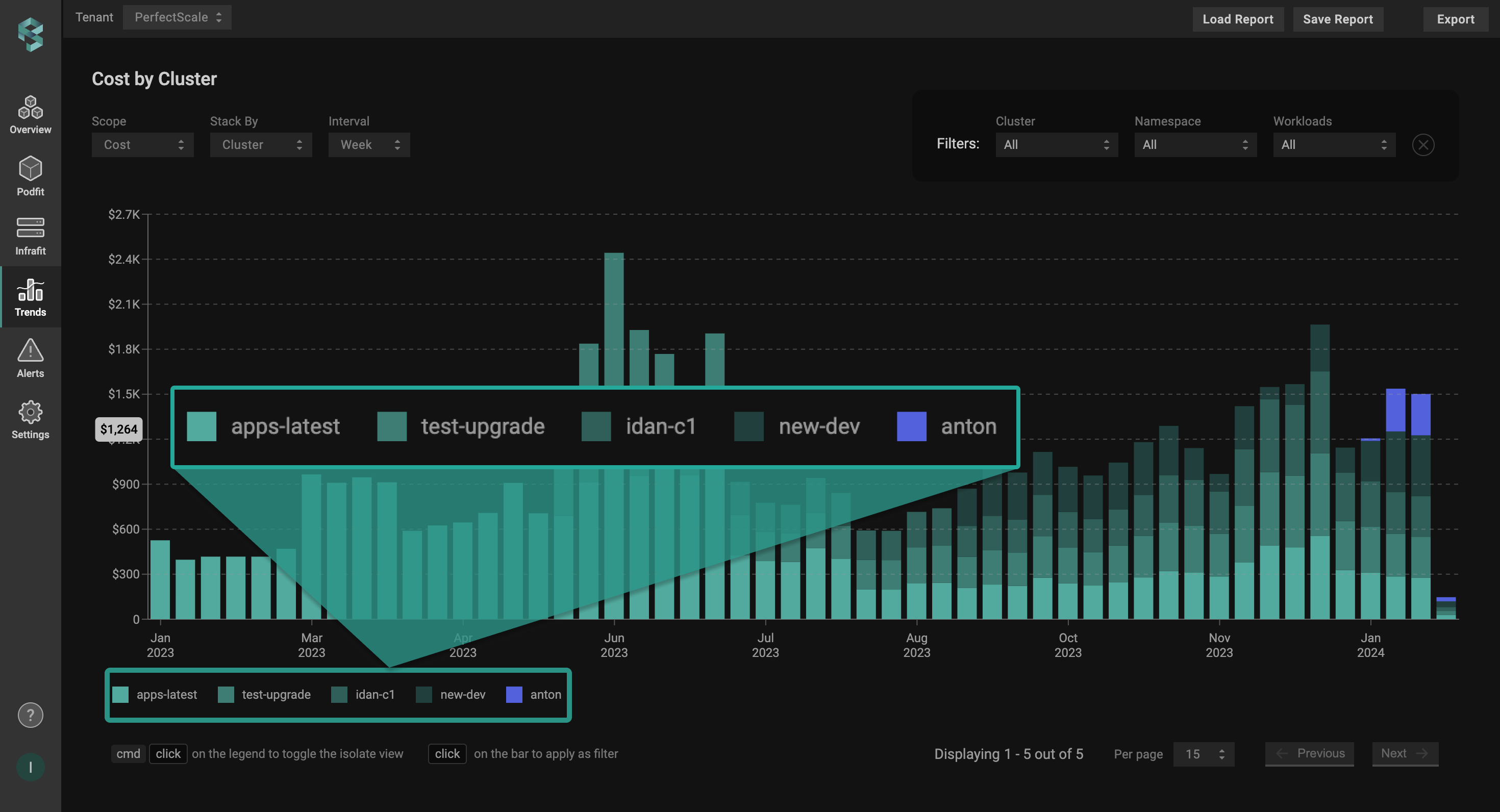
### Entities legend
Trends legend
The list of the entities that have been defined under [Stack By](#stack-by). Each entity is clickable and is assigned a distinct color that corresponds to the chart.
{% hint style="info" %}
Maximize your productivity by utilizing **Shortcuts**.
* **`Ctrl`**/**`Command`**+ **`Click`** legend entity = Select/Deselect the entity. Allows to do a multi-select.
* **`Click`** chart/legend entity = select one or all entities.
{% endhint %}
### **Limit selector**
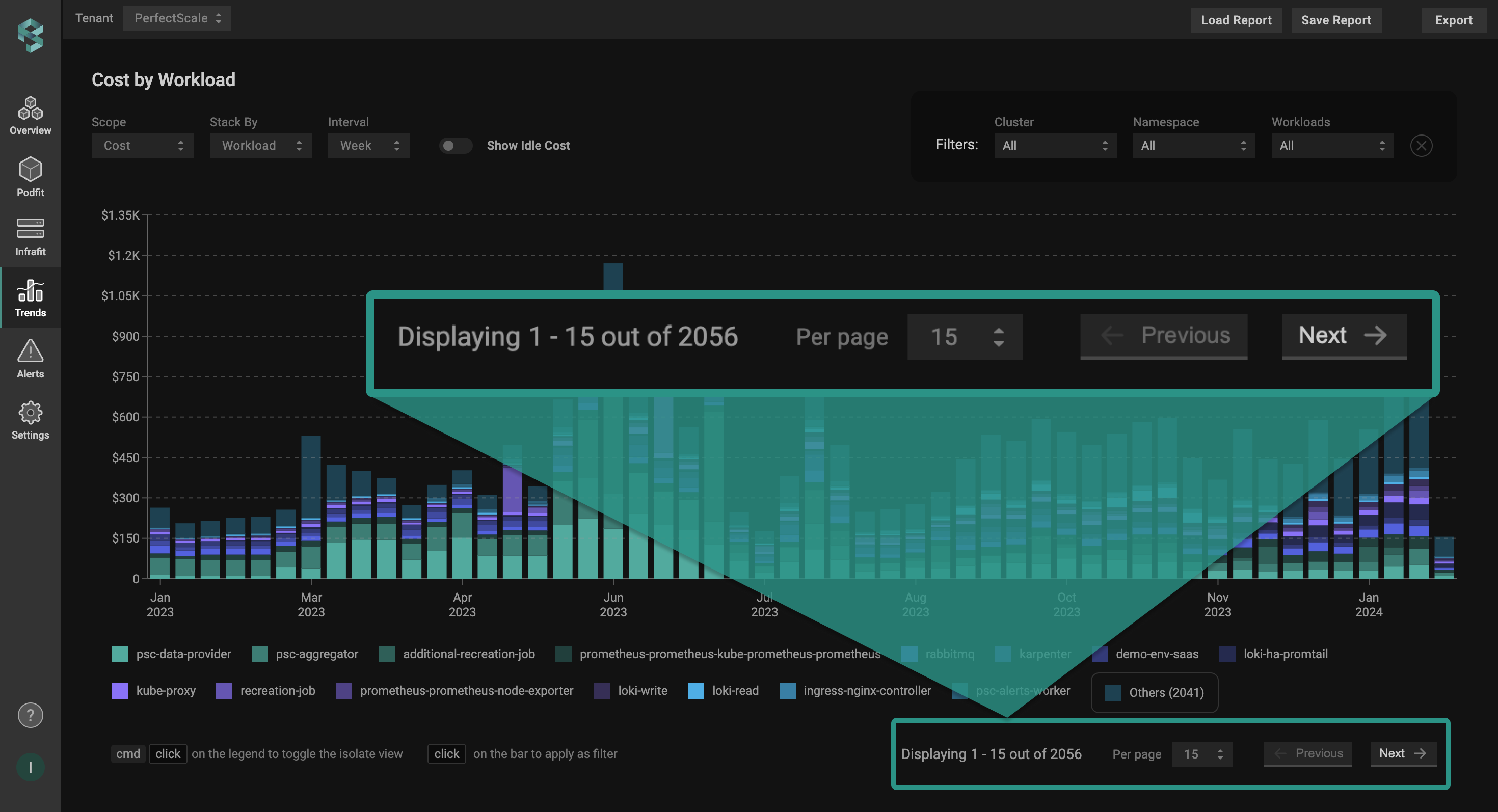
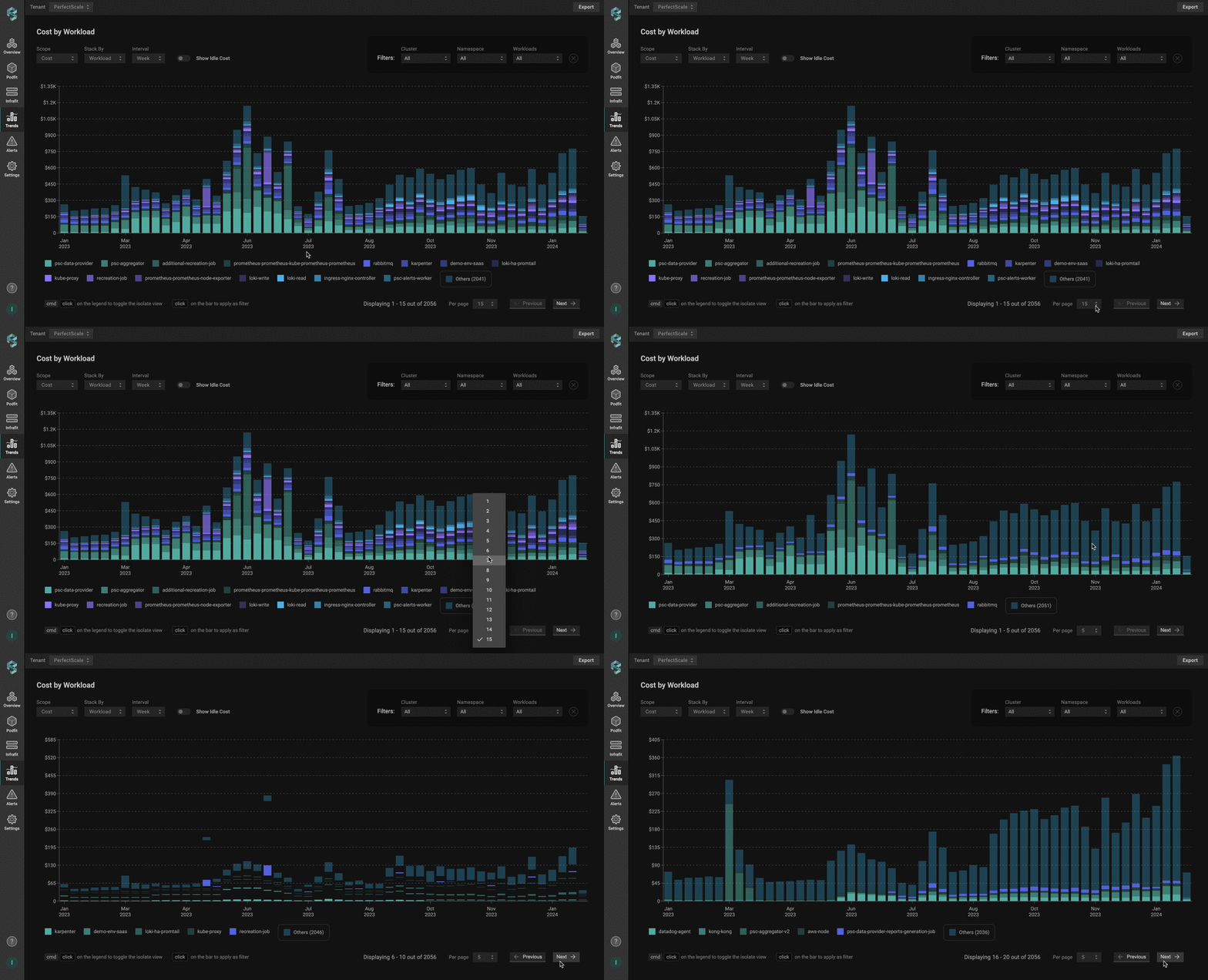
Choose a limit from the dropdown (from 1 to 15) to exhibit only the top N entities selected in [Stack By](#stack-by).
Limit selector
The report's scope defines what qualifies for the set limit using the following logic:
* Cost scope displays the top N most expensive entities, where N is the limit per page;
* Waste scope displays the top N most wasteful entities, where N is the limit per page;
* Risk scope displays the top N entities with the most risks, where N is the limit per page;
* vCPU/hours displays the top N entities with the highest vCPU/h value, where N is the limit per page.
Trends scrolling
{% hint style="info" %}
The entities not falling within the specified limit will be consolidated to **`Other`** on the diagram. To view entities beyond the limit, use the **`Previous`** and **`Next`** buttons.
{% endhint %}
## **Save report**
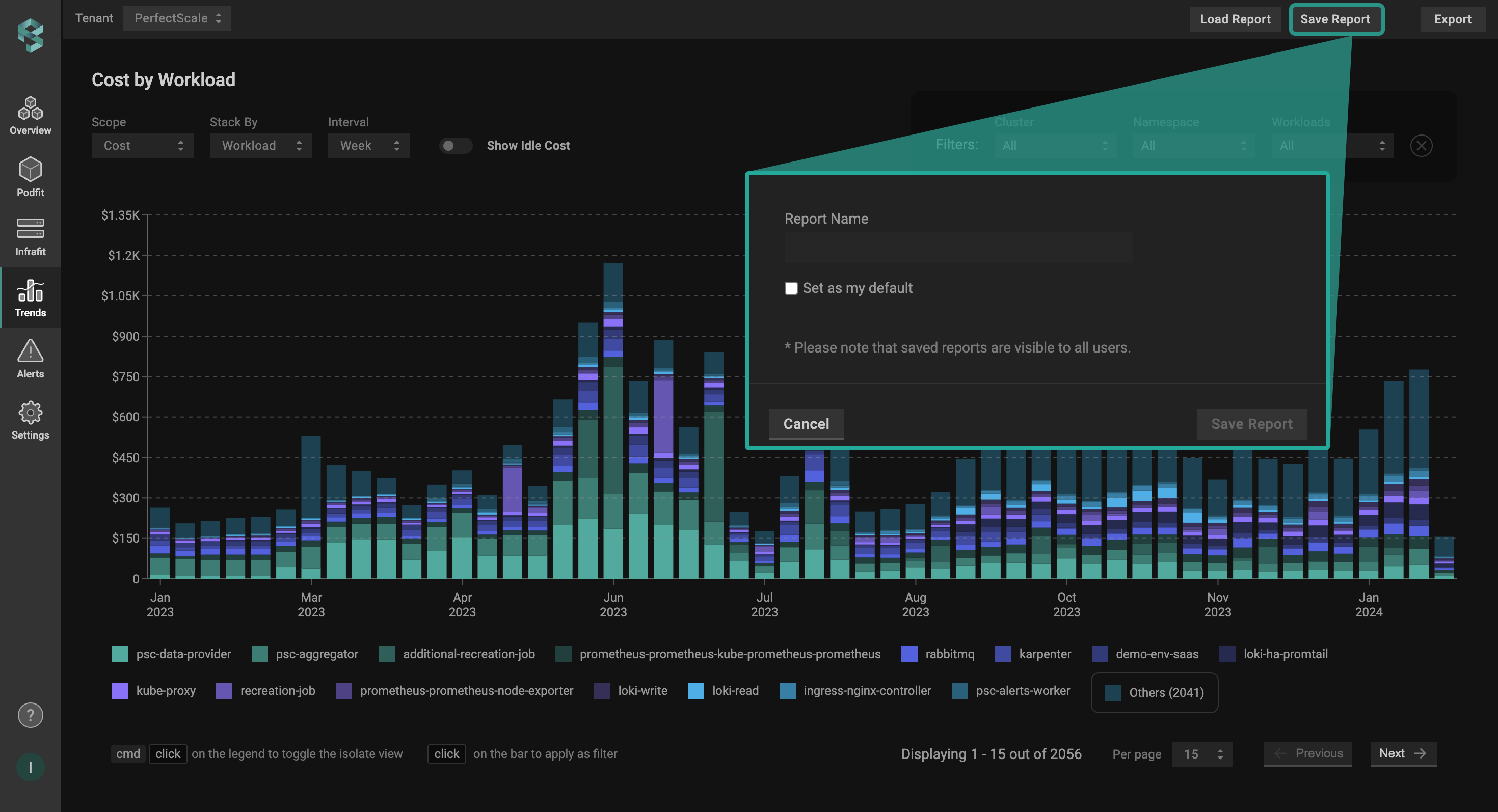
Once your report is ready, you can save the view for future reference using the **`Save Report`** feature. This will help you avoid repetitive actions and streamline your investigation process. Saved reports are visible and accessible to every authorized user in your tenant.
{% hint style="info" %}
Use the **`Set as my default`** checkbox to load the report as the default view the next time you open Trends.
{% endhint %}
Save report
{% hint style="info" %}
If you apply changes to a previously saved report and save it with those changes, it will create a new report instead of affecting the initial one.
{% endhint %}
## **Load report**
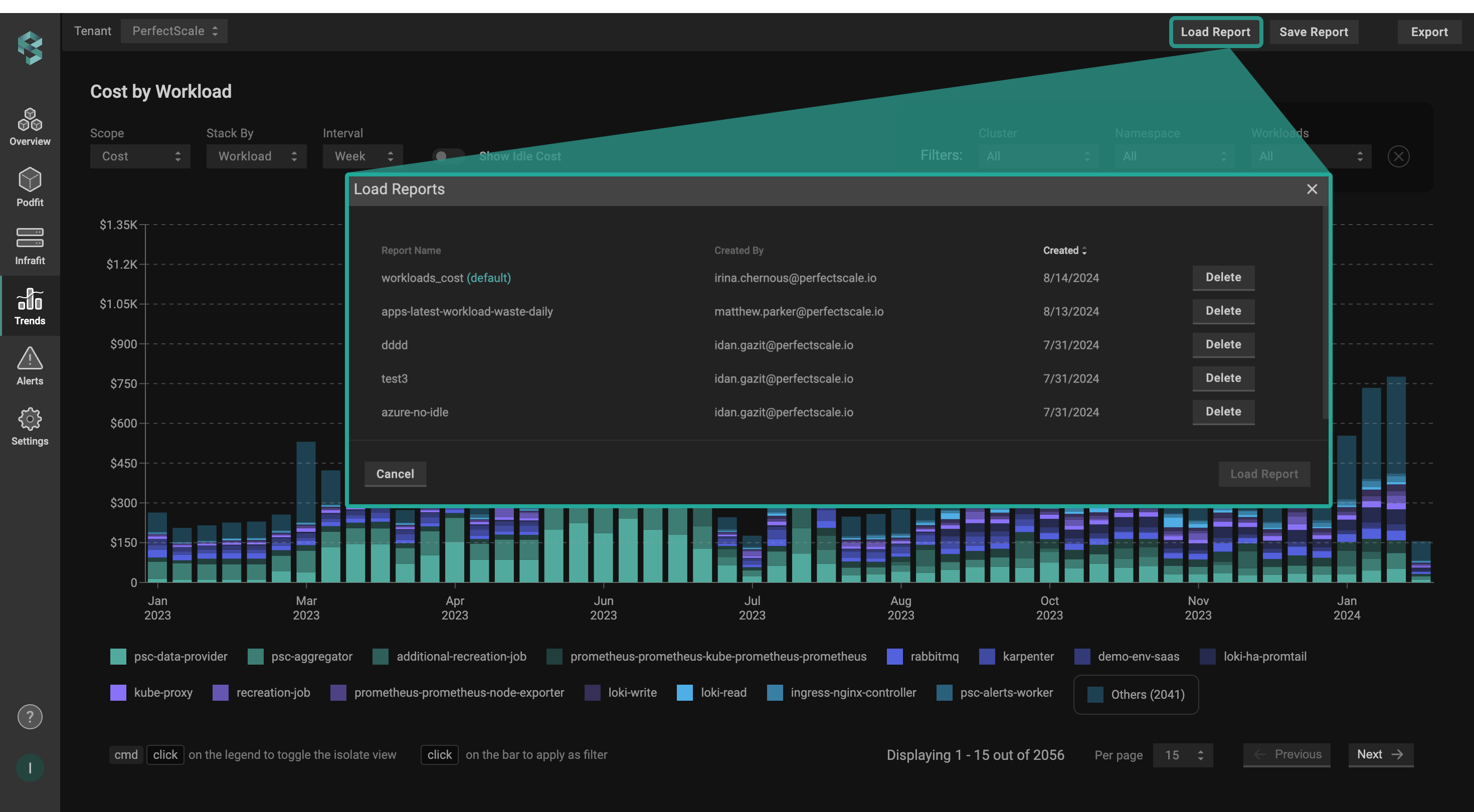
Seamlessly load your saved views with just a few clicks. Clicking the **`Load Report`** displays all saved reports across your tenant, allowing you to sort the list by report name, creator, or creation date. Select the desired report from the list and click `Load Report` button to recreate the saved view.
Load report
{% hint style="info" %}
The **`Delete`** option allows you to remove saved views from the list. Each user can only delete their own saved reports.
{% endhint %}
## **Export report**
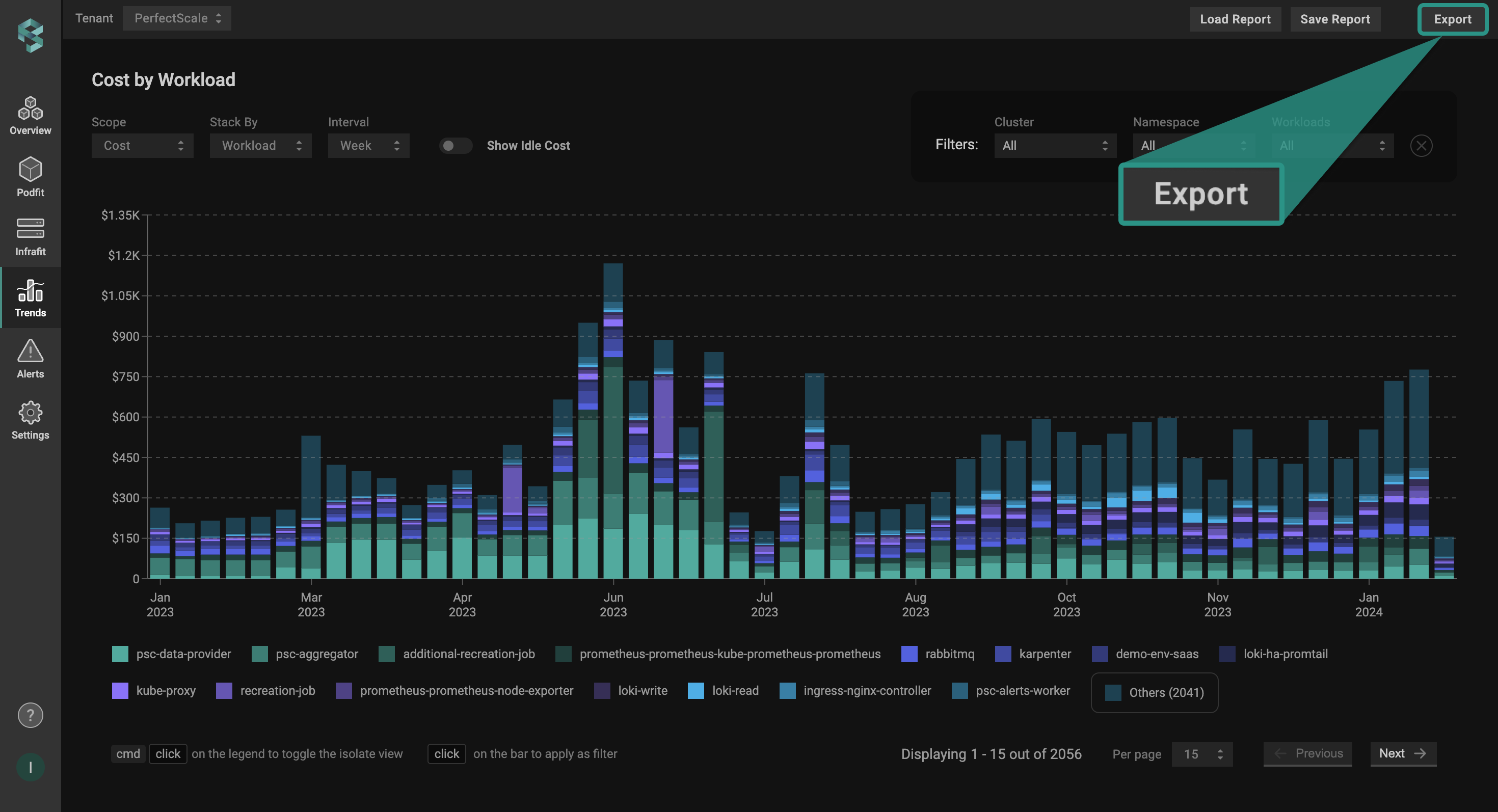
The export feature gives you the ability to export your data into a `.csv` file for seamless analysis and sharing effortlessly. Click the **`Export`** button, and the data will be exported to your local machine in a few seconds.