# Connecting Azure Cost Management

In order to provide PerfectScale with access to your Azure pricing using default authentication with the Azure SDK, the following data should be provided:

`azure_client_id`

`azure_tenant_id`

`azure_client_subscription`

PerfectScale has created a detailed guide to help you access the credentials effortlessly.

## How to get client\_id and tenant\_id

1. Sign in to the [Azure Portal](https://portal.azure.com/).
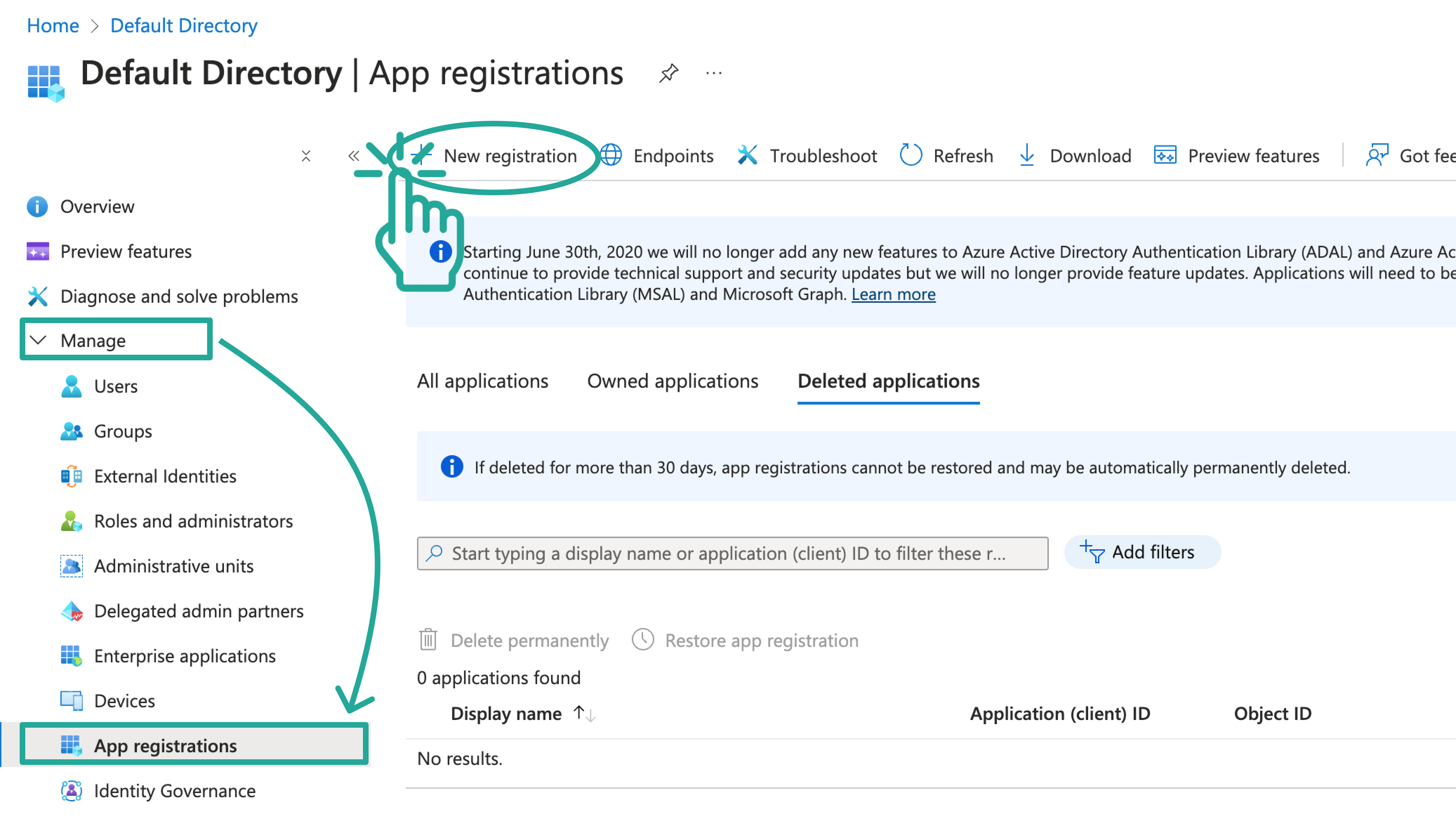
2. In the left-hand menu, navigate to **Microsoft Entra ID**.
3. Under **Manage**, select **App registrations**.
4. Click **+ New registration** at the top.<br>

   <figure><img src="https://content.gitbook.com/content/zCh9aABpk7yLeToPr6vk/blobs/9hzYLD9yibWHJOV2seQR/Group%201000001522.png" alt=""><figcaption><p>New app registration</p></figcaption></figure>
5. Enter a name for your application, for example, MyAppPerfectScale.
6. Choose the supported account type. Typically, a **Single tenant** is used.
7. Click **Register**.<br>

   <figure><img src="https://content.gitbook.com/content/zCh9aABpk7yLeToPr6vk/blobs/KYQpHxFqcOgBhF7z1veW/Frame%20313987%20(2).png" alt=""><figcaption><p>New app registration form</p></figcaption></figure>
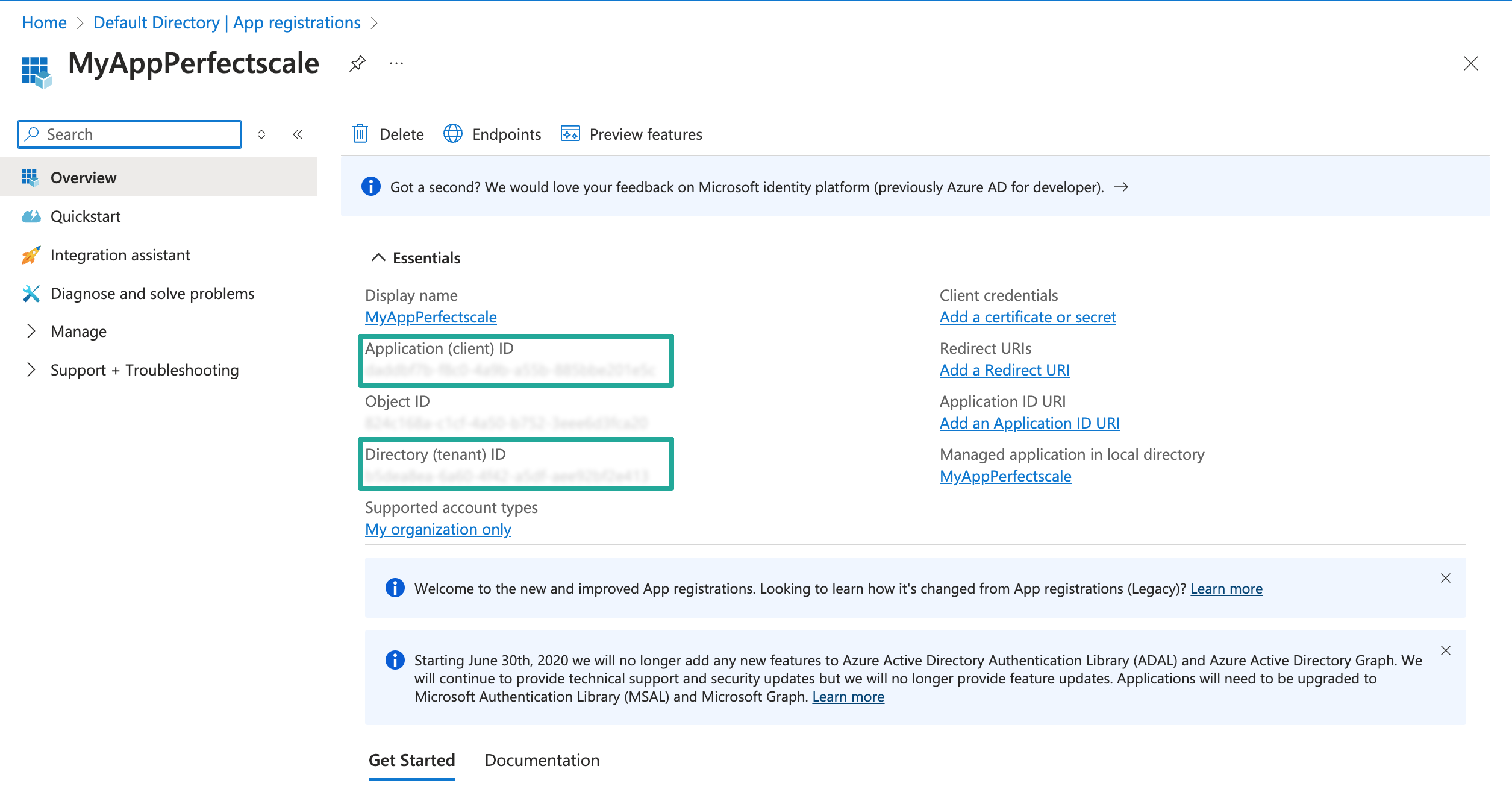
8. After registering, you’ll be redirected to the application overview page.

   1. Copy the **Application (client) ID** – this is your `azure_client_id`.
   2. Copy the **Directory (tenant) ID** – this is your `azure_tenant_id`.

   <br>

   <figure><img src="https://content.gitbook.com/content/zCh9aABpk7yLeToPr6vk/blobs/2p56r6MQoKcE7lndWPNz/Frame%20313989.png" alt=""><figcaption><p>Credentials</p></figcaption></figure>

## How to get client\_subscription

1. In the [Azure Portal](https://portal.azure.com/), navigate to **Subscriptions** in the left-hand menu.
2. Select the subscription you want to use.
3. Copy your **Subscription ID** (`azure_client_subscription`) from the overview page.<br>

   <figure><img src="https://content.gitbook.com/content/zCh9aABpk7yLeToPr6vk/blobs/BHp425SmyfkLp9Wc612R/Frame%20313991%20(1).png" alt=""><figcaption><p>Subscription ID</p></figcaption></figure>

## **How to configure access to Azure without secrets** <a href="#how-to-configure-access-to-azure-without-secrets" id="how-to-configure-access-to-azure-without-secrets"></a>

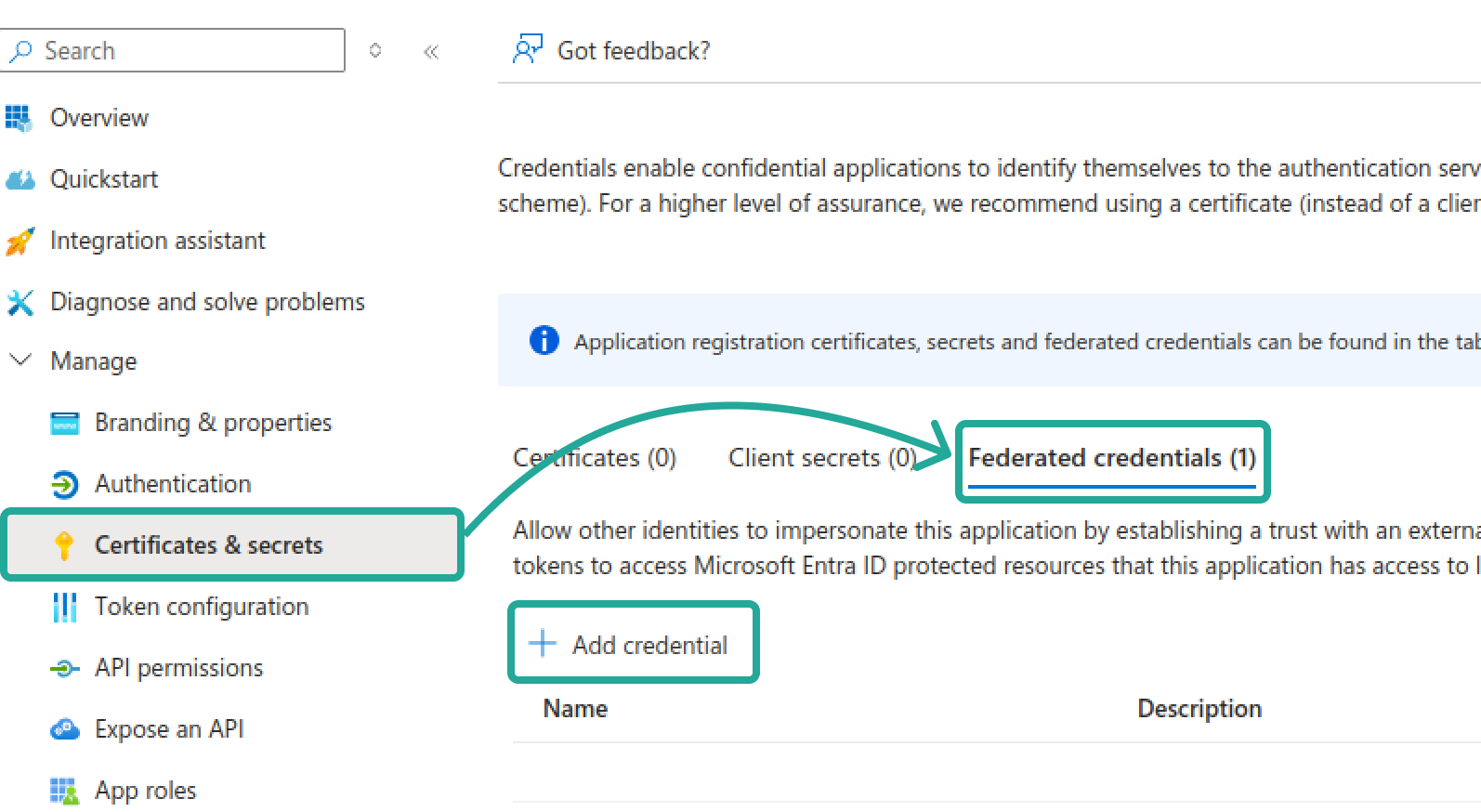
1. In the application’s **Certificates & secrets** section, go to **Federated credentials** and click **+Add credential.**<br>

   <figure><img src="https://3591580169-files.gitbook.io/~/files/v0/b/gitbook-x-prod.appspot.com/o/spaces%2FzCh9aABpk7yLeToPr6vk%2Fuploads%2FcuuaLGMQWgKEbAiYLHrM%2Fimage.png?alt=media&#x26;token=c4851e57-117b-4344-abc5-24e420861277" alt=""><figcaption><p>Add credential</p></figcaption></figure>
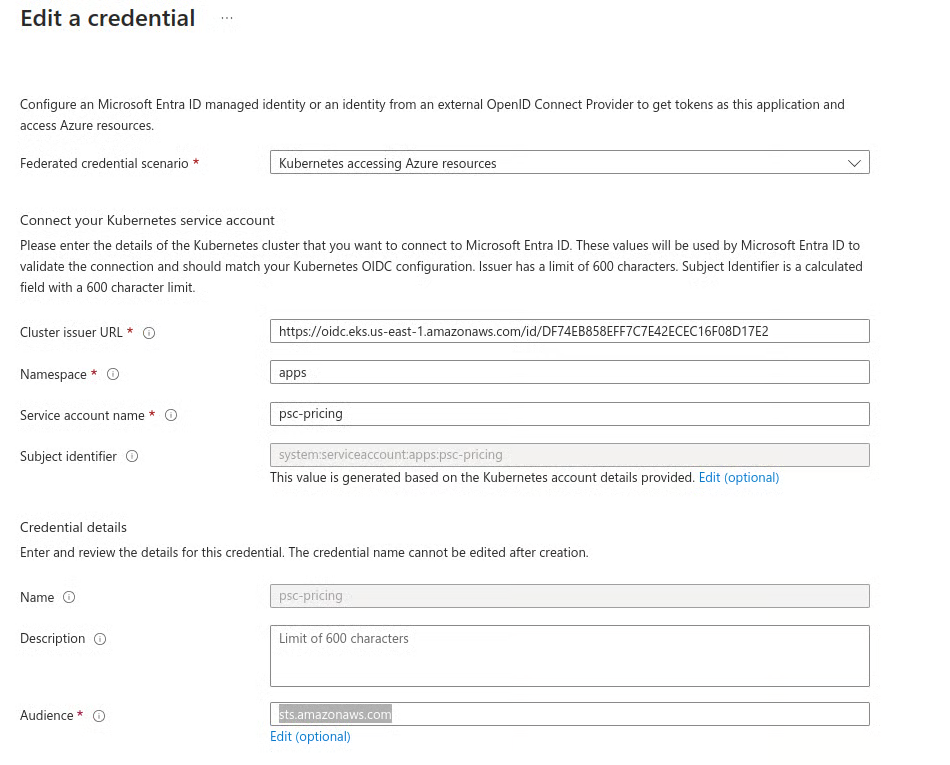
2. Configure the following settings:

   * **Cluster issuer URL**: <https://oidc.eks.eu-central-1.amazonaws.com/id/8D4D23B7DFF25CCB30F2E2178F078829>​
   * **Namespace**: apps
   * **Service account name:** psc-pricing
   * **Name**: *your name*
   * **Description**: *your description*
   * **Audience**: `api://AzureADTokenExchange`

   <figure><img src="https://3591580169-files.gitbook.io/~/files/v0/b/gitbook-x-prod.appspot.com/o/spaces%2FzCh9aABpk7yLeToPr6vk%2Fuploads%2FC4ES8x6lDGXpGo6W5LzU%2Fimage.png?alt=media&#x26;token=4514a6f9-87ad-41fb-a372-8d2835d5fd17" alt=""><figcaption><p>Edit a credential</p></figcaption></figure>

## How to get client\_secret

client\_secret is the secret key that allows the application to authenticate to Azure AD and get an access token to Azure resources. Follow the instructions below to get the credentials.

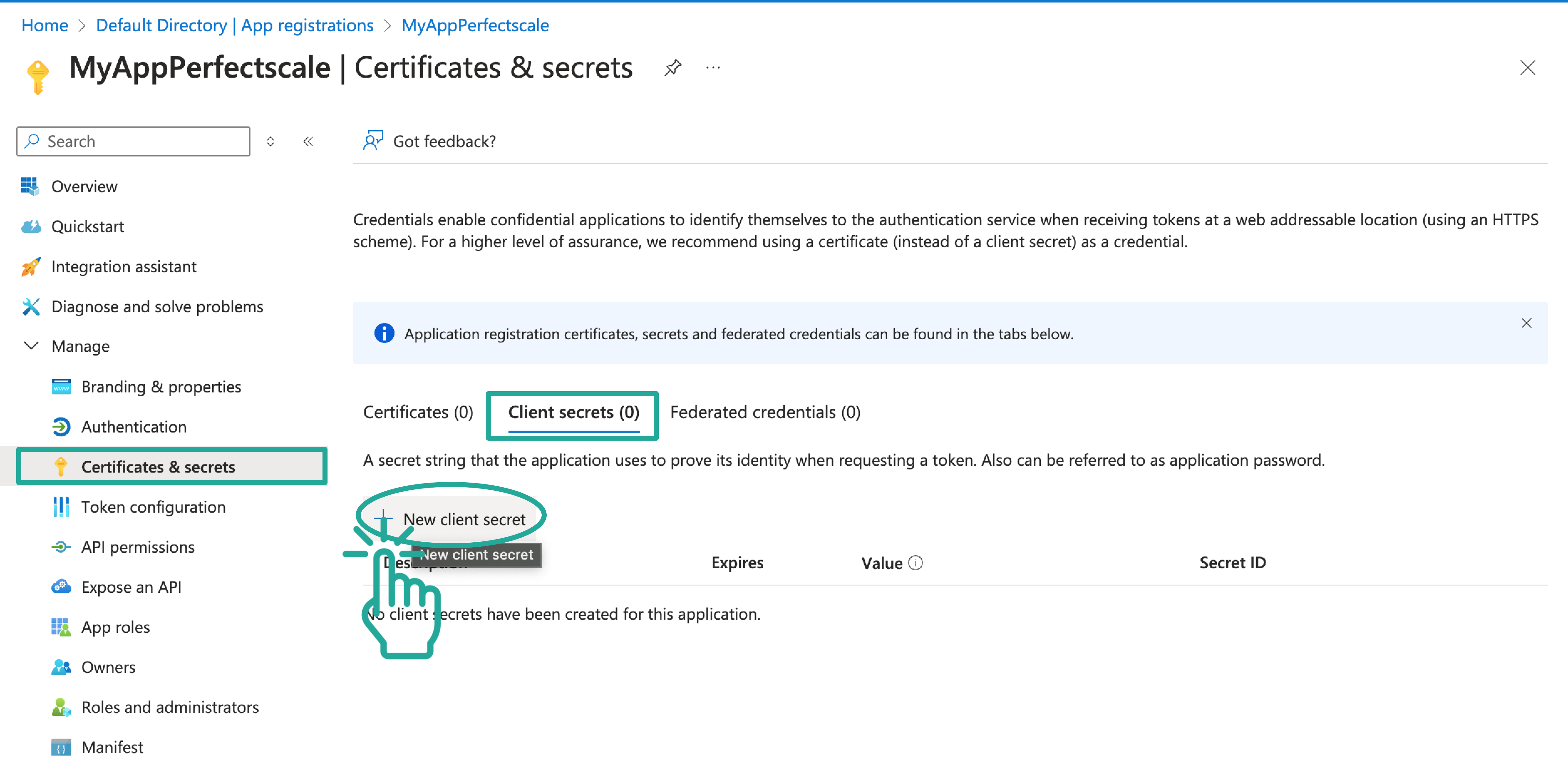
1. In the application’s **Certificates & secrets** section, go to **Client secrets**.
2. Click **+ New client secret**.<br>

   <figure><img src="https://content.gitbook.com/content/zCh9aABpk7yLeToPr6vk/blobs/7eDzuk39aPdh0OmoFNei/Frame%20313988.png" alt=""><figcaption><p>New client secret</p></figcaption></figure>
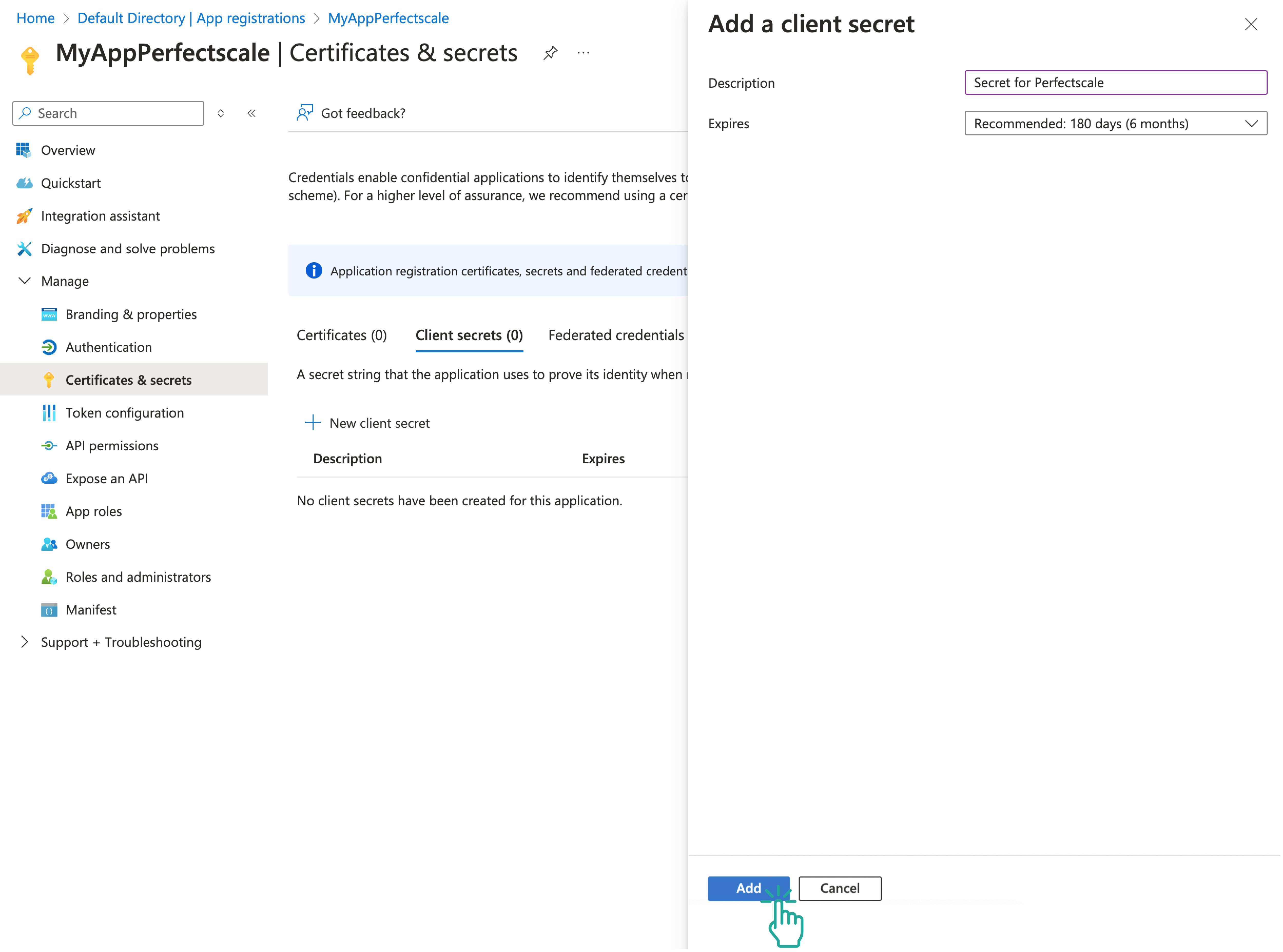
3. Add a description, for example, Secret for PerfectScale, and set an expiry period as needed.
4. Click **Add**.<br>

   <figure><img src="https://content.gitbook.com/content/zCh9aABpk7yLeToPr6vk/blobs/SfKoF4QImVDRusq7RtqS/Group%201000001526.png" alt=""><figcaption><p>Add a client secret</p></figcaption></figure>
5. :bangbang:Copy the **Value** (your azure\_client\_secret) immediately, as it will only be displayed once:bangbang:

## How to grant permissions to your application

{% hint style="info" %}
Ensure you provide PerfectScale with the necessary permissions, as this step is mandatory.
{% endhint %}

1. In the [Azure Portal](https://portal.azure.com/), navigate to **Subscriptions** in the left-hand menu.
2. Select the subscription you want to use.
3. In the left-hand menu, choose **Access Control (IAM)**.<br>

   <figure><img src="https://content.gitbook.com/content/zCh9aABpk7yLeToPr6vk/blobs/fc5HCA8L48fBOAm4QrrR/Group%201000001599.png" alt=""><figcaption><p>Access control</p></figcaption></figure>
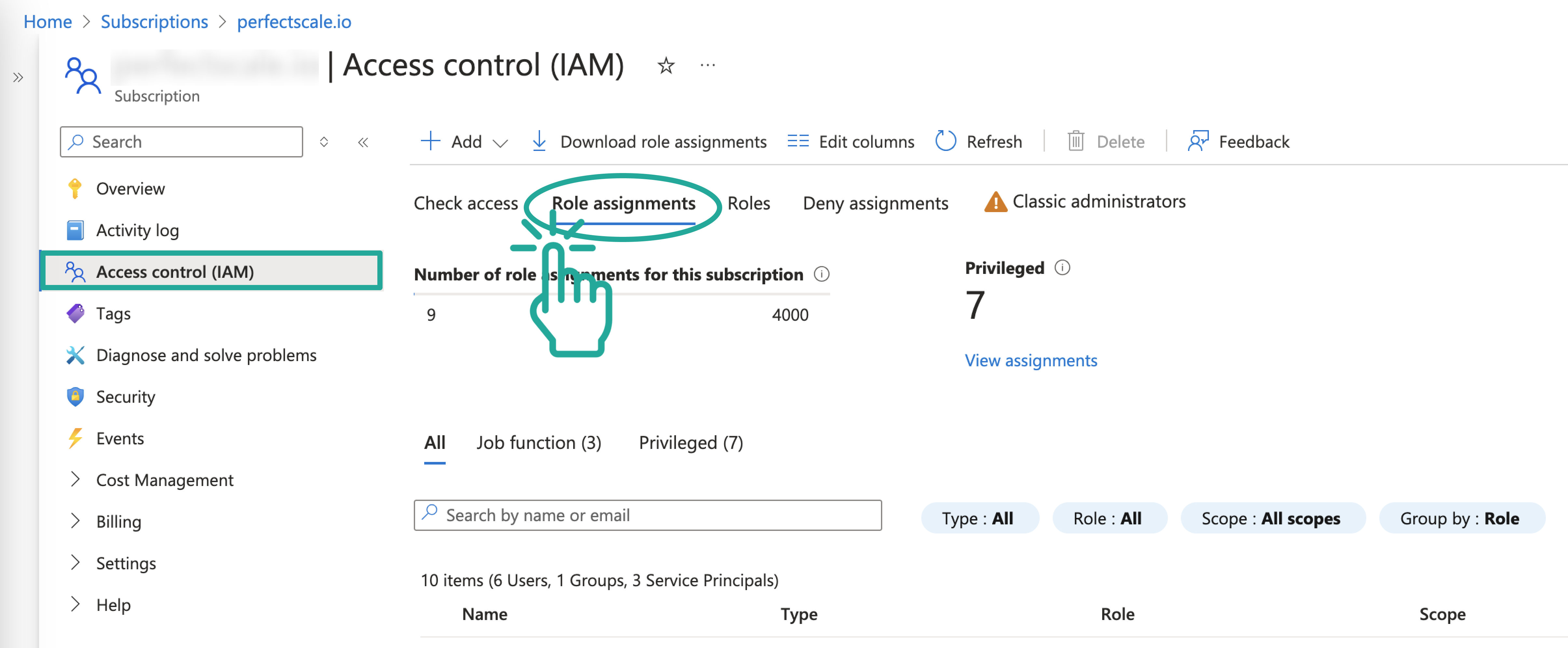
4. Navigate to **Role assignments**.
5. Press **+ Add** and choose **Add role assignment**.<br>

   <figure><img src="https://content.gitbook.com/content/zCh9aABpk7yLeToPr6vk/blobs/sF5SMgg8QePDzypObs5N/Frame%20313998%20(1).png" alt=""><figcaption><p>Add role assignment</p></figcaption></figure>
6. In the **Role** section, select **Reader** role and click **Next**.<br>

   <figure><img src="https://content.gitbook.com/content/zCh9aABpk7yLeToPr6vk/blobs/QCVQT656AtcApqpmPRU0/Frame%20313999%20(1).png" alt=""><figcaption><p>Reader role</p></figcaption></figure>
7. In the **Members** section, click **Select Members** and use the right-hand search menu to find your application (e.g., “MyApp”).<br>

   * You can also search the application using **Object ID**.

   <figure><img src="https://content.gitbook.com/content/zCh9aABpk7yLeToPr6vk/blobs/tXxcdnuTT88h2TZvEx92/Frame%20314000%20(1).png" alt=""><figcaption><p>Application search</p></figcaption></figure>
8. Click **Review + Assign**.

## Configuring Azure pricing integration with Azure profile

Once you have all the credentials needed, you need to create an Azure Profile and apply it to the desired cluster.

### :tools: **How to create** Azure P**rofile**

There are two options for creating a Profile: [from the Settings tab](#from-the-settings-tab) or directly [from the Overview](#from-the-overview-tab).

#### From the **Settings** tab

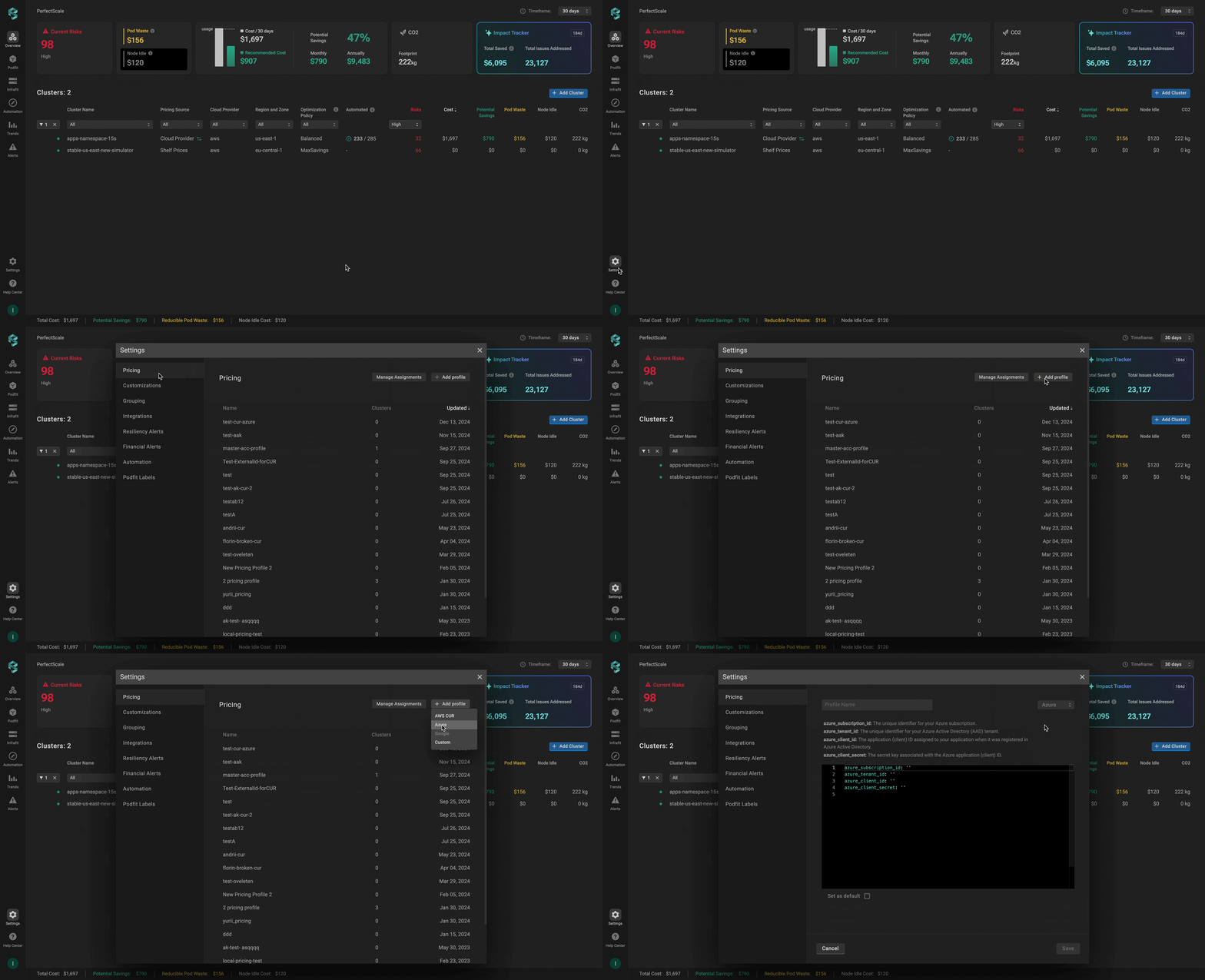
Go to the **`Settings`** tab on the left panel -> select **`Pricing`** -> click the **`+Add Profile`** button -> select **`Azure`** -> name the profile and put the needed values in the relevant fields -> click **`Save`** button.

<figure><img src="https://content.gitbook.com/content/zCh9aABpk7yLeToPr6vk/blobs/3fSpdBfTvdkXvfASVNu0/Azure_settings.gif" alt=""><figcaption><p>Azure profile from the settings </p></figcaption></figure>

#### From the **Overview** tab

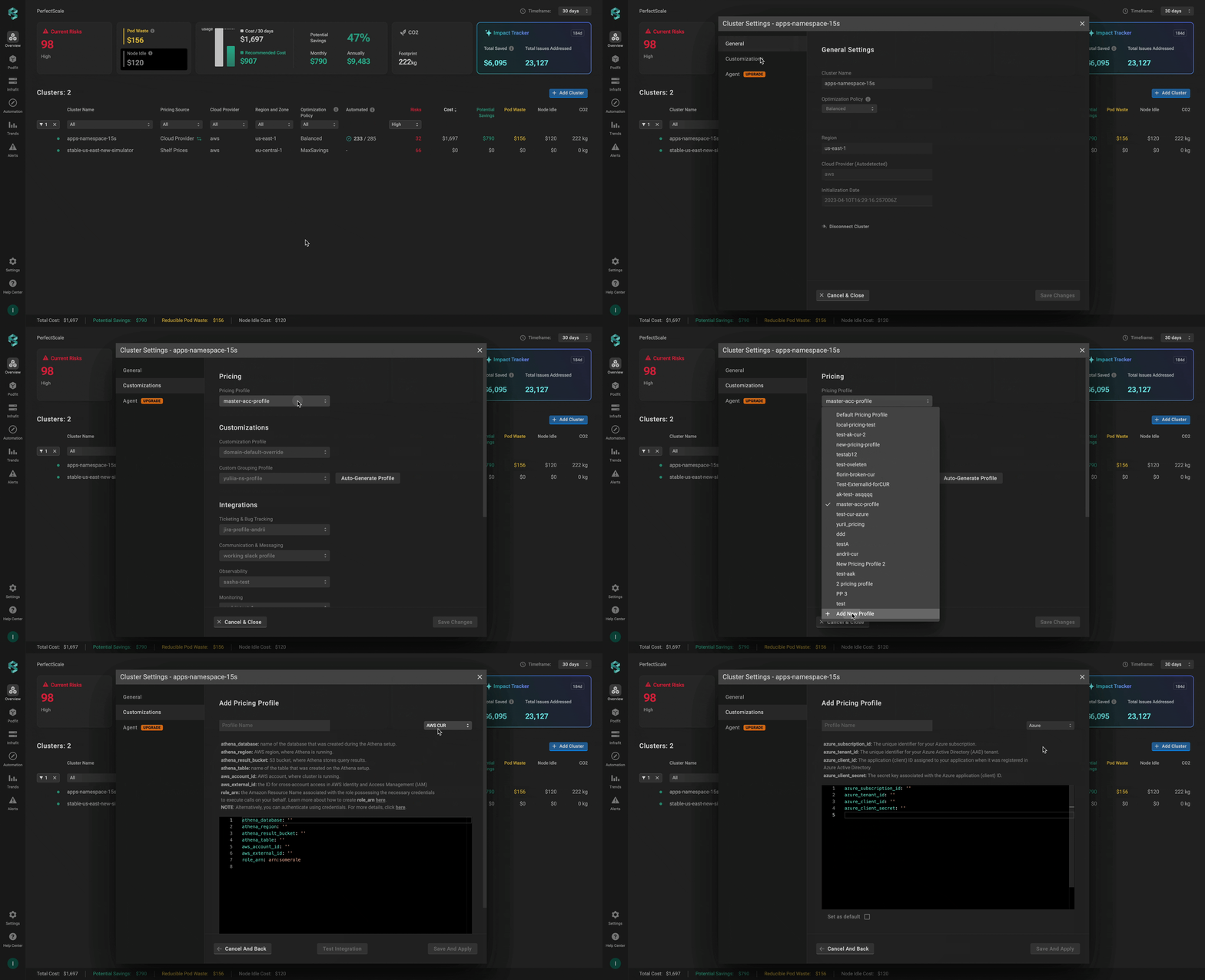
Go to the **`Overview`** tab on the left panel -> find the cluster to which you want to apply the **`Azure Profile`** and click **`gear`** button -> go to **`Customizations`** -> click on **`Add New Profile`** in the **`Pricing Profile`** drop-down list -> select **`Azure`** type ->  name and configure your profile -> click the **`Save And Apply`** button -> click the **`Save Changes`** button.

<figure><img src="https://content.gitbook.com/content/zCh9aABpk7yLeToPr6vk/blobs/x8PngUk3OiU4nvV0XKmy/Azure%20overview.gif" alt=""><figcaption><p>Azure profile from the overview</p></figcaption></figure>

#### **Azure Profile configuration**

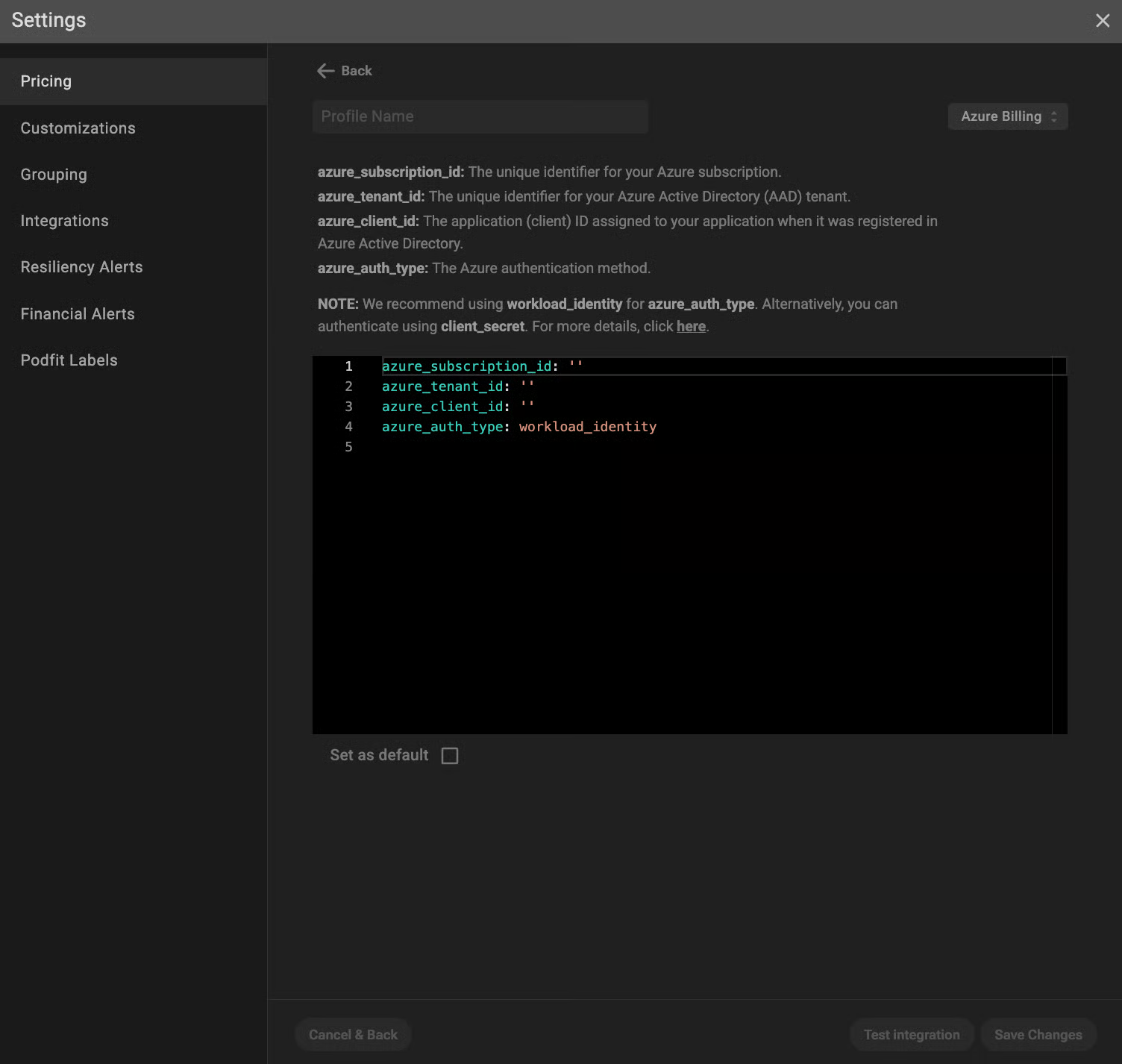
<figure><img src="https://3591580169-files.gitbook.io/~/files/v0/b/gitbook-x-prod.appspot.com/o/spaces%2FzCh9aABpk7yLeToPr6vk%2Fuploads%2FpvABOEUjGza0gJmB0DWX%2Fimage.png?alt=media&#x26;token=0a31348e-c10b-4b8b-b97d-bbee913f0236" alt=""><figcaption><p>Azure profile configuration</p></figcaption></figure>

`azure_subscription_id`: The unique identifier assigned to your Azure subscription that allows PerfectScale to interact with Azure resources within your subscription. [Click here to learn how to get it](#how-to-get-client_subscription).

`azure_tenant_id` (Directory (tenant) ID): The unique identifier of the organization in Azure Active Directory that allows Azure to manage authentication within the specific directory. [Click here to learn how to get it.](#how-to-get-client_id-and-tenant_id)

`azure_client_id` (Application (client) ID): The unique identifier assigned to your application that allows it to access Azure resources. [Click here to learn how to get it.](#how-to-get-client_id-and-tenant_id)

`azure_auth_type:` The Azure authentication method . By default, PerfectScale specifies `workload_identity` .

{% hint style="info" %}
We recommend using `workload_identity` for `azure_auth_type`. Alternatively, you can authenticate using `client_secret`, but you'll also need to specify `azure_client_secret`. [Click here to learn how to get it.](#how-to-get-client_secret)
{% endhint %}

#### Global discount for on-demand nodes

If you have a global discount for on-demand nodes (from a cloud provider or cloud reseller) that isn’t included in your custom cloud billing, you can apply it in addition to your Azure Cost Management integration.&#x20;

Add the following parameters to your Azure Billing profile to enable applying the globalDiscount on top of your cloud billing integration:

`global_discount` (optional block):

* `percentage` - the percentage (0–100, floats supported) of the discount to apply on top of standard on-demand node pricing. This field is required when  `global_discount` exists.
* `start_date` (optional) - the effective start date for applying the `global_discount`. If this field is empty, it defaults to today.

{% hint style="info" %}
If you change the `percentage` or `start_date`, only newly generated [Trends report](https://docs.perfectscale.io/2.0-self-hosted-or-perfectscale-documentation/visibility-and-optimization/trends-monitoring) will reflect the update. Historical reports will not update automatically. Contact <support@perfectscale.io> if you need them recalculated.
{% endhint %}

The complete configuration might look like the following **example**:

```yaml
global_discount:
  percentage: 15
  start_date: 2025-12-31
azure_auth_type: workload_identity
azure_client_id: ata4ed50-0d03-4752-g6r7-b4bbc5h32e8u
azure_subscription_id: df2d6148-6bdc-4a65-a0b0-3fa54678bb04
azure_tenant_id: c8aed8ae-6a60-4f42-a6bh-aee92bf2e432
```

#### Azure configuration verification

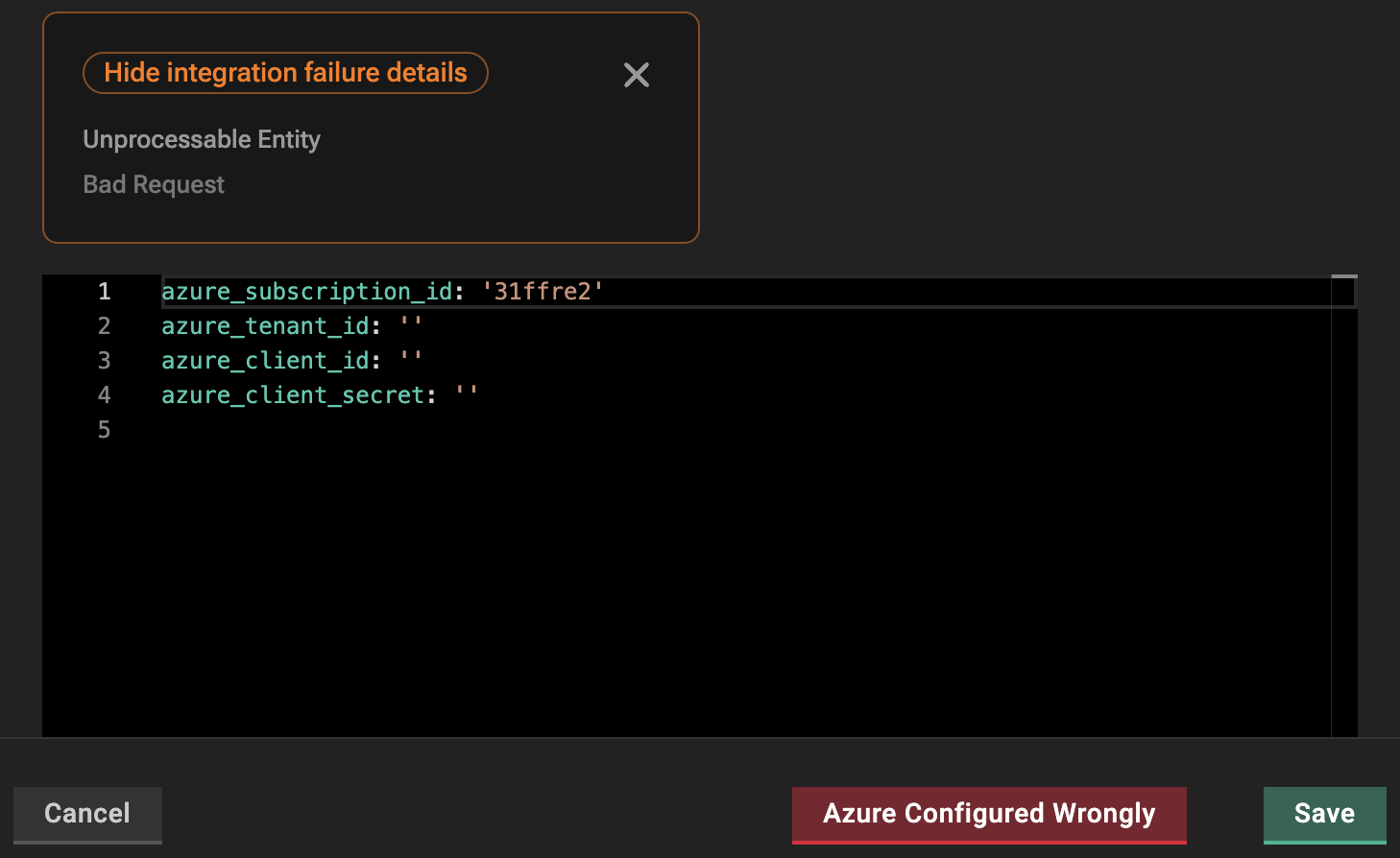
To verify if Azure Cost Management is configured properly, click the **Test Integration** button.&#x20;

:green\_circle: When the configuration is correct, you will see the message **Azure Configured Correctly**.&#x20;

:red\_circle: In case of **Azure Configured Wrongly** response, check the **`Show integration failure details`** dropdown and fix the displayed issues.<br>

<figure><img src="https://content.gitbook.com/content/zCh9aABpk7yLeToPr6vk/blobs/3obYAPU7f3CkDhErVXGz/image.png" alt="" width="563"><figcaption><p>Wrong Azure profile configuration</p></figcaption></figure>

### :tools: **How to apply Azure Profile**

#### Apply to a single cluster

To apply **`Azure Profile`** to the cluster, go to the **`Overview`** tab on the left-hand panel -> find the cluster to which you want to apply the  **`Azure Profile`** and click **`gear dots`** button -> go to **`Customizations`** -> select the needed profile in the **`Pricing Profile`** drop-down list.&#x20;

<figure><img src="https://content.gitbook.com/content/zCh9aABpk7yLeToPr6vk/blobs/hlHlFOp68lvAaxMBkiWe/cur_single%20(1).gif" alt=""><figcaption><p>Applying a single Azure profile to the cluster</p></figcaption></figure>

#### Apply to multiple clusters

To apply the profile to **multiple clusters** from a single view, use the **`Manage Assignments`** feature.&#x20;

Go to the **`Settings`** tab on the left-hand panel -> select the **`Pricing`** -> click the **`Manage Assignments`** button -> apply the profile for the needed clusters -> click the **`Save Changes`** button.

<figure><img src="https://content.gitbook.com/content/zCh9aABpk7yLeToPr6vk/blobs/Bu2Z3JieqiKGABixW8yh/cur_multiple%20(1).gif" alt=""><figcaption><p>Applying multiple Azure profiles to the cluster</p></figcaption></figure>

## Configuring Azure pricing integration with CRD

To configure Azure pricing using a Custom Resource Definition (CRD), you’ll need to define and apply a Custom Resource (CR) that specifies your unique billing conditions. This approach allows you to manage accurate pricing directly through Kubernetes manifests.&#x20;

{% hint style="warning" %}
The Custom Resource (CR) must be created in the `perfectscale` namespace.
{% endhint %}

### Setup instructions

1. Set up Azure billing export in your subscription.
2. Create an Azure AD application and service principal.
3. Grant the application the [necessary permissions](#how-to-grant-permissions-to-your-application) to access billing data.
4. Generate a [client secret](#how-to-get-client_secret) for the application (if using client\_secret authentication).
5. Copy the [client ID](#how-to-get-client_id-and-tenant_id), [tenant ID](#how-to-get-client_id-and-tenant_id), [subscription ID](#how-to-get-client_subscription), and [client secret](#how-to-get-client_secret) to the configuration below.

#### Recommended CR configuration

We recommend configuring a CR using `workload_identity` for `azure_auth_type`.&#x20;

Configure the CR:

```yaml
apiVersion: perfectscale.io/v1
kind: ClusterSettings
metadata:
  name: cluster-settings-main
  namespace: perfectscale
spec:
  profiles:
    pricing:
      - type: azure_billing
        name: azure-billing-export
        assigned: true
        value:
          global_discount:
            percentage: 7.5
            start_date: 2025-12-31
          azure_auth_type: workload_identity
          azure_client_id: "your-azure-client-id-here"
          azure_subscription_id: "your-azure-subscription-id-here"
          azure_tenant_id: "your-azure-tenant-id-here"
```

**⚙️ CR parameters:**

| Parameter                              | Description                                                                                                                                                                                                                                                                          |
| -------------------------------------- | ------------------------------------------------------------------------------------------------------------------------------------------------------------------------------------------------------------------------------------------------------------------------------------ |
| **`global_discount`** (optional block) | The discount to apply on top of standard on-demand node pricing. `percentage` - the percentage (0–100, floats supported) of the discount. This field is required when global\_discount exists. `start_date` (optional) - the effective start date for applying the global\_discount. |
| **`azure_auth_type`**                  | The Azure authentication method.                                                                                                                                                                                                                                                     |
| **`azure_client_id`**                  | The application (client) ID assigned to your application when it was registered in Azure Active Directory.                                                                                                                                                                           |
| **`azure_subscription_id`**            | The unique identifier for your Azure subscription.                                                                                                                                                                                                                                   |
| **`azure_tenant_id`**                  | The unique identifier for your Azure Active Directory (AAD) tenant.                                                                                                                                                                                                                  |

{% hint style="warning" %}
If a `global_discount` percentage is provided without a `start_date` in the CRD profile, we won’t default to today’s date as we do for profiles configured in the UI, and the discount will not be applied. The pricing profile appears broken in the UI.
{% endhint %}

#### Alternative CR configuration (not recommended)

Alternatively, you can configure a CR using the `client_secret`.

Apply the **Azure Client Secret** first (only needed for authentication with `client_secret`):

```yaml
apiVersion: v1
kind: Secret
metadata:
  name: azure-credentials
  namespace: perfectscale
type: Opaque
stringData:
  client-secret: "your-azure-client-secret-here"
```

{% hint style="info" %}
Ensure that the secret is created in the same namespace as the exporter -  `perfectscale`.
{% endhint %}

Configure the CR:

```yaml
piVersion: perfectscale.io/v1
kind: ClusterSettings
metadata:
  name: cluster-settings-main
  namespace: perfectscale
spec:
  profiles:
    pricing:
      - type: azure_billing
        name: azure-billing-export
        assigned: true
        value:
          global_discount:
            percentage: 7.5
            start_date: 2025-12-31
          azure_auth_type: client_secret
          azure_client_id: "your-azure-client-id-here"
          azure_client_secret_from:
            secretKeyRef:
              name: azure-credentials
              key: client-secret
          azure_subscription_id: "your-azure-subscription-id-here"
          azure_tenant_id: "your-azure-tenant-id-here"
```

#### ⚙️ **CR parameters:**

<table><thead><tr><th width="251.94921875">Parameter</th><th>Description</th></tr></thead><tbody><tr><td><strong><code>global_discount</code></strong> (optional block)</td><td>The discount to apply on top of standard on-demand node pricing.<br><code>percentage</code> - the percentage (0–100, floats supported) of the discount. This field is required when  global_discount exists.<br><code>start_date</code> (optional) - the effective start date for applying the global_discount.</td></tr><tr><td><strong><code>azure_auth_type</code></strong></td><td>The Azure authentication method.</td></tr><tr><td><strong><code>azure_client_id</code></strong></td><td>The application (client) ID assigned to your application when it was registered in Azure Active Directory.</td></tr><tr><td><strong><code>azure_subscription_id</code></strong></td><td>The unique identifier for your Azure subscription.</td></tr><tr><td><strong><code>azure_tenant_id</code></strong></td><td>The unique identifier for your Azure Active Directory (AAD) tenant.</td></tr><tr><td><strong><code>azure_client_secret_from</code></strong></td><td>The client secret for authentication (when using client_secret authentication type).</td></tr></tbody></table>

{% hint style="warning" %}
If a `global_discount` percentage is provided without a `start_date` in the CRD profile, we won’t default to today’s date as we do for profiles configured in the UI, and the discount will not be applied. The pricing profile appears broken in the UI.
{% endhint %}