# Connecting AWS CUR

PerfectScale has created a detailed guide to help you effortlessly enable AWS CUR.

In order to start using AWS CUR, follow the steps provided below:

1. [Create Cost and Usage Reports](#to-create-cost-and-usage-reports)
2. [Set up Amazon Athena](#to-create-cost-and-usage-reports-1)
3. [Run Amazon Athena queries](#to-create-cost-and-usage-reports-1)

## Create Cost and Usage Reports <a href="#to-create-cost-and-usage-reports" id="to-create-cost-and-usage-reports"></a>

1. Sign in to the [Billing and Cost Management console](http://console.aws.amazon.com/billing).
2. Go to `Data Exports`in the navigation pane and choose `Create`.
3. In the **Export type** choose `Legacy CUR export.`
4. Enter a `Report name` for your report (for example: `cur-perfectscale-example`).
5. Select `Refresh automatically` in the **Export Content** / **Data refresh settings**.
6. In the **Data export delivery options** for **Report data time granularity** choose one of the following options:&#x20;

   * `Hourly` to aggregate the line items in the report by hour.
   * `Daily` to aggregate the line items in the report by day.
   * `Monthly` to aggregate the line items in the report by month.

   <div data-gb-custom-block data-tag="hint" data-style="info" class="hint hint-info"><p>To get more detailed data, PerfectScale recommends aggregating the line items in the report <code>Hourly</code>.</p></div>
7. For **Report data integration** choose Amazon Athena.
8. In the **Data export storage settings**, configure the section following one of these steps:
   * Select the existing bucket (if you already have S3 bucket).
   * Select **Create a bucket**, enter a bucket name, and choose the Region for the new bucket.
9. For the **S3 path prefix**, enter the report path prefix you want to prepend to the name of your report.
10. Add **Tags** if needed.
11. Review the settings for your report and click `Create report`.

{% hint style="info" %}
It can take up to 24 hours for AWS to deliver your first report to your Amazon S3 bucket.&#x20;
{% endhint %}

### CUR master account support <a href="#to-create-cost-and-usage-reports" id="to-create-cost-and-usage-reports"></a>

If your AWS account is a part of an AWS Organization or if you manage multiple AWS accounts within the same organization, you can centralize billing data using the management (primary) account of the AWS Organization. This setup allows you to configure AWS CUR only once and get a detailed view of costs and usage across all accounts, enabling better cost management across your entire organization.

When CUR is enabled at the organization level, it automatically collects cost and usage data from all member accounts, simplifying expense tracking and management across multiple accounts in a centralized way. This setup allows you to utilize a single AWS CUR for all pricing profiles, requiring only a change in the region where your Kubernetes cluster is installed.

{% hint style="info" %}
If you are setting up CUR in the master account, ensure that all subsequent configurations (CUR, Athena, and IAM) are also completed in this account.
{% endhint %}

## Set up Amazon Athena <a href="#to-create-cost-and-usage-reports" id="to-create-cost-and-usage-reports"></a>

Set up Amazon Athena using AWS CloudFormation templates.

{% hint style="info" %}
AWS CloudFormation doesn't support cross-region resources. In order to use an AWS CloudFormation template, all the resources should be created in the same AWS Region. The Region must support the following services:

* AWS Lambda
* Amazon Simple Storage Service (Amazon S3)
* AWS Glue
* Amazon Athena
  {% endhint %}

1. Go to the [Amazon S3 console](https://console.aws.amazon.com/s3/).
2. In the S3 bucket that you opted to receive the AWS CUR report (cur-perfectscale-example) in the folder **report path prefix**(your-report-path-prefix)**/report name** (your-report-name) you will find template file [**crawler-cfn.yml**](https://s3.console.aws.amazon.com/s3/object/cur-perfectscale-example?region=eu-central-1\&bucketType=general\&prefix=example/cur-perfectscale-example/crawler-cfn.yml)**.**&#x20;

   <div data-gb-custom-block data-tag="hint" data-style="info" class="hint hint-info"><p>AWS  generate automatically template file and it can take up to 24h to generate from creating CUR</p></div>
3. Go to **Object actions**, and click `Download as`.
4. Navigate to the [AWS CloudFormation console](https://console.aws.amazon.com/cloudformation/).
5. In case of using AWS CloudFormation for the first time, select `Create New Stack`  and click `With new resources (standard)` in the dropdown list. <br>

   <figure><img src="https://content.gitbook.com/content/zCh9aABpk7yLeToPr6vk/blobs/9Uy66uJLN7CXRhnZ5fM4/Group%205385%20(1).png" alt=""><figcaption><p>Create new stack</p></figcaption></figure>

   Otherwise - `Create Stack`.
6. Select `Choose an existing template` in **Prerequisite - Prepare template**.
7. Select `Upload a template file` in **Specify template**.
8. After clicking `Choose file` select the downloaded `.yml` template, and click `Open`.
9. As a next step, enter the **Stack name** for your template, name `cur-perfectscale-example`, add tags, if needed, and go to the next page.
10. Tick the check box at the bottom of the page and click `Submit`. \
    :white\_check\_mark: **I acknowledge that AWS CloudFormation might create IAM resources**<br>

    The template creates the following resources:

    * Three IAM roles
    * An AWS Glue database
    * An AWS Glue crawler
    * Two Lambda functions
    * An Amazon S3 notification
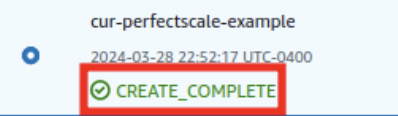
11. To ensure the template is configured properly, check the `status` in `stack info`.<br>

    <figure><img src="https://content.gitbook.com/content/zCh9aABpk7yLeToPr6vk/blobs/ndjlW05Q0vMzjWoifzI9/image.png" alt="" width="199"><figcaption><p>Template status</p></figcaption></figure>

## Run Amazon Athena queries <a href="#running-amazon-athena-queries" id="running-amazon-athena-queries"></a>

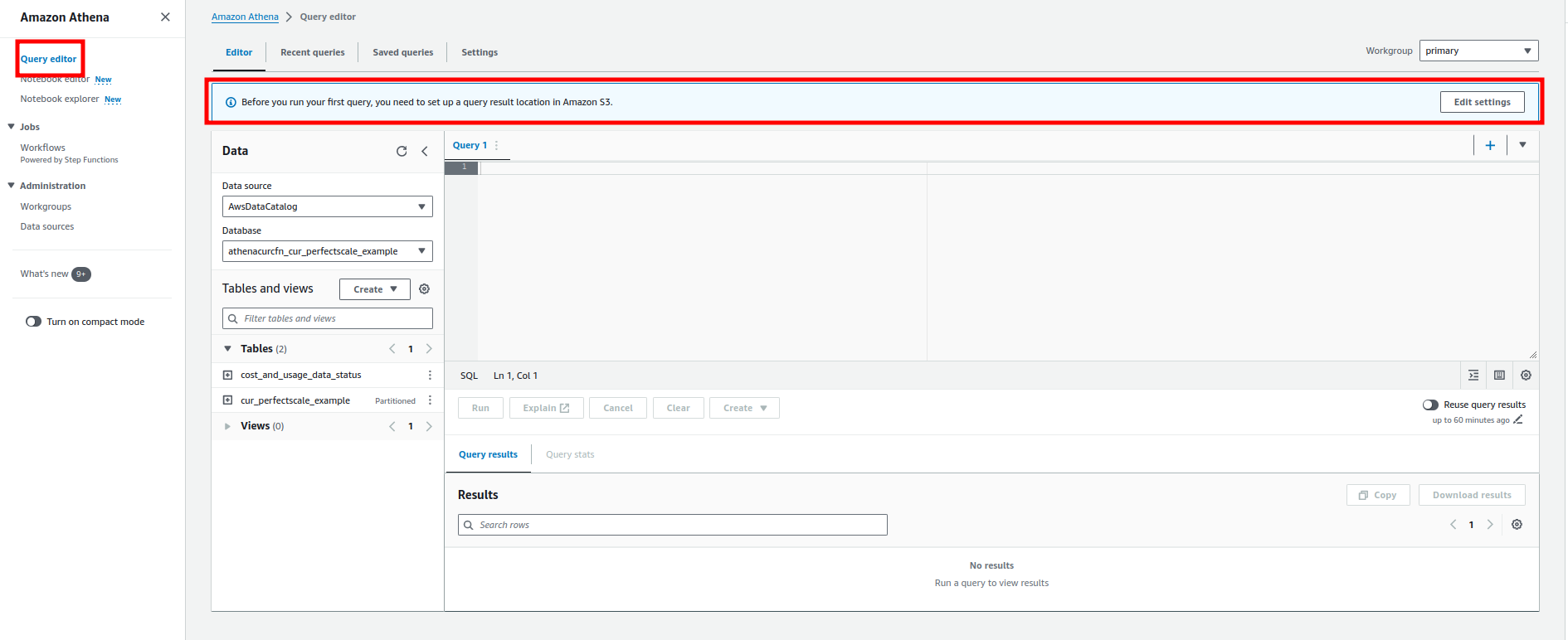
1. Go to the Amazon **Athena service** and select [**Query editor**](https://eu-central-1.console.aws.amazon.com/athena/home?region=eu-central-1#/query-editor).
2. Click `Edit settings` on the top right corner<br>

   <figure><img src="https://content.gitbook.com/content/zCh9aABpk7yLeToPr6vk/blobs/PaY1wBequ91b58xBlMBB/image.png" alt="" width="563"><figcaption><p>Amazon Athena settings1</p></figcaption></figure>
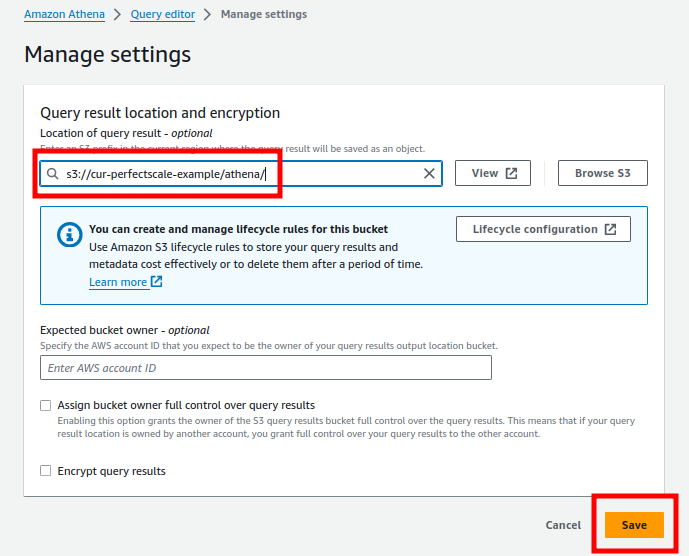
3. In the `Query result location and encryption` write down the path to the created for the CUR bucket, or use another bucket (for example, `s3://cur-perfectscale-example/`**`athena`**`/` ) and click `Save`.<br>

   <figure><img src="https://content.gitbook.com/content/zCh9aABpk7yLeToPr6vk/blobs/tXPBQ3dVuMoUboYsVuqo/image.png" alt="" width="517"><figcaption><p>Amazon Athena settings2</p></figcaption></figure>
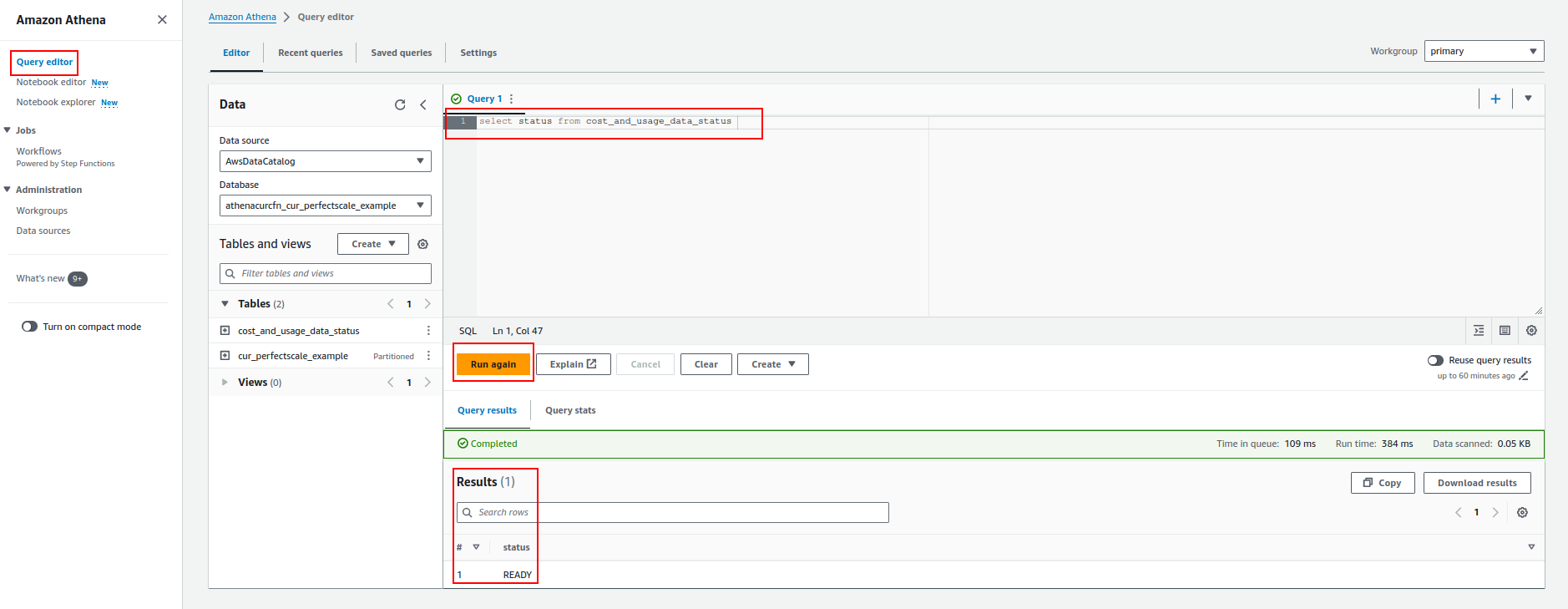
4. Return to the [**Query editor**](https://eu-central-1.console.aws.amazon.com/athena/home?region=eu-central-1#/query-editor) and run the following query to ensure the configuration works properly:\
   `select status from cost_and_usage_data_status`

   <figure><img src="https://content.gitbook.com/content/zCh9aABpk7yLeToPr6vk/blobs/oIkx54S3jRg2lX6uEhZW/image.png" alt="" width="563"><figcaption><p>Amazon Athena settings3</p></figcaption></figure>

## Configure the authentication method <a href="#create-iam-user-for-cur-integration" id="create-iam-user-for-cur-integration"></a>

There are two ways to grant us access to your CUR:

1. Delegate access across AWS accounts using IAM roles (**recommended**).
2. Create a separate IAM user.

### How to delegate access with IAM roles <a href="#create-iam-user-for-cur-integration" id="create-iam-user-for-cur-integration"></a>

1. Go to **AWS IAM** service
2. Chose `Policy` and click `Create Policy`.
3. Add the following JSON permissions to the policy.&#x20;

{% hint style="info" %}
Replace **{{S3\_BUCKET\_NAME}} line 62** and **{{ATHENA\_DATABASE\_NAME}} line 12,44,45** with your values in the JSON policy below, where **ATHENA\_DATABASE\_NAME** is the name of your Athena database created by the CloudFront script.&#x20;

\
**Example:**

![](https://3591580169-files.gitbook.io/~/files/v0/b/gitbook-x-prod.appspot.com/o/spaces%2FzCh9aABpk7yLeToPr6vk%2Fuploads%2FPiPzlq0QEzVfsp02AKjh%2Fimage.png?alt=media\&token=c29df91c-0473-4955-9828-4eaa66fbaa79)
{% endhint %}

{% hint style="warning" %}
:bulb: **NOTE:** There is no “-“ in the name of Athena. AWS replaces all “-“with “\_“.
{% endhint %}

<details>

<summary>Add JSON permissions to the policy</summary>

```json
{
    "Version": "2012-10-17",
    "Statement": [
        {
            "Sid": "BaseAthenaPermissions",
            "Effect": "Allow",
            "Action": [
                "athena:*"
            ],
            "Resource": [
                "arn:aws:athena:*:*:workgroup/primary",
                "arn:aws:athena:*:*:datacatalog/{{ATHENA_DATABASE_NAME}}"
            ]
        },
        {
            "Sid": "BaseGluePermissions",
            "Effect": "Allow",
            "Action": [
                "glue:GetDatabase",
                "glue:GetDatabases",
                "glue:GetTable",
                "glue:GetTables",
                "glue:GetPartition",
                "glue:GetPartitions",
                "glue:BatchGetPartition",
                "glue:StartColumnStatisticsTaskRun",
                "glue:GetColumnStatisticsTaskRun",
                "glue:GetColumnStatisticsTaskRuns"
            ],
            "Resource": [
                "arn:aws:glue:*:*:catalog",
                "arn:aws:glue:*:*:database/{{ATHENA_DATABASE_NAME}}",
                "arn:aws:glue:*:*:table/{{ATHENA_DATABASE_NAME}}/*"
            ]
        },
        {
            "Sid": "BaseQueryResultsPermissions",
            "Effect": "Allow",
            "Action": [
                "s3:GetBucketLocation",
                "s3:GetObject",
                "s3:ListBucket",
                "s3:ListBucketMultipartUploads",
                "s3:ListMultipartUploadParts",
                "s3:AbortMultipartUpload",
                "s3:PutObject",
                "s3:PutBucketPublicAccessBlock"
            ],
            "Resource": [
                "arn:aws:s3:::{{S3_BUCKET_NAME}}"
            "Effect": "Allow",
            "Action": [
                "s3:GetBucketLocation",
                "s3:GetObject",
                "s3:ListBucket",
                "s3:ListBucketMultipartUploads",
                "s3:ListMultipartUploadParts",
                "s3:AbortMultipartUpload",
                "s3:PutObject",
                "s3:PutBucketPublicAccessBlock"
            ],
            "Resource": [
                "arn:aws:s3:::{{S3_BUCKET_NAME}}",
                "arn:aws:s3:::{{S3_BUCKET_NAME}}/*"
            ]
        },
        {
            "Sid": "BaseS3BucketPermissions",
            "Effect": "Allow",
            "Action": [
                "s3:ListBucket",
                "s3:GetBucketLocation",
                "s3:ListAllMyBuckets"
            ],
            "Resource": [
                "*"
            ]
        },
        {
            "Sid": "BasePricingPermissions",
            "Effect": "Allow",
            "Action": [
                "pricing:GetProducts"
            ],
            "Resource": [
                "*"
            ]
        }
    ]
}
```

</details>

4. Choose `Roles` and then choose to `Create a Role` in the navigation pane.
5. Choose the `An AWS account` role type.
6. Select `Another AWS account`.
7. For `Account ID`, enter **888061904880**.
8. In the Options, choose `Require external ID`  and write down your **External ID**&#x20;

   <div data-gb-custom-block data-tag="hint" data-style="info" class="hint hint-info"><p><strong>External ID</strong> is a unique, user-defined string used when setting up cross-account access in AWS Identity and Access Management (IAM). This additional security measure ensures that only trusted third-party entities can assume a specific role.</p><p>The external ID can be any string you define (a combination of random numbers, letters, or both).</p><p><strong>Examples</strong>: <br>YourCompanyName-Partner-2024-UniqueString <br>3JdpNfwvkpw4rs1sGsdrF0rM1R2<br>f47ac10b-58cc-4372-a567-0e02b2c3d479</p></div>
9. Choose `Next: Permissions` to set the permissions associated with the role.
10. Select the check box next to the policy you created before.
11. Name the user and click `Next`.
12. **(Optional)** Add description and metadata to the role by attaching tags as key-value pairs (you may need it for more information about using tags in IAM).
13. After reviewing the role, choose `Create role`.
14. You should now obtain the role's Amazon Resource Name (ARN), a unique identifier for the role you need to add to the PerfectScale [AWS CUR Profile](#aws-cur-pricing-profile-configuration).\
    **Example**: *arn:aws:iam::989068116150:role/access-perfectscale-account-to-cur*).

### How to create IAM user for CUR integration <a href="#create-iam-user-for-cur-integration" id="create-iam-user-for-cur-integration"></a>

1. Go to **AWS IAM** service.
2. Go to `Policy` and click `Create Policy`.
3. Add the following JSON permissions to the policy and move to the next step.

{% hint style="info" %}
Replace **{{S3\_BUCKET\_NAME}} line 62** and **{{ATHENA\_DATABASE\_NAME}} line 12,44,45** with your values in the JSON policy below, where **ATHENA\_DATABASE\_NAME** is the name of your Athena database created by the CloudFront script.&#x20;

\
**Example:**

![](https://3591580169-files.gitbook.io/~/files/v0/b/gitbook-x-prod.appspot.com/o/spaces%2FzCh9aABpk7yLeToPr6vk%2Fuploads%2F5kKmuCYQ4r1vMlzej5yB%2Fimage.png?alt=media\&token=04351cb5-2e2d-4237-a480-6dfb399345c2)
{% endhint %}

{% hint style="info" %}
:bulb: **NOTE:** There is no “-“ in the name of Athena. AWS replaces all “-“with “\_“.
{% endhint %}

<details>

<summary>Add JSON permissions to the policy</summary>

```json
{
    "Version": "2012-10-17",
    "Statement": [
        {
            "Sid": "BaseAthenaPermissions",
            "Effect": "Allow",
            "Action": [
                "athena:*"
            ],
            "Resource": [
                "arn:aws:athena:*:*:workgroup/primary",
                "arn:aws:athena:*:*:datacatalog/{{ATHENA_DATABASE_NAME}}"
            ]
        },
        {
            "Sid": "BaseGluePermissions",
            "Effect": "Allow",
            "Action": [
                "glue:GetDatabase",
                "glue:GetDatabases",
                "glue:GetTable",
                "glue:GetTables",
                "glue:GetPartition",
                "glue:GetPartitions",
                "glue:BatchGetPartition",
                "glue:StartColumnStatisticsTaskRun",
                "glue:GetColumnStatisticsTaskRun",
                "glue:GetColumnStatisticsTaskRuns"
            ],
            "Resource": [
                "arn:aws:glue:*:*:catalog",
                "arn:aws:glue:*:*:database/{{ATHENA_DATABASE_NAME}}",
                "arn:aws:glue:*:*:table/{{ATHENA_DATABASE_NAME}}/*"
            ]
        },
        {
            "Sid": "BaseQueryResultsPermissions",
            "Effect": "Allow",
            "Action": [
                "s3:GetBucketLocation",
                "s3:GetObject",
                "s3:ListBucket",
                "s3:ListBucketMultipartUploads",
                "s3:ListMultipartUploadParts",
                "s3:AbortMultipartUpload",
                "s3:PutObject",
                "s3:PutBucketPublicAccessBlock"
            ],
            "Resource": [
                "arn:aws:s3:::{{S3_BUCKET_NAME}}"
            "Effect": "Allow",
            "Action": [
                "s3:GetBucketLocation",
                "s3:GetObject",
                "s3:ListBucket",
                "s3:ListBucketMultipartUploads",
                "s3:ListMultipartUploadParts",
                "s3:AbortMultipartUpload",
                "s3:PutObject",
                "s3:PutBucketPublicAccessBlock"
            ],
            "Resource": [
                "arn:aws:s3:::{{S3_BUCKET_NAME}}",
                "arn:aws:s3:::{{S3_BUCKET_NAME}}/*"
            ]
        },
        {
            "Sid": "BaseS3BucketPermissions",
            "Effect": "Allow",
            "Action": [
                "s3:ListBucket",
                "s3:GetBucketLocation",
                "s3:ListAllMyBuckets"
            ],
            "Resource": [
                "*"
            ]
        },
        {
            "Sid": "BasePricingPermissions",
            "Effect": "Allow",
            "Action": [
                "pricing:GetProducts"
            ],
            "Resource": [
                "*"
            ]
        }
    ]
}
```

</details>

4. Name your policy and click `Create Policy`.
5. Go to **User** and click `Create User`.
6. Name the user and click `Next`.
7. Select your policy in the `Attach policies directly` and move to the next step.
8. **Create User**
9. Select just created user, go to **Security\_credentials,** and click `Create access key`.
10. Copy the generated **Access key/Secret access key** and paste it into the CUR profile.

***

**Visit the official AWS documentation for more details**

<table data-view="cards"><thead><tr><th></th><th></th><th></th><th data-hidden data-card-cover data-type="files"></th></tr></thead><tbody><tr><td></td><td><a href="https://docs.aws.amazon.com/cur/latest/userguide/cur-create.html"><strong>Creating Cost and Usage Reports</strong></a></td><td></td><td></td></tr><tr><td></td><td><a href="https://docs.aws.amazon.com/cur/latest/userguide/use-athena-cf.html"><strong>Setting up Athena using AWS CloudFormation templates</strong></a></td><td></td><td></td></tr><tr><td><br><a href="https://docs.aws.amazon.com/cur/latest/userguide/cur-query-athena.html"><strong>Querying Cost and Usage Reports using Amazon Athena - AWS Data Exports</strong></a></td><td></td><td></td><td></td></tr></tbody></table>

***

## Configuring AWS pricing integration with AWS CUR profile

After enabling CUR, in order to start using the integration, you need to create an AWS CUR Pricing Profile and apply it to the desired cluster.

### :tools: **How to create** AWS **CUR Pricing Profile**

There are two options for creating a Profile: [from the Settings tab](#from-the-settings-tab) or directly [from the Overview](#from-the-overview-tab).

#### From the **Settings** tab

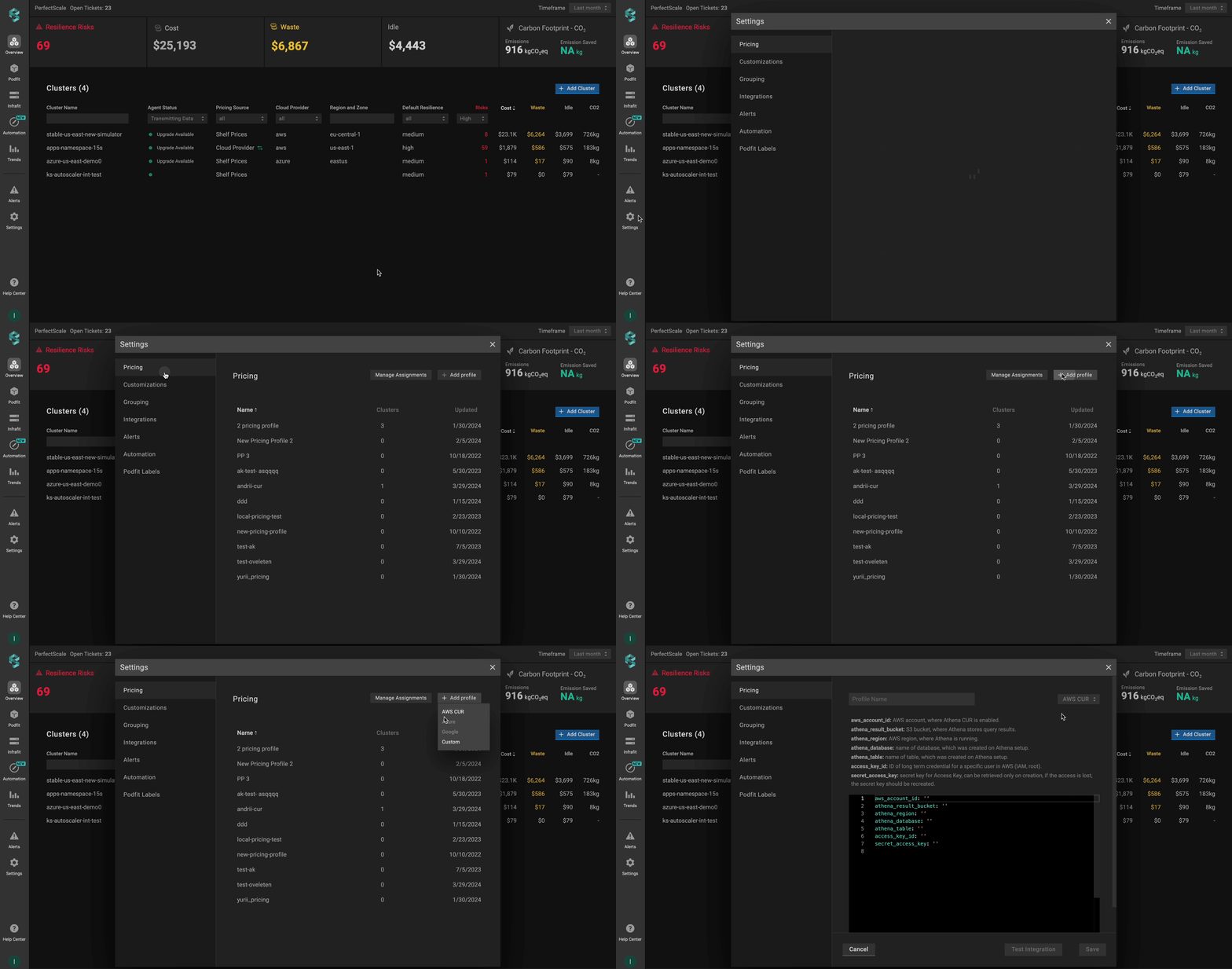
Go to the **`Settings`** tab on the left panel -> select **`Pricing`** -> click the **`+Add Profile`** button -> select **`AWS CUR`** -> name the profile and put the needed values in the relevant fields -> click **`Save`** button.

<figure><img src="https://content.gitbook.com/content/zCh9aABpk7yLeToPr6vk/blobs/gN6L4uQzhRSFPuS9CDOq/cur_settings.gif" alt=""><figcaption><p>AWS CUR profile from the settings </p></figcaption></figure>

{% hint style="info" %}
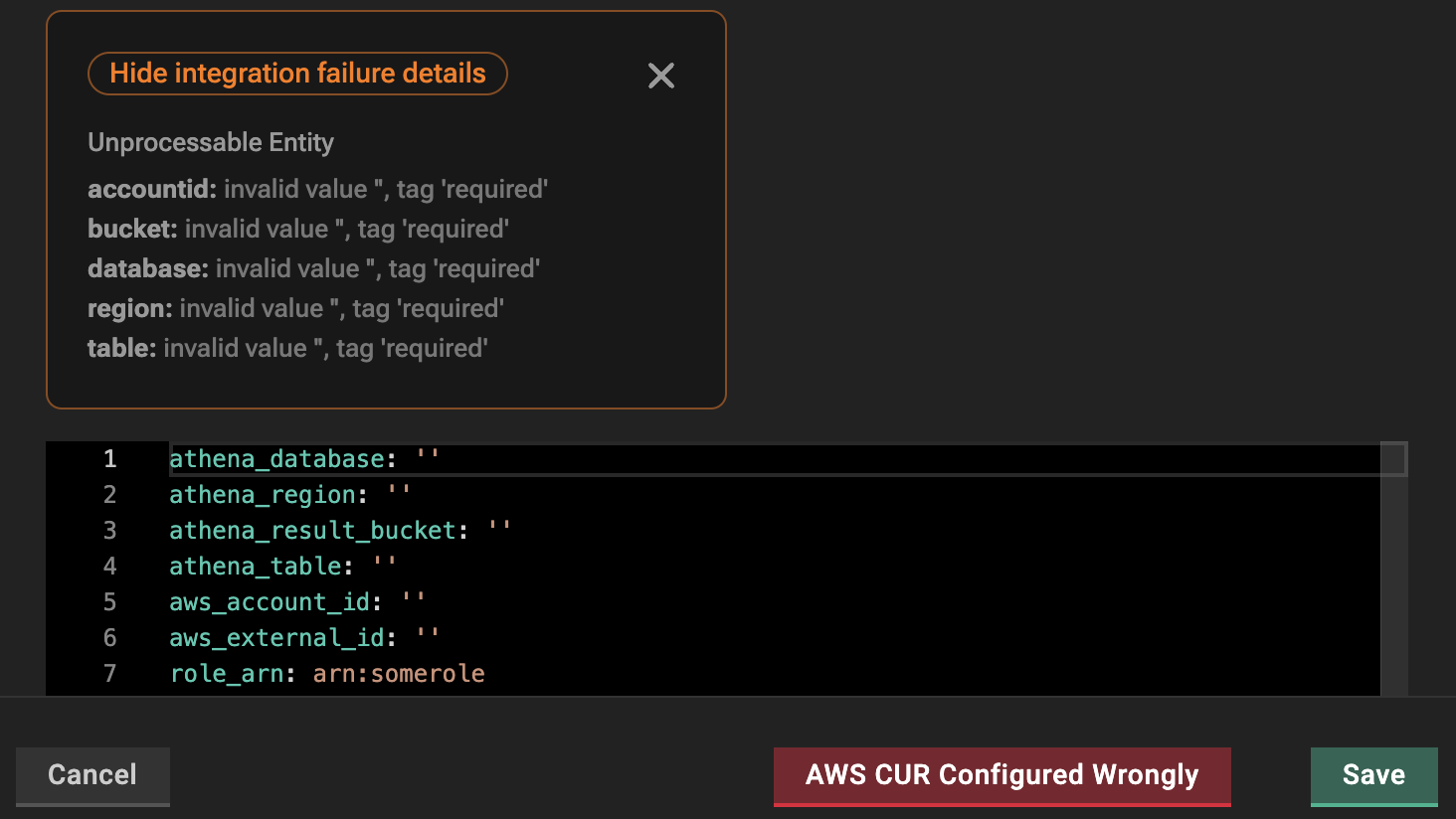
To verify the accuracy of your AWS CUR Profile configuration, simply click on the **`Test Integration`** button. When the configuration is correct, you will see the message **`AWS CUR Configured Correctly`** . In case of **`AWS CUR Configured Wrongly`** response, check, and ensure the correctness of the data.
{% endhint %}

#### From the **Overview** tab

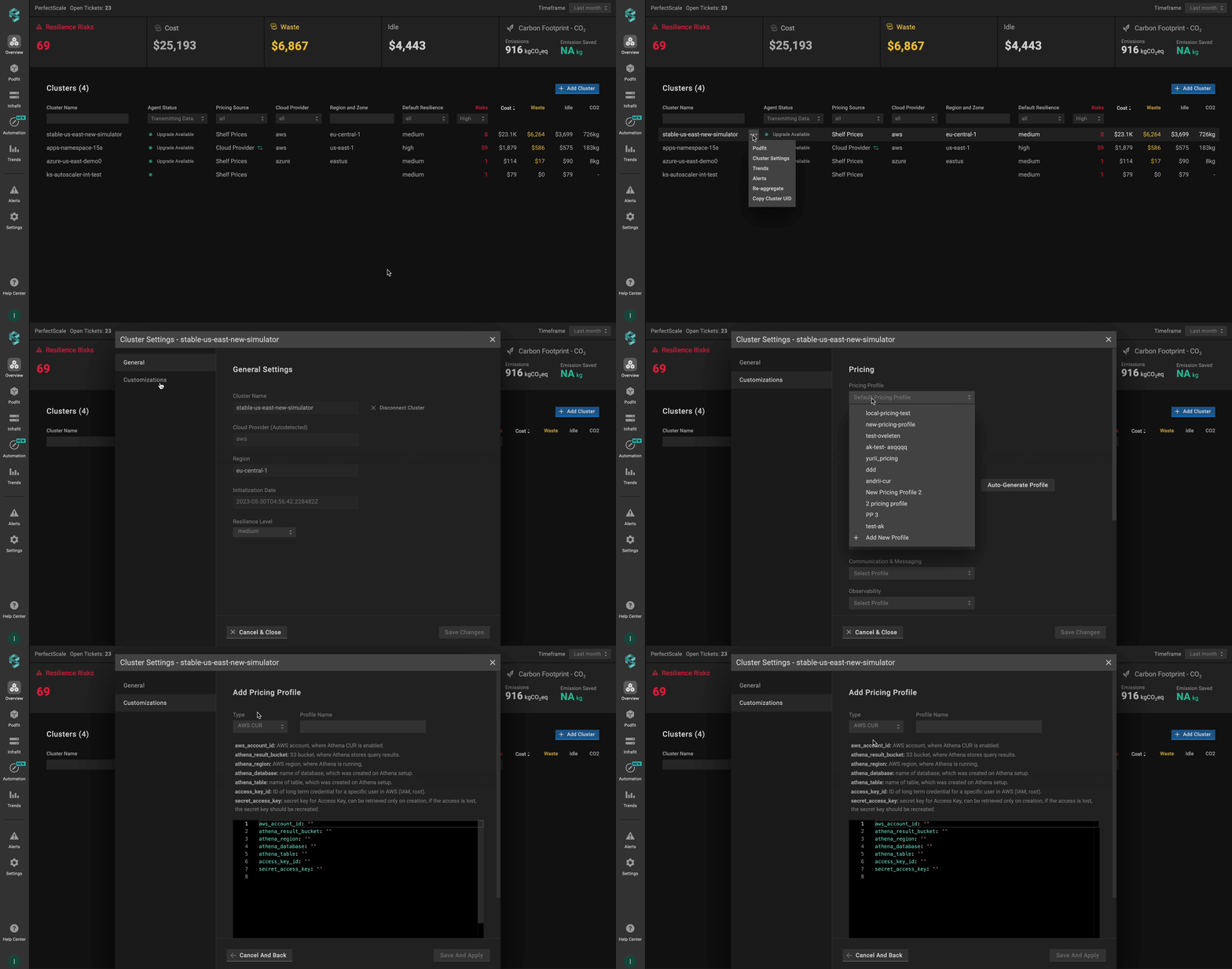
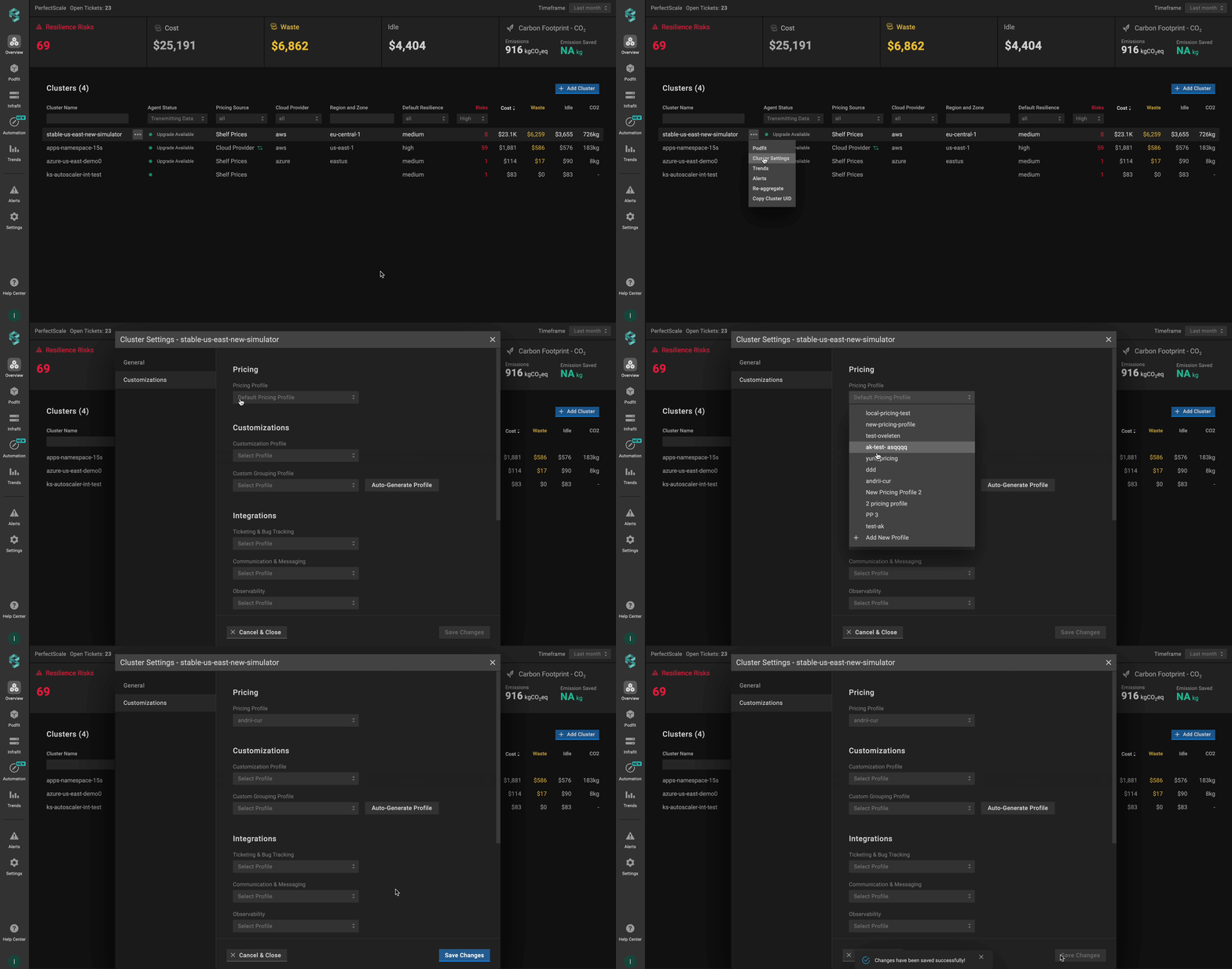
Go to the **`Overview`** tab on the left panel -> find the cluster to which you want to apply the custom **`Pricing Profile`** and click **`three dots`** button -> select **`Cluster Settings`** -> go to **`Customizations`** -> click on **`Add New Profile`** in the **`Pricing Profile`** drop-down list -> select **`AWS CUR`** type ->  name and configure your profile -> click the **`Save And Apply`** button -> click the **`Save Changes`** button.

<figure><img src="https://content.gitbook.com/content/zCh9aABpk7yLeToPr6vk/blobs/9XOlDUvUfN4is8pkZdLU/cur_overview.gif" alt=""><figcaption><p>AWS CUR profile from the overview</p></figcaption></figure>

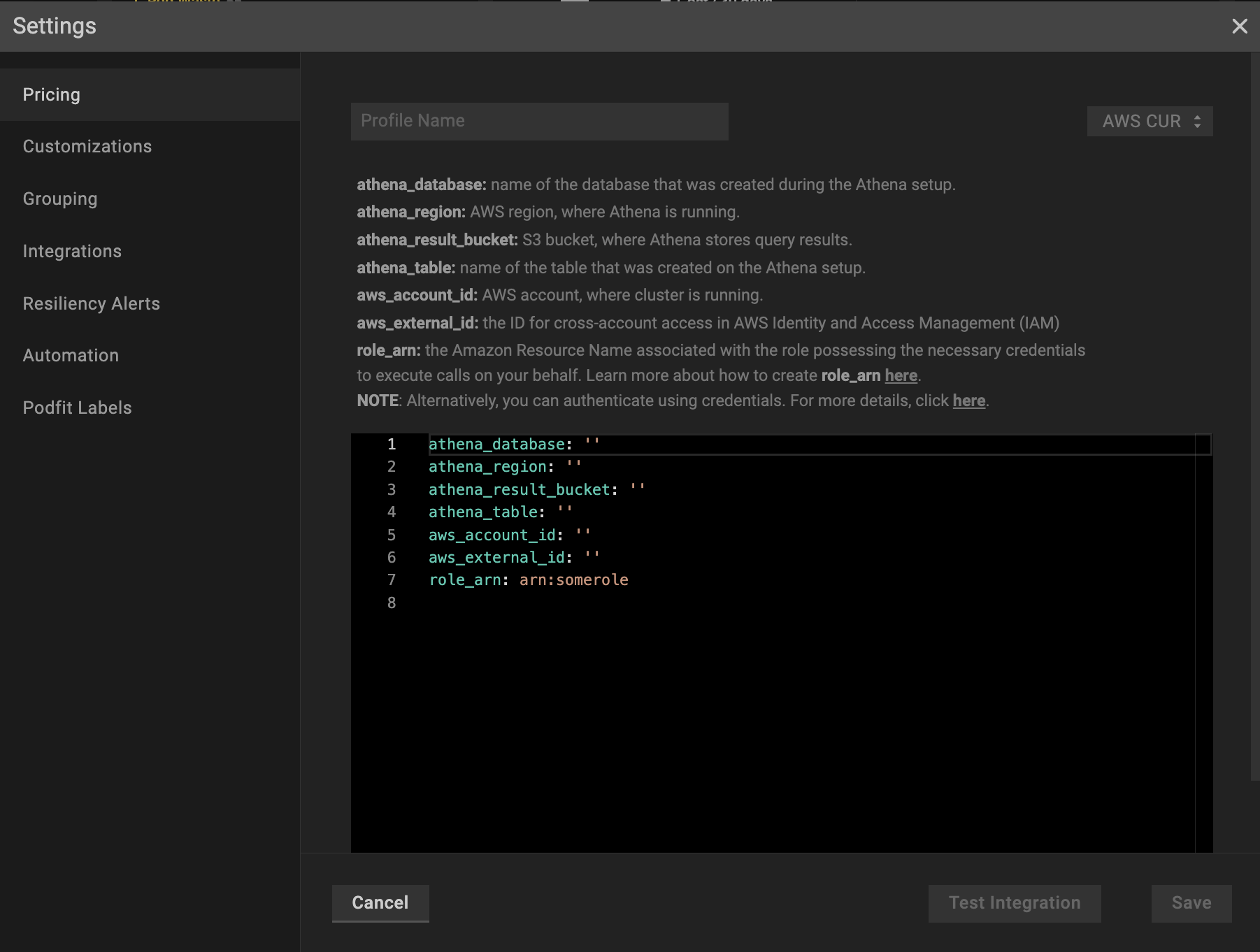
#### **AWS CUR Pricing Profile configuration**

<figure><img src="https://content.gitbook.com/content/zCh9aABpk7yLeToPr6vk/blobs/jvO7v3k0yOClHKxPbRTE/image.png" alt=""><figcaption><p>AWS CUR profile configuration</p></figcaption></figure>

`athena_result_bucket`: the S3 bucket, where Athena stores query results.

`athena_region`: the AWS region where Athena is running.

`athena_database`: the name of the database created on Athena setup.

`athena_table`: the name of the table, created on Athena setup.

`aws_account_id:` AWS account, where the cluster is running.

{% hint style="warning" %}
`aws_account_id` refers to the account where the cluster is running, **NOT** the AWS billing account ID.
{% endhint %}

`aws_external_id`: the ID for cross-account access in AWS Identity and Access Management (IAM).

{% hint style="info" %}
**`asw_external_id`** is a unique, user-defined string used when setting up cross-account access in AWS Identity and Access Management (IAM). This additional security measure ensures that only trusted third-party entities can assume a specific role.

The external ID can be any string you define (a combination of random numbers, letters, or both).

**Examples**: \
YourCompanyName-Partner-2024-UniqueString \
3JdpNfwvkpw4rs1sGsdrF0rM1R2\
f47ac10b-58cc-4372-a567-0e02b2c3d479
{% endhint %}

`role_arn`: the Amazon Resource Name associated with the role possessing the necessary credentials to execute calls on your behalf.

{% hint style="info" %}
**NOTE**: Alternatively, you can authenticate using **credentials**. To authenticate with the credentials, replace `role_arn` with the two following fields in the configuration above:

`access_key_id`: the ID of a long-term credential for a specific user in AWS (IAM, root).

`secret_access_key`: the Secret Key for an Access Key (can only be retrieved upon creation). If the access is lost, the secret key must be recreated.

As a result, your configuration will look like this:

```yaml
aws_account_id: ''
aws_external_id: ''
athena_result_bucket: ''
athena_region: ''
athena_database: ''
athena_table: ''
access_key_id: ''
secret_access_key: ''
```

{% endhint %}

#### Global discount for on-demand nodes

If you have a global discount for on-demand nodes (from a cloud provider or cloud reseller) that isn’t included in your custom cloud billing, you can apply it in addition to your AWS CUR integration.&#x20;

Add the following parameters to your AWS CUR profile to enable applying the globalDiscount on top of your cloud billing integration:

`global_discount` (optional block):

* `percentage` - the percentage (0–100, floats supported) of the discount to apply on top of standard on-demand node pricing. This field is required when  `global_discount` exists.
* `start_date` (optional) - the effective start date for applying the `global_discount`. If this field is empty, it defaults to today.

{% hint style="info" %}
If you change the `percentage` or `start_date`, only newly generated [Trends report](https://docs.perfectscale.io/2.0-self-hosted-or-perfectscale-documentation/visibility-and-optimization/trends-monitoring) will reflect the update. Historical reports will not update automatically. Contact <support@perfectscale.io> if you need them recalculated.
{% endhint %}

The complete configuration might look like the following **example**:

```yaml
global_discount:
  percentage: 15
  start_sate: 2025-31-12
athena_database: athenacurcfn_access-perfectscale-account-to-cur
athena_region: us-east-1
athena_result_bucket: s3://access-perfectscale-account-to-cur/
athena_table: access-perfectscale-account-to-cur
aws_account_id: '888061904880'
aws_external_id: f47ac10b-58cc-4372-a567-0e02b2c3d479
role_arn: arn:aws:iam::693587426073:role/access-perfectscale-account-to-cur
```

#### AWS CUR configuration verification

To verify if AWS CUR is configured properly, click the **Test Integration** button.&#x20;

:green\_circle: When the configuration is correct, you will see the message **AWS CUR Configured Correctly**.&#x20;

:red\_circle: In case of **AWS CUR Configured Wrongly** response, check the **`Show integration failure details`** dropdown and fix the displayed issues.

<figure><img src="https://content.gitbook.com/content/zCh9aABpk7yLeToPr6vk/blobs/RNVcWTQSJ0WUDA1nMjuq/image.png" alt="" width="563"><figcaption><p>Wrong AWS CUR profile configuration</p></figcaption></figure>

### :tools: **How to apply AWS CUR** **Pricing Profile**

#### Apply to a single cluster

To apply **`AWS CUR Pricing Profile`** to the cluster, go to the **`Overview`** tab on the left panel -> find the cluster to which you want to apply the  **`AWS CUR Pricing Profile`** and click **`three dots`** button -> select **`Cluster Settings`** -> go to **`Customizations`** -> select the needed profile in the **`Pricing Profile`** drop-down list.&#x20;

<figure><img src="https://content.gitbook.com/content/zCh9aABpk7yLeToPr6vk/blobs/jmdTsFEx5Xe49lGjfpOp/cur_single.gif" alt=""><figcaption><p>Applying a single AWS CUR profile to the cluster</p></figcaption></figure>

#### Apply to multiple clusters

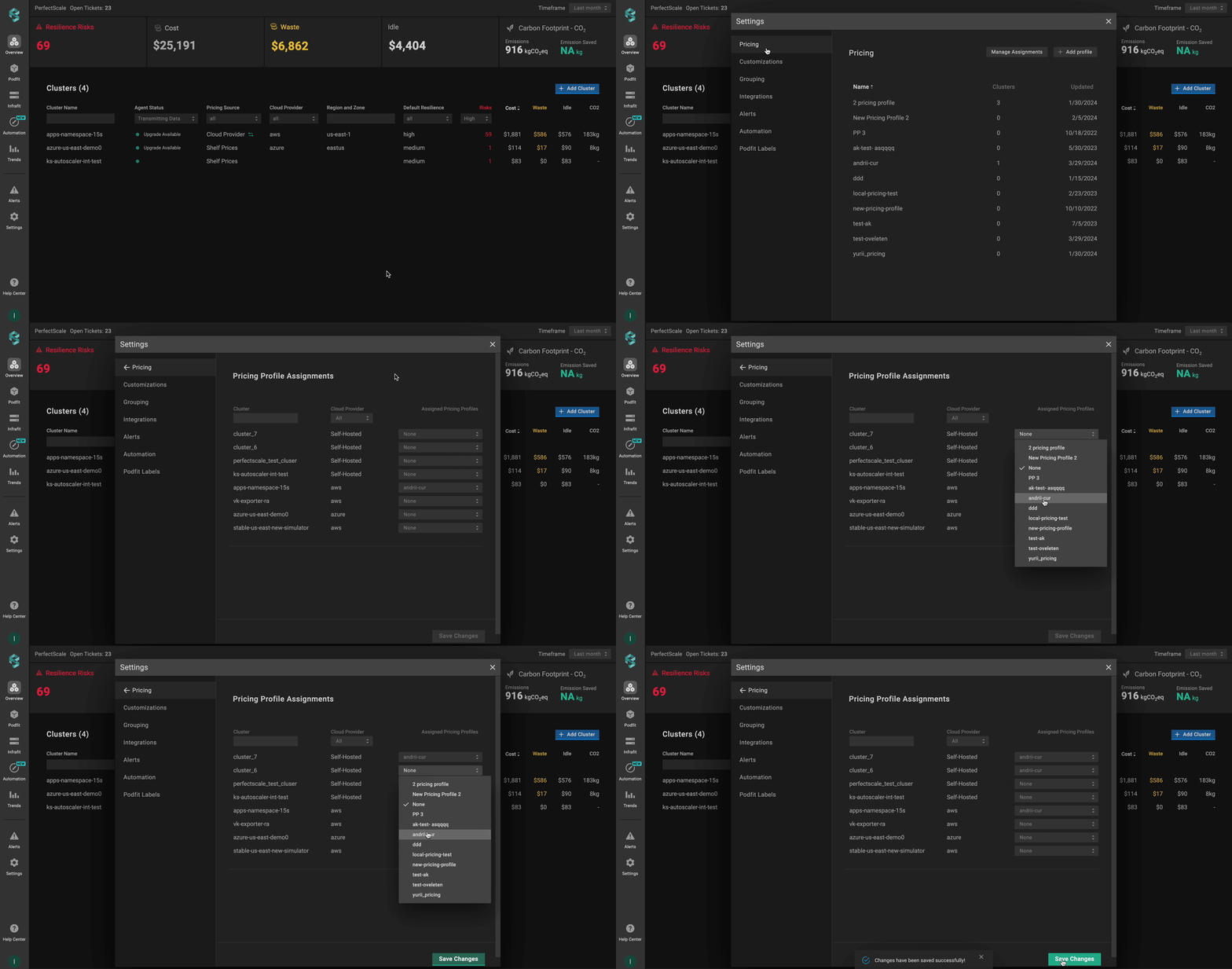
To apply the profile to **multiple clusters** from a single view, use the **`Manage Assignments`** feature.&#x20;

Go to the **`Settings`** tab on the left panel -> select the **`Pricing`** -> click the **`Manage Assignments`** button -> apply the profiles for the needed clusters -> click the **`Save Changes`** button.

<figure><img src="https://content.gitbook.com/content/zCh9aABpk7yLeToPr6vk/blobs/wjDpd9Sg1Rgs7hoC1Djm/cur_multiple.gif" alt=""><figcaption><p>Applying multiple AWS CUR profiles to the cluster</p></figcaption></figure>

## Configuring AWS pricing integration with CRD

To configure AWS CUR pricing using a Custom Resource Definition (CRD), you’ll need to define and apply a Custom Resource (CR) that specifies your unique billing conditions. This approach allows you to manage accurate pricing directly through Kubernetes manifests.&#x20;

{% hint style="warning" %}
The Custom Resource (CR) must be created in the `perfectscale` namespace.
{% endhint %}

### Setup instructions

1. Enable the [AWS CUR](#to-create-cost-and-usage-reports) in your AWS account.
2. Set up the report to export data to an S3 bucket and integrate it with [AWS Athena](#to-create-cost-and-usage-reports-2).
3. Create an [IAM Role](#create-iam-user-for-cur-integration-1) for cross-account access (recommended) or an [IAM User](#create-iam-user-for-cur-integration-2) with the required permissions.
4. Configure the [CR](#recommended-cr-configuration).

#### Recommended CR configuration

We recommend configuring a CR using the IAM Role authentication method.

```yaml
apiVersion: perfectscale.io/v1
kind: ClusterSettings
metadata:
  name: cluster-settings-main
  namespace: perfectscale
spec:
  profiles:
    pricing:
      - type: aws_cur
        name: aws-cur-integration
        assigned: true
        value:
          global_discount:
            percentage: 7.5
            start_date: 2025-12-31
            
          # Authentication - IAM Role (recommended)
          role_arn: "arn:aws:iam::your-account-id:role/your-role-name"
          aws_external_id: "your-unique-external-id-here"

          # Athena Configuration
          athena_database: athenacurcfn_perfectscale_cur_report
          athena_region: us-east-1
          athena_result_bucket: s3://perfectscale-cur-results/
          athena_table: perfectscale_cur_report_hourly

          # AWS Account ID (where cluster is running, NOT billing account)
          aws_account_id: "your-aws-account-id-here"
```

#### ⚙️ **CR parameters:**

<table><thead><tr><th width="251.94921875">Parameter</th><th>Description</th></tr></thead><tbody><tr><td><strong><code>global_discount</code></strong> (optional block)</td><td>The discount to apply on top of standard on-demand node pricing.<br><code>percentage</code> - the percentage (0–100, floats supported) of the discount. This field is required when  global_discount exists.<br><code>start_date</code> (optional) - the effective start date for applying the global_discount.</td></tr><tr><td><strong><code>role_arn</code></strong></td><td>The Amazon Resource Name associated with the role possessing the necessary credentials to execute calls on your behalf.</td></tr><tr><td><strong><code>aws_external_id</code></strong></td><td>The ID for cross-account access in AWS Identity and Access Management (IAM).</td></tr><tr><td><strong><code>athena_database</code></strong></td><td>Name of the database that was created during the Athena setup.</td></tr><tr><td><strong><code>athena_region</code></strong></td><td>AWS region where Athena is running.</td></tr><tr><td><strong><code>athena_result_bucket</code></strong></td><td>S3 bucket where Athena stores query results.</td></tr><tr><td><strong><code>athena_table</code></strong></td><td>Name of the table that was created on the Athena setup</td></tr><tr><td><strong><code>aws_account_id</code></strong></td><td>AWS account where cluster is running, <strong>NOT</strong> billing account</td></tr></tbody></table>

{% hint style="warning" %}
If a `global_discount` percentage is provided without a `start_date` in the CRD profile, we won’t default to today’s date as we do for profiles configured in the UI, and the discount will not be applied. The pricing profile appears broken in the UI.
{% endhint %}

#### Alternative CR configuration

Alternatively, you can configure a CR using the IAM User authentication method.

```yaml
apiVersion: perfectscale.io/v1
 kind: ClusterSettings
 metadata:
   name: cluster-settings-main
   namespace: perfectscale
 spec:
   profiles:
     pricing:
       - type: aws_cur
         name: aws-cur-integration-user
         assigned: true
         value:
           global_discount:
            percentage: 7.5
            start_date: 2025-12-31
            
           # Authentication - IAM User (alternative)
           access_key_id: "your-aws-access-key-id-here"
           secret_access_key_from:
             secretKeyRef:
               name: aws-credentials
               key: secret-access-key

           # Athena Configuration
           athena_database: your_athena_database_name
           athena_region: us-east-1
           athena_result_bucket: s3://your-athena-results-bucket/
           athena_table: your_athena_table_name

           # AWS Account ID (where cluster is running, NOT billing account)
           aws_account_id: "your-aws-account-id-here"
```

{% hint style="warning" %}
If a `global_discount` percentage is provided without a `start_date` in the CRD profile, we won’t default to today’s date as we do for profiles configured in the UI, and the discount will not be applied. The pricing profile appears broken in the UI.
{% endhint %}

To configure AWS CUR pricing with IAM User authentication, a secret is required:

```yaml
piVersion: v1
 kind: Secret
 metadata:
   name: aws-credentials
   namespace: perfectscale
 type: Opaque
 stringData:
   secret-access-key: "your-aws-secret-access-key-here"
```

{% hint style="info" %}
Ensure that the secret is created in the same namespace as the exporter -  `perfectscale`.
{% endhint %}