> For the complete documentation index, see [llms.txt](https://docs.perfectscale.io/llms.txt). Markdown versions of documentation pages are available by appending `.md` to page URLs; this page is available as [Markdown](https://docs.perfectscale.io/2.0-self-hosted-or-perfectscale-documentation/getting-started/onboarding-clusters-programmatically.md).
# Onboarding clusters programmatically
Learn how to set up dynamic clusters provisioning with this step-by-step tutorial
PerfectScale enables the dynamic provisioning of clusters with ease, requiring only a few simple steps. Additionally, it supports mass provisioning, making it efficient for larger deployments. In this case, PerfectScale Helm needs to be included in the set of provisioned workloads of the cluster.
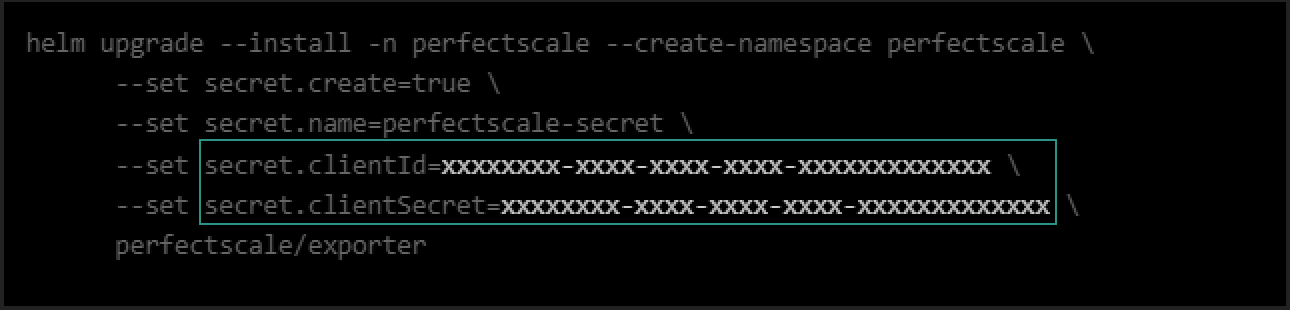
1. To provision clusters dynamically, you need the **`clientId`** and **`clientSecret`.** \
\
Follow steps **1 - 4** of the [Onboarding a cluster](/2.0-self-hosted-or-perfectscale-documentation/getting-started/how-to-onboard-a-cluster.md) instructions to get your **`clientId`** and **`clientSecret`**.
{% hint style="info" %}
[**Onboarding the initial cluster via UI**](/2.0-self-hosted-or-perfectscale-documentation/getting-started/how-to-onboard-a-cluster.md) **is a mandatory step**. In this phase, you will be given the secrets (**`clientId`** and **`clientSecret`**) that can be reused to dynamically onboard clusters or efficiently provision multiple clusters for larger deployments.
{% endhint %}
Credentials
{% hint style="success" %}
If you have already installed the exporter and need to recall the **clusterName**, **clientID**, and **clientSecret**, you can retrieve them using the following commands accordingly:
`kubectl -n perfectscale describe deployment perfectscale-exporter | grep CLUSTER_NAME`
`kubectl -n perfectscale get secret perfectscale-exporter-secret -o jsonpath="{.data.clientId}" | base64 --decode`\
\
`kubectl -n perfectscale get secret perfectscale-exporter-secret -o jsonpath="{.data.clientSecret}" | base64 --decode`
{% endhint %}
2. Add **PerfectScale Helm** from the following [link](< https://perfectscale-io.github.io>).
3. Set dynamic variables per the environment that will include the following values:
**`--set settings.clusterName=`** the name of your cluster. To prevent any confusion, it is recommended that unique values be utilized for the cluster name.
{% hint style="danger" %}
**`clusterName`**is mandatory. PerfectScale Agent will not work if the cluster name is not provided.
{% endhint %}
**`--set settings.clusterOptimizationPolicy`** is an optional parameter that allows you to specify the desirable resilience level for the cluster. These are the available values:
* MaxSavings - maximum cost savings, the best for non-production environments
* Balanced (default) - optimally balances cost and resiliency
* ExtraHeadroom - the best fit for latency-sensitive environments
* MaxHeadroom - keeps the environment above the highest spikes
{% hint style="info" %}
If the Optimization Policy is not set, PerfectScale will automatically assign the default value **`Balanced`**.
{% endhint %}
{% hint style="info" %}
If an **Optimization Policy is set through the exporter** when installing the PerfectScale Agent, **it cannot be modified in the UI afterward**. You can still change the policy by upgrading the exporter with the new value, or you can return it to the default by upgrading the exporter without specifying any value (this will also enable the option to change the custom time window through the UI).
**Example:**
{% endhint %}
4. Once the variables are identified, each cluster, provisioned with the **PerfectScale Agent,** will be automatically registered and transmit its data.
{% hint style="success" %}
If you have deleted the exporter and want to reconnect the same cluster to PerfectScale, you can easily do so by using the same **`clusterName`**, **`clientID`**, and **`clientSecret`**.
{% endhint %}