# Installing exporter with ArgoCD

## Installing exporter with ArgoCD

To install the exporter with ArgoCD, use the following instructions.

1. Complete 1-5 steps from [Onboarding a cluster](https://docs.perfectscale.io/2.0-self-hosted-or-perfectscale-documentation/getting-started/how-to-onboard-a-cluster).
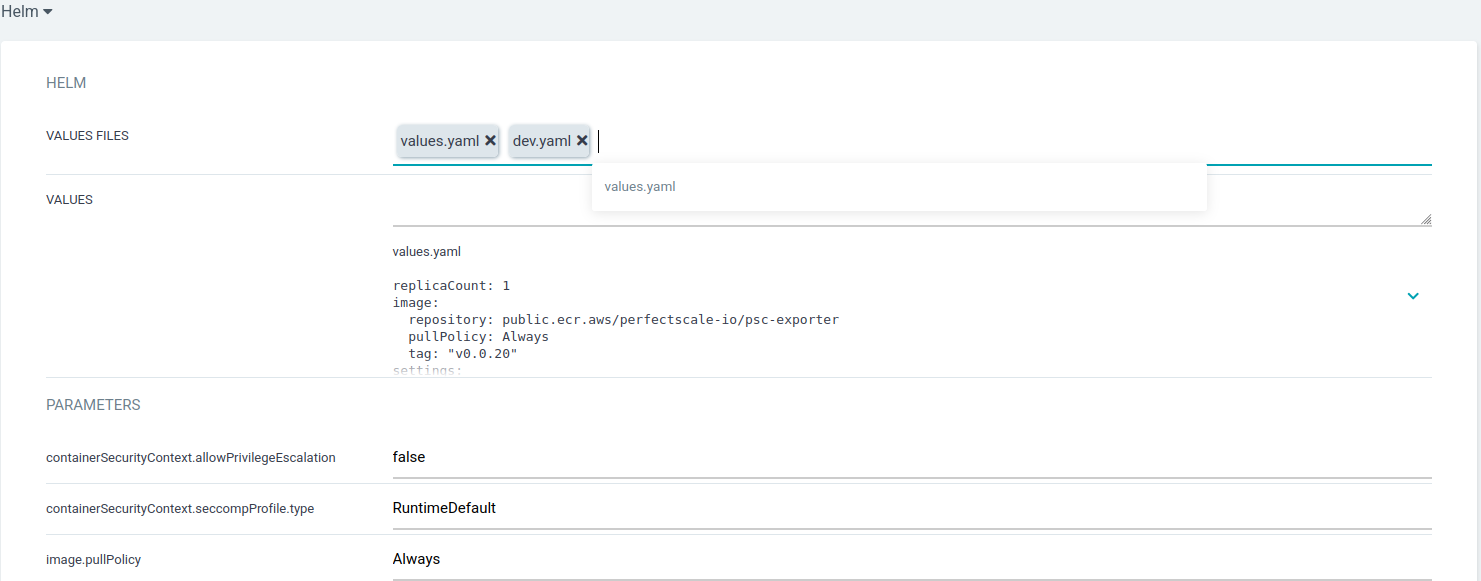
2. Make sure to save the clientId and clientSecret, as we will require it later on. <br>

   <figure><img src="https://content.gitbook.com/content/zCh9aABpk7yLeToPr6vk/blobs/WEw8RabUfe1yKfI6eoSR/image.png" alt="Credentials" width="563"><figcaption><p>Credentials</p></figcaption></figure>
3. Download the most recent Helm chart that is used for ArgoCD to your repository (for this guide, we'll be utilizing <git@github.com>:<mark style="background-color:yellow;">perfectscale/ps-kube.git</mark>).

```
helm fetch perfectscale/exporter
tar -xf exporter-*.tgz && rm exporter-*.tgz
```

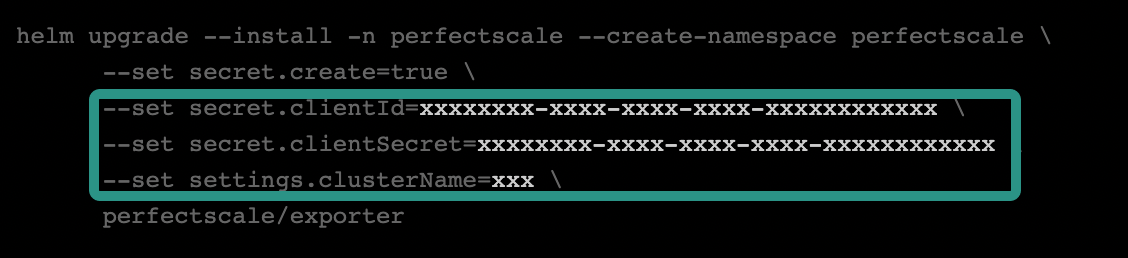
4. Create an additional (for example, `dev.yaml` value) file with the following content&#x20;

{% hint style="danger" %}
**`clusterName`**&#x69;s mandatory. PerfectScale Agent will not work if the cluster name is not provided.
{% endhint %}

```
cat > exporter/dev.yaml <<EOF
secret:
  create: true
  name: "perfectscale-secret"
  clientSecret: "xxxxxxxx-xxxx-xxxx-xxxx-xxxxxxxxxxxxx"
  clientId: "xxxxxxxx-xxxx-xxxx-xxxx-xxxxxxxxxxxxx"
settings:
  clusterName: "xxx"
EOF
```

:bulb:Replace `clientSecret` and `clientId` with copied before.

{% hint style="success" %}
If you have already installed the exporter and need to recall the **clusterName**, **clientID**, and **clientSecret**, you can retrieve them using the following commands accordingly:

`kubectl -n perfectscale describe deployment perfectscale-exporter | grep CLUSTER_NAME`

`kubectl -n perfectscale get secret perfectscale-exporter-secret -o jsonpath="{.data.clientId}" | base64 --decode`\
\
`kubectl -n perfectscale get secret perfectscale-exporter-secret -o jsonpath="{.data.clientSecret}" | base64 --decode`
{% endhint %}

5. Push all the modifications to your git repository, which is accessible by ArgoCD.

{% hint style="info" %}
There are two methods to add an application to ArgoCD: [using the WEB UI](#web-ui) or [creating a YAML CRD file](#crd). You can select the approach that best suits your infrastructure.
{% endhint %}

### WEB UI

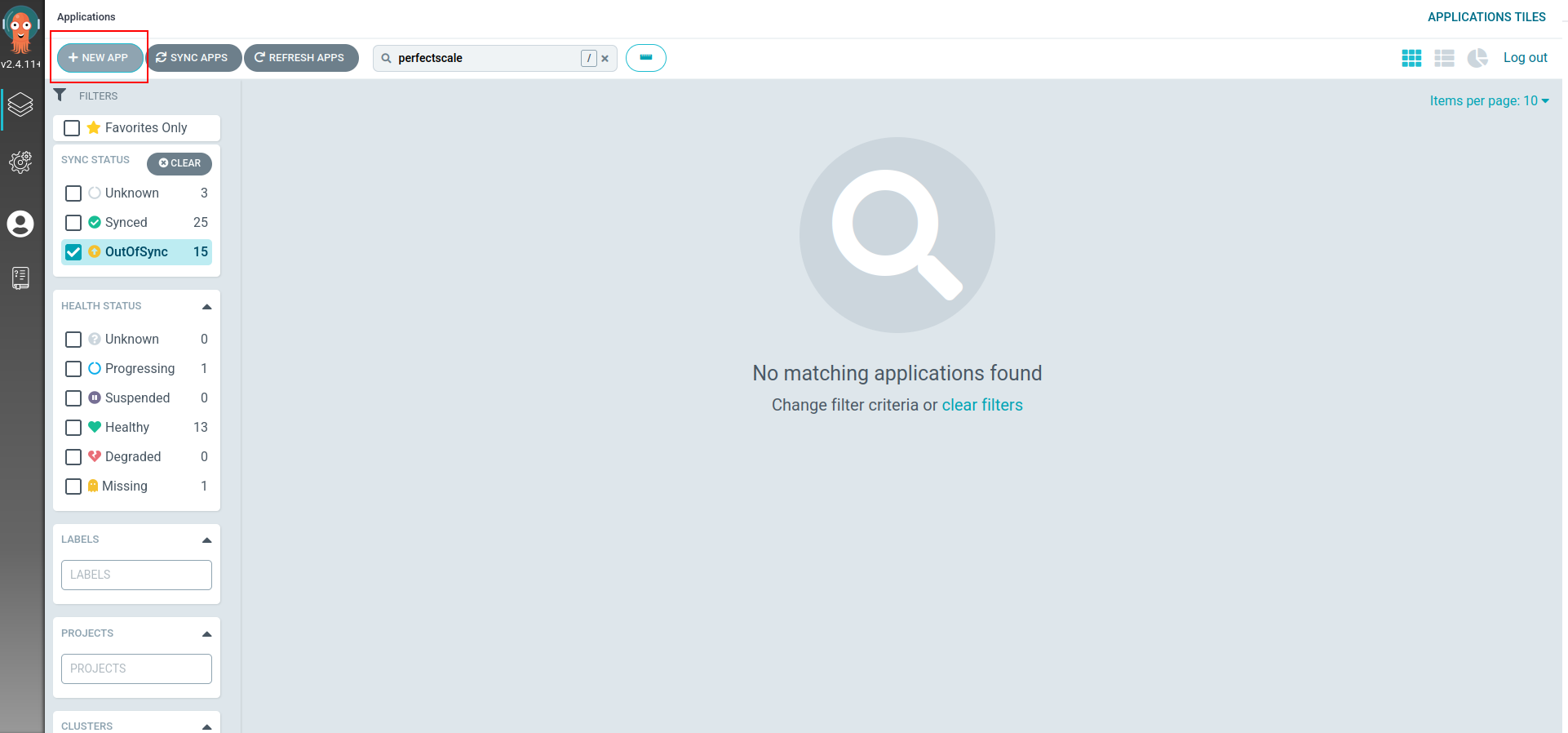
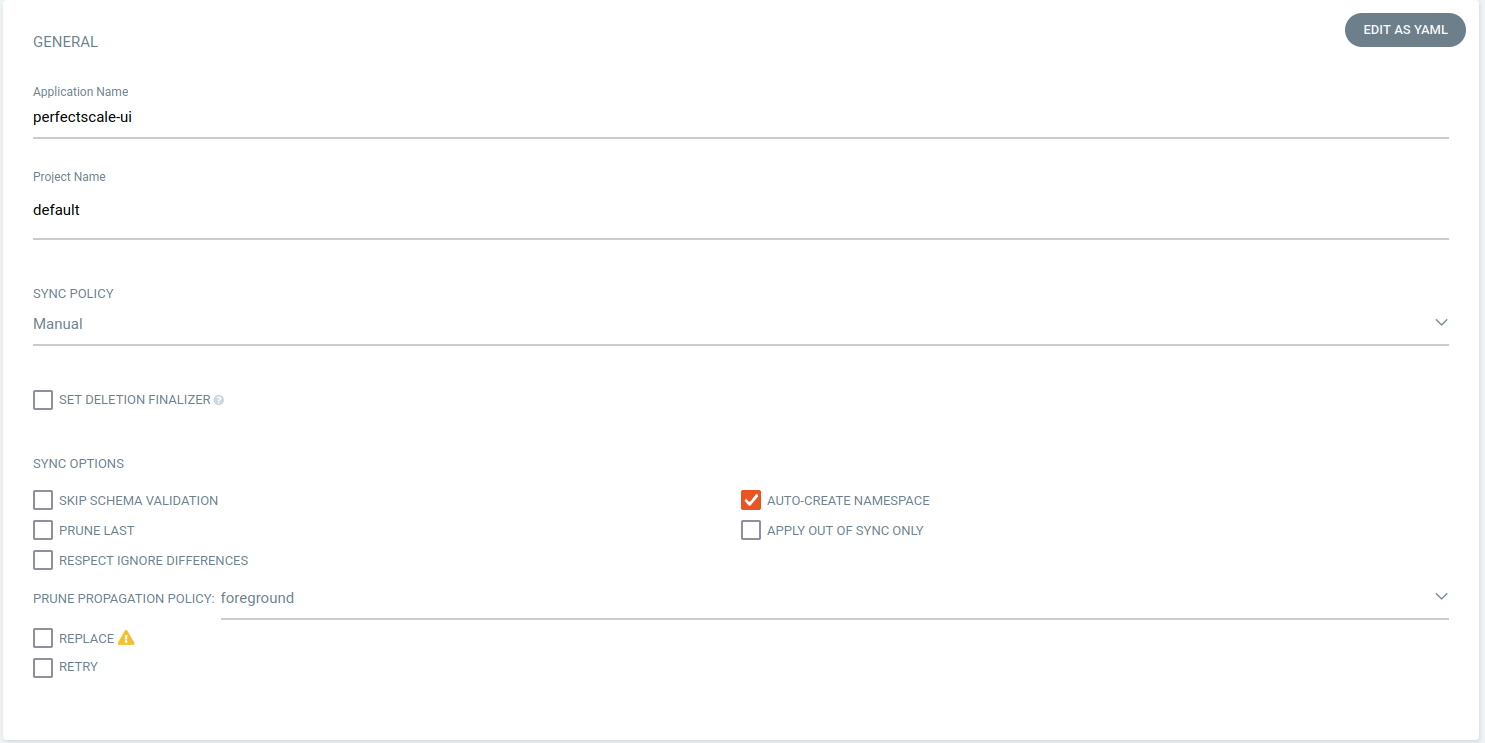
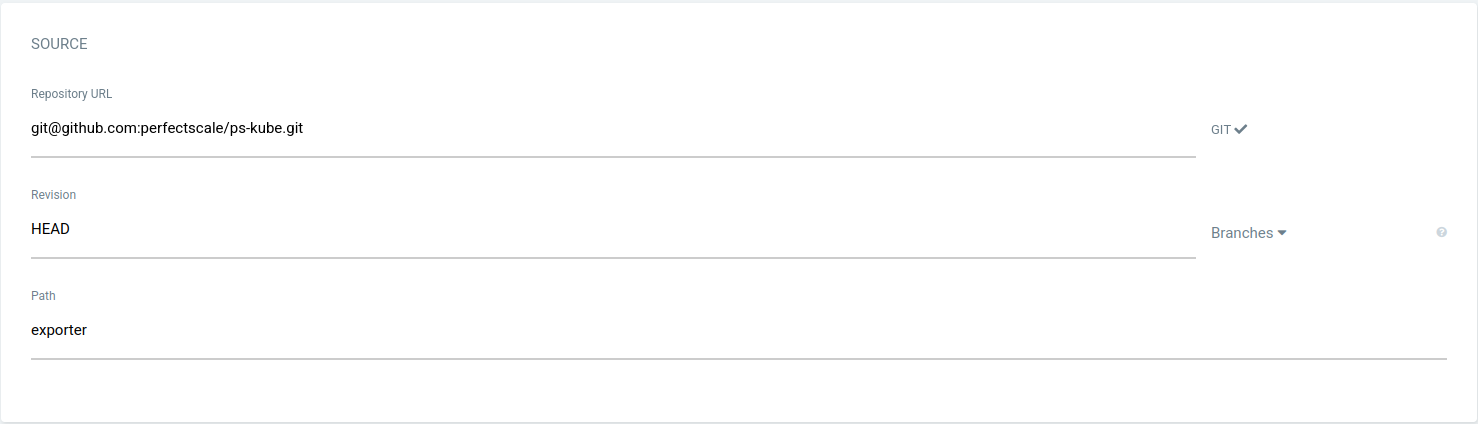
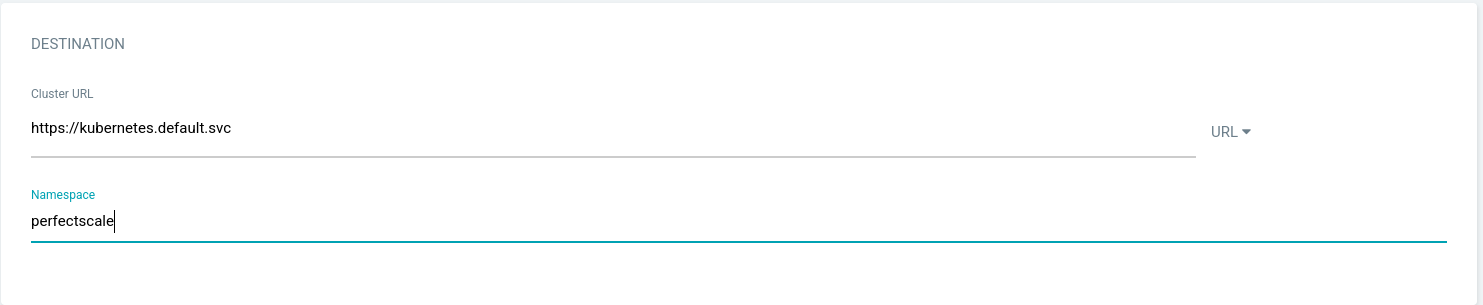
1. Login to the ArgoCD Web UI interface and click the **`NEW APP`** button.<br>

   <figure><img src="https://content.gitbook.com/content/zCh9aABpk7yLeToPr6vk/blobs/aMT0YvLD55EaSBpALfhN/image.png" alt="New app ArgoCD"><figcaption><p>New app ArgoCD</p></figcaption></figure>

   <figure><img src="https://content.gitbook.com/content/zCh9aABpk7yLeToPr6vk/blobs/efHKCvNgzDIBMjr8aHl5/image.png" alt="New app form1"><figcaption><p>New app form1</p></figcaption></figure>

   <figure><img src="https://content.gitbook.com/content/zCh9aABpk7yLeToPr6vk/blobs/WxgDpT87NMShmVowiDdy/image.png" alt="New app form2"><figcaption><p>New app form2</p></figcaption></figure>

   <figure><img src="https://content.gitbook.com/content/zCh9aABpk7yLeToPr6vk/blobs/qJaWrlnK96SkuMbrMQAT/image.png" alt="New app form3"><figcaption><p>New app form3</p></figcaption></figure>

   <figure><img src="https://content.gitbook.com/content/zCh9aABpk7yLeToPr6vk/blobs/dRzePVedzPCWs7GSHkyd/image.png" alt="New app form4"><figcaption><p>New app form4</p></figcaption></figure>

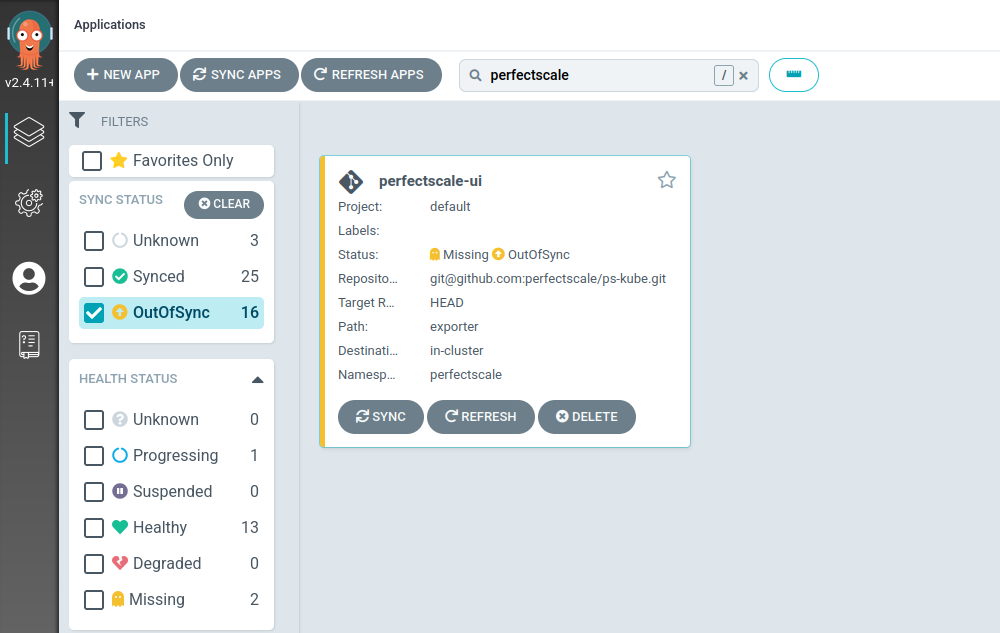
2. Once the creation process is completed, you will see the OutOFSync application.<br>

   <figure><img src="https://content.gitbook.com/content/zCh9aABpk7yLeToPr6vk/blobs/3x6lJKSu4jniJwkvjmjK/image.png" alt="OutOFSync application"><figcaption><p>OutOFSync application</p></figcaption></figure>

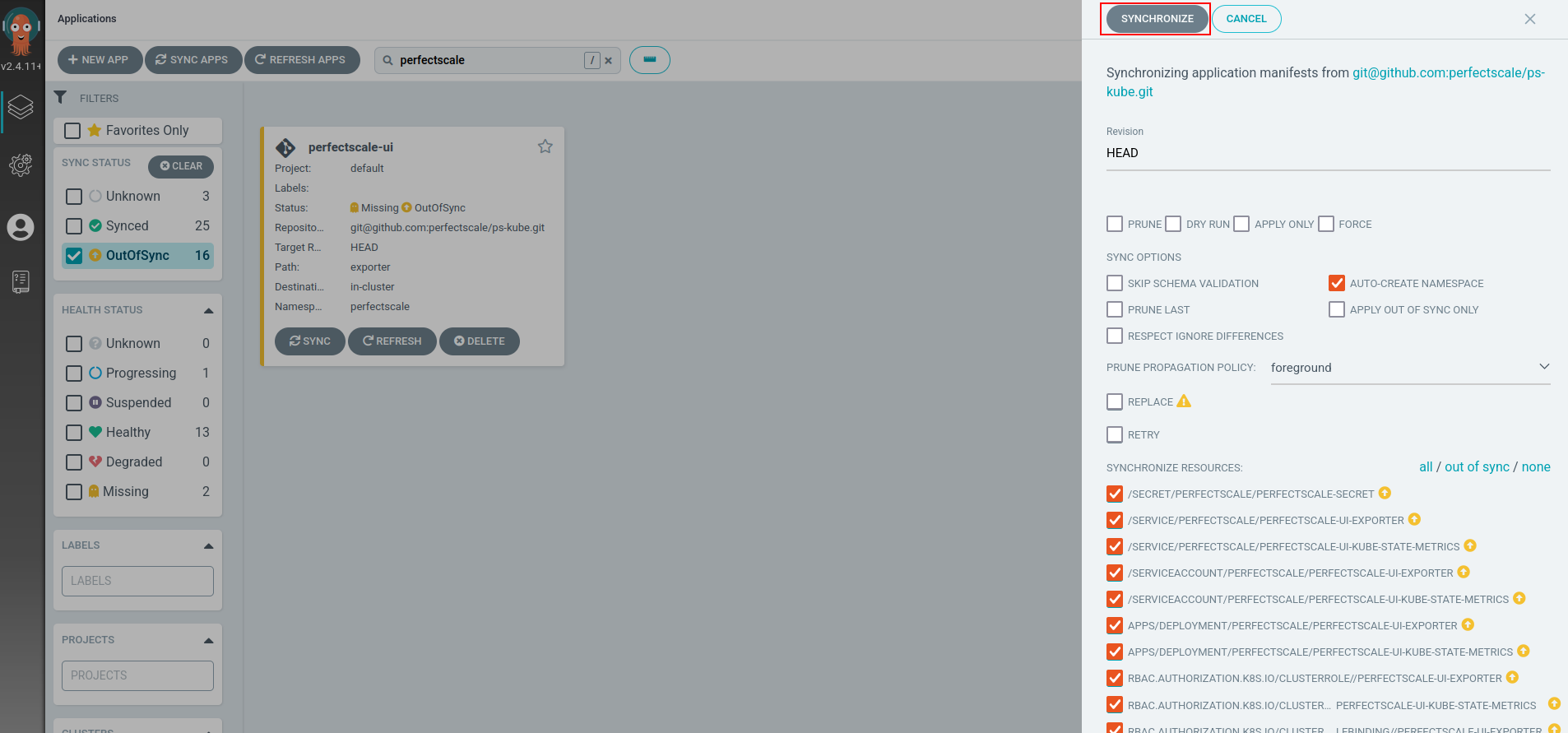
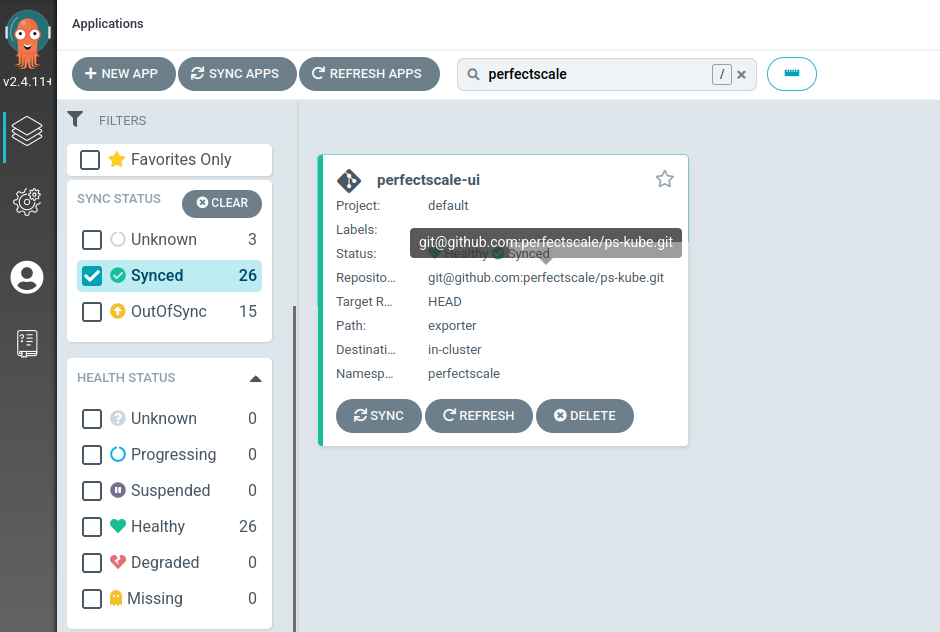
3. Synchronize the application.<br>

   <figure><img src="https://content.gitbook.com/content/zCh9aABpk7yLeToPr6vk/blobs/lLqz8s0jArgwFzTcNZOi/image.png" alt="Application synchronization"><figcaption><p>Application synchronization</p></figcaption></figure>

   <figure><img src="https://content.gitbook.com/content/zCh9aABpk7yLeToPr6vk/blobs/tWYOZo6Lp3H25nfFmjtZ/image.png" alt="Synchronized application"><figcaption><p>Synchronized application</p></figcaption></figure>

4. Ensure that all pods are running.<br>

   <figure><img src="https://content.gitbook.com/content/zCh9aABpk7yLeToPr6vk/blobs/GwzRStSlbgj5Qn9kunO6/image.png" alt="Check running pods1"><figcaption><p>Check running pods1</p></figcaption></figure>

### CRD

1. Create a Custom Resource Definition file for the ArgoCD.

```
cat > perfectscale.yaml <<EOF
apiVersion: argoproj.io/v1alpha1
kind: Application
metadata:
  labels:
    argocd.argoproj.io/instance: argocd-applications
  name: perfectscale-crd
spec:
  destination:
    namespace: perfectscale
    server: https://kubernetes.default.svc
  project: default
  source:
    helm:
      valueFiles:
      - values.yaml
      - dev.yaml
    path: exporter
    repoURL: git@github.com:perfectscale/ps-kube.git
    targetRevision: HEAD
  syncPolicy:
    syncOptions:
    - CreateNamespace=true
EOF
```

2. Apply the following command in the cluster application.

```
kubectl apply -f  perfectscale.yaml -n argo-cd
```

:bulb: Replace the namespace for **`argo-cd`** with the one where you have stored all of your applications.

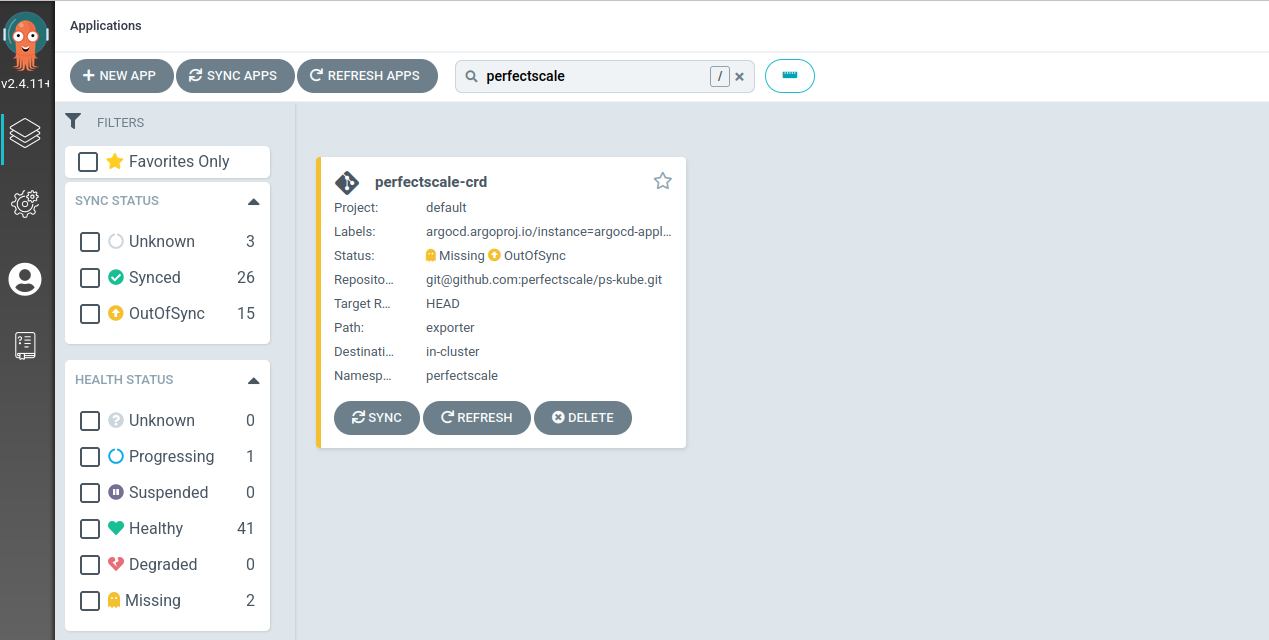
3. Check a new application in the ArgoCD.<br>

   <figure><img src="https://content.gitbook.com/content/zCh9aABpk7yLeToPr6vk/blobs/sVGxlMfP42KwUJUCz8Gd/image.png" alt="New application in ArgoCD"><figcaption><p>New application in ArgoCD</p></figcaption></figure>

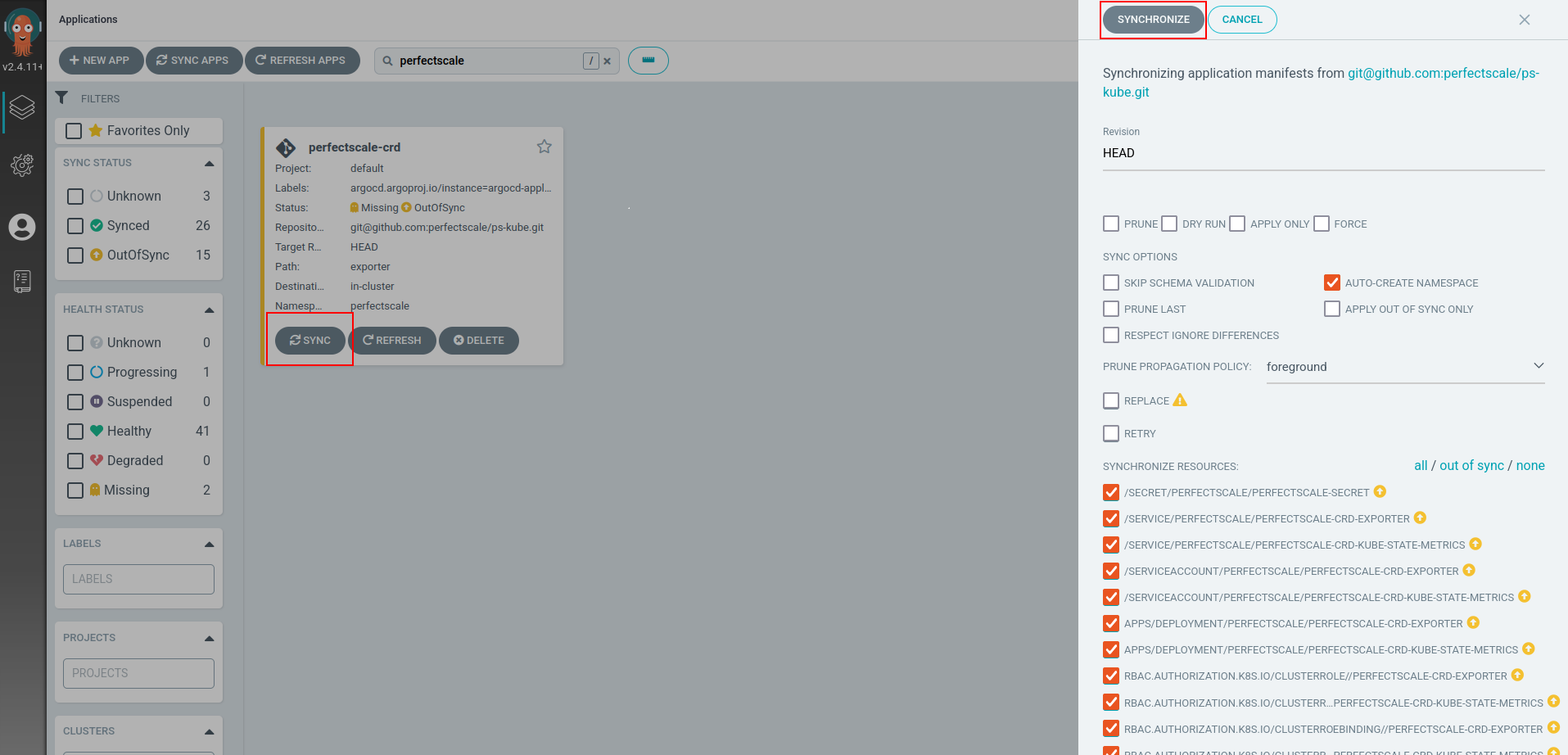
4. Synchronize the application.<br>

   <figure><img src="https://content.gitbook.com/content/zCh9aABpk7yLeToPr6vk/blobs/XUUaqVvHnt38t4QNJrxJ/image.png" alt="Sync the application"><figcaption><p>Sync the application</p></figcaption></figure>

5. Ensure that all pods are running.<br>

   <figure><img src="https://content.gitbook.com/content/zCh9aABpk7yLeToPr6vk/blobs/82SjF7aza5meYjdRPfSp/image.png" alt="Check running pods2"><figcaption><p>Check running pods2</p></figcaption></figure>

   <br>