# Ticketing & Bug Tracking

Jira integration simplifies issue management within clusters and helps you ensure every issue gets properly addressed. With just a few clicks, tickets can be opened and assigned to the proper teams, with the details needed to streamline resolutions and configuration changes.&#x20;

{% hint style="info" %}
PerfectScale only supports the SaaS Jira integration.
{% endhint %}

## Configuring Jira integration with the profile

### :tools: **How to create Jira Profile**

There are two options for creating a Profile: [from the Settings](#from-the-settings-tab) tab or directly [from the Overview](#from-the-overview-tab).

#### From the **Settings** tab

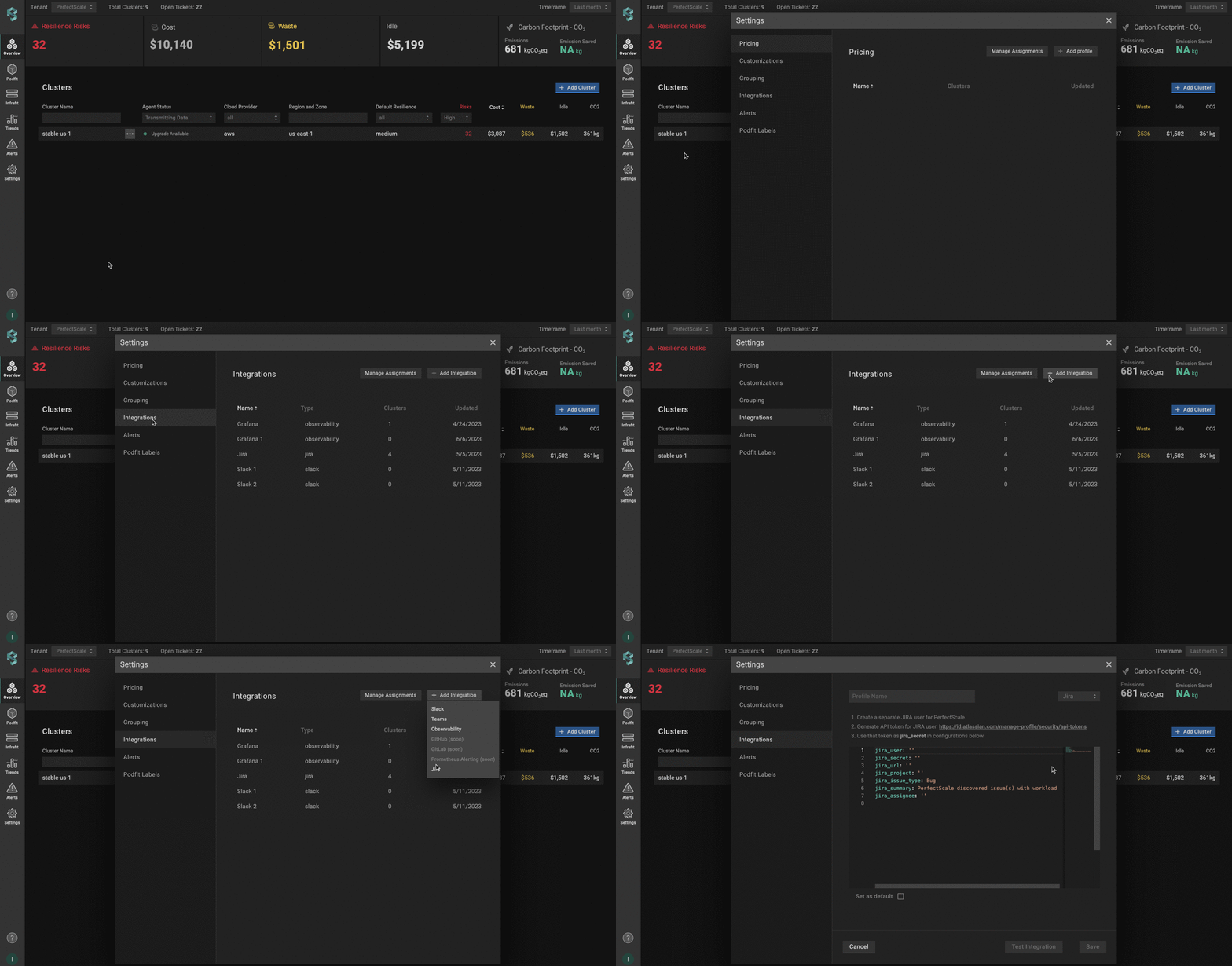
Go to the **`Settings`** tab on the left panel -> select **`Integrations`** -> click the **`+Add Integration`** button and select **`Jira`** from the drop-down -> insert the required data.<br>

<figure><img src="https://content.gitbook.com/content/zCh9aABpk7yLeToPr6vk/blobs/r5bQeIkMXeP1VihTfByM/jira1.gif" alt=""><figcaption><p>Jira profile from settings</p></figcaption></figure>

#### From the **Overview** tab

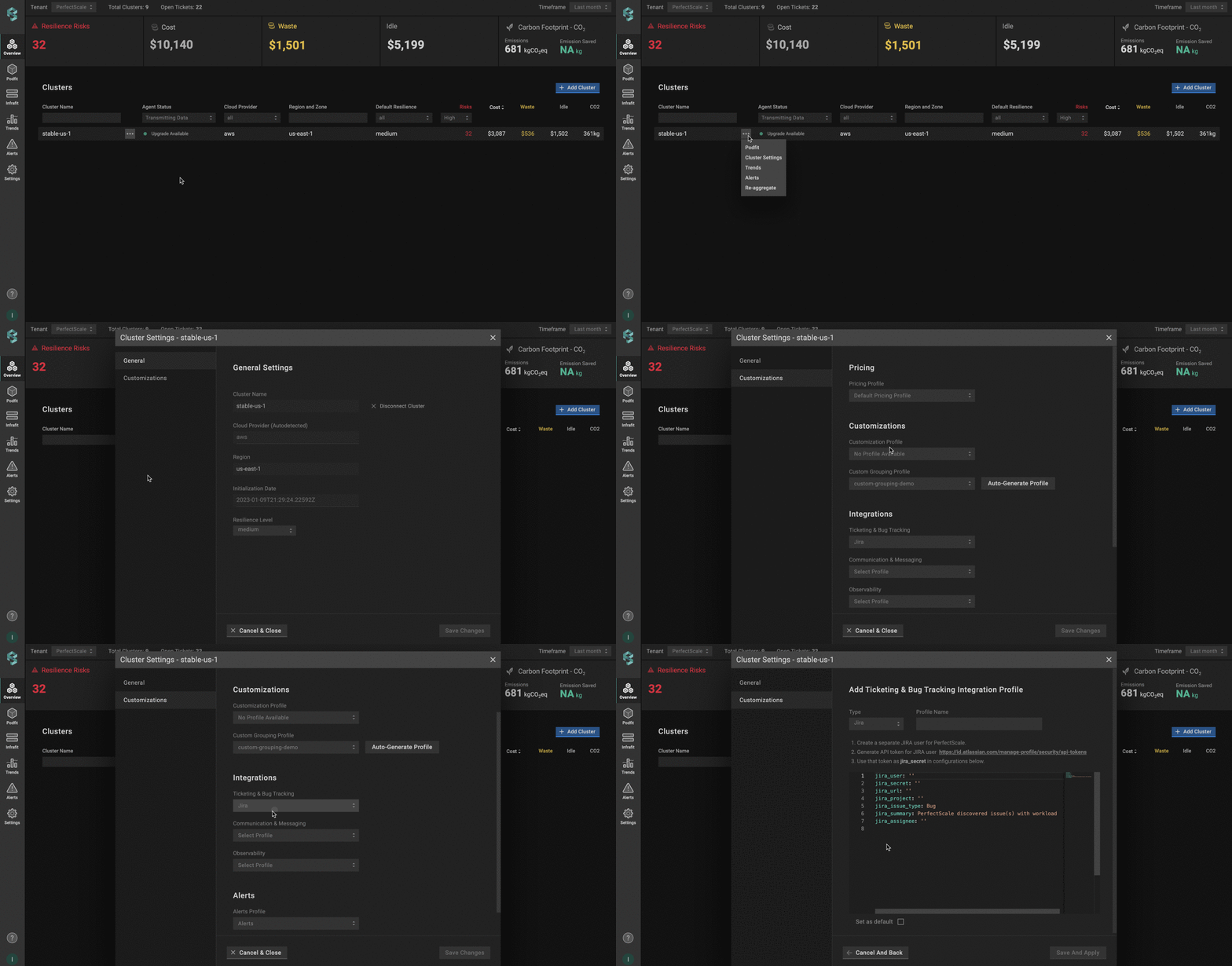
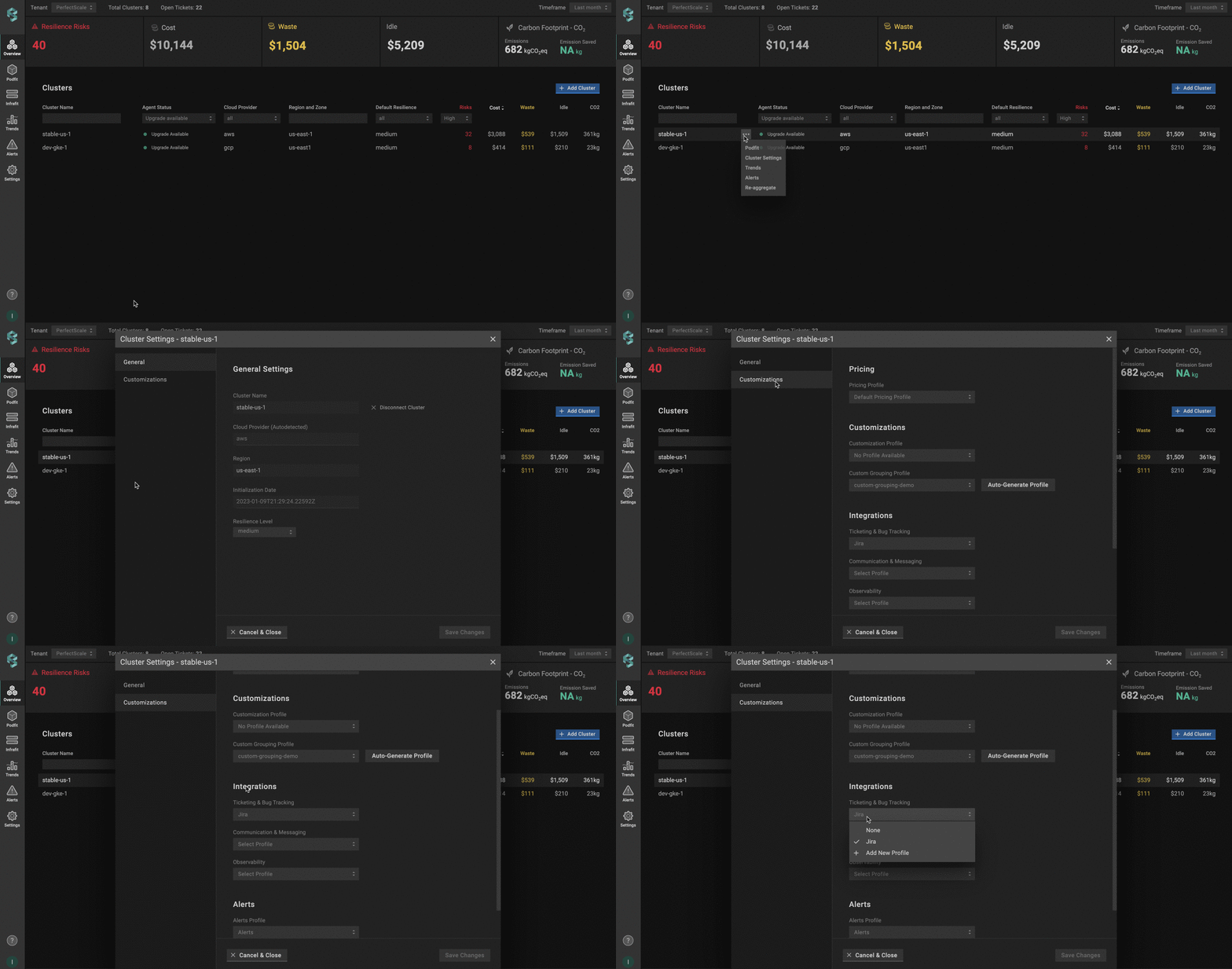
Go to the **`Overview`** tab on the left panel -> find the cluster to which you want to apply the **`Profile`** and click **`gear`** button -> go to **`Customizations`** -> find **`Integrations`** and click the **`Ticketing & Bug Tracking`** drop-down list -> click the **`Add New Profile`** button -> insert the required data.<br>

<figure><img src="https://content.gitbook.com/content/zCh9aABpk7yLeToPr6vk/blobs/tMqpTtl5Hja1gofR1wqy/jira2.gif" alt=""><figcaption><p>Jira profile from overview</p></figcaption></figure>

#### **Jira Profile Configuration**

<figure><img src="https://content.gitbook.com/content/zCh9aABpk7yLeToPr6vk/blobs/jxkamSkMYmSFisl1S3V6/Group%201000001775%20(1).png" alt=""><figcaption><p>Jira profile configuration</p></figcaption></figure>

1. Name your profile
2. Configure the profile according to the following instructions:

`jira_user`: Email address of the user creating the profile. We recommend creating a separate JIRA user for PerfectScale.

`jira_secret`: API token to authenticate with an Atlassian cloud product.

{% hint style="info" %}
The API token in the profile must have the **Jira Administrator global permission**.
{% endhint %}

* Go to <https://id.atlassian.com/manage-profile/security/api-tokens> and click **`Create API token`** button. <br>

  <figure><img src="https://content.gitbook.com/content/zCh9aABpk7yLeToPr6vk/blobs/RwhMv3kPmxokhvl69KLO/Group%204716%20(1).png" alt="" width="375"><figcaption><p>New API token</p></figcaption></figure>
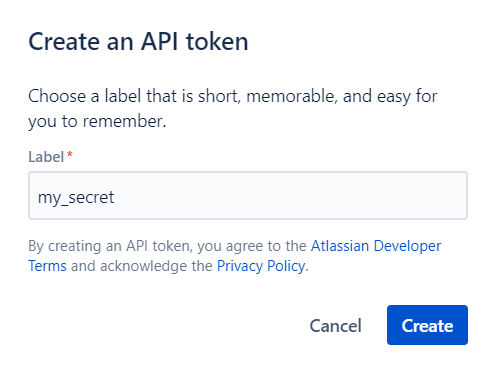
* Insert the label and click **`Create`** button.<br>

  <figure><img src="https://content.gitbook.com/content/zCh9aABpk7yLeToPr6vk/blobs/ygHIVtrvt0pANHgVr8fF/image.png" alt="" width="249"><figcaption><p>Create an API token</p></figcaption></figure>
* Copy the created API token and put it in the `jira_secret` field.\
  \
  :bulb: **NOTE**: To generate the API token, you need to use the Jira account that is associated with the **`Integration Profile`**(account specified in `jira_user`).

`jira_url`: Corporate Jira URL. Example: <https://xxx.atlassian.net>, where **xxx** - a corporate domain.

`jira_project`: Jira project where tickets will be created.<br>

`jira_issue_type`: The type of a Jira ticket.<br>

`jira_sumary` : The summary of a Jira ticket.<br>

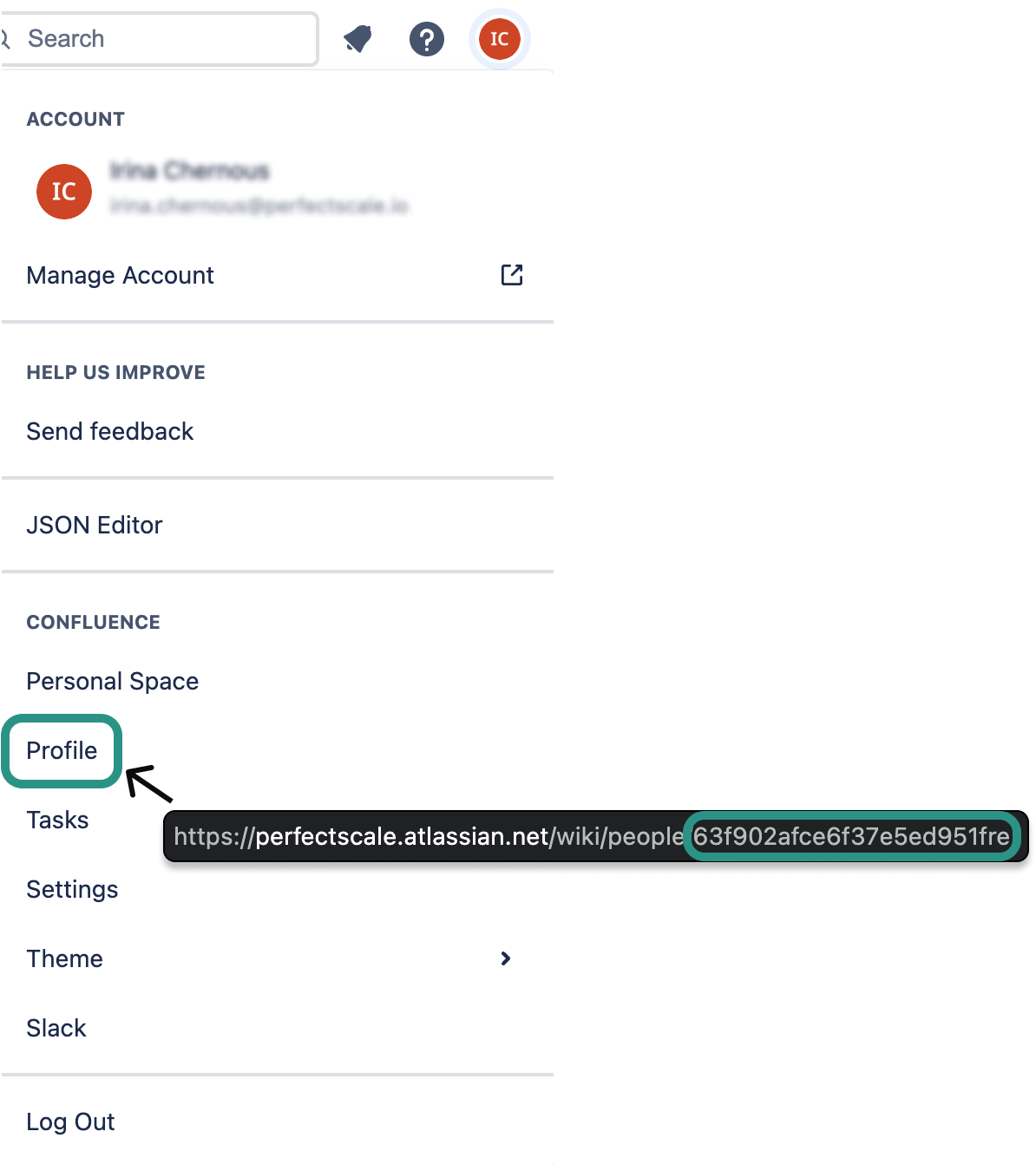
`jira_assignee` : The default assignee (member ID) of a Jira ticket.

<figure><img src="https://content.gitbook.com/content/zCh9aABpk7yLeToPr6vk/blobs/FbOeoPojMDLK3uYj3WA5/Group%204716.png" alt="" width="375"><figcaption><p>Member id</p></figcaption></figure>

`jira_resolution`(optional): Set **true** to assign the resolution reason when closing a ticket in the specified **jira\_project**.<br>

`jira_custom_fields`(optional): Specify the ID of the required Jira ticket field that is not included in the default setup. Use the following format for the custom field ID:&#x20;

```
jira_custom_fields:
  customfield_XXXXX: 'DevOps Team'
```

Learn how to get a field ID [here](#how-to-get-jira-custom-field-id).<br>

3. Use **`Set as default`** checkbox to automatically assign the profile to the clusters.\
   \
   :bulb: **NOTE**: The manually assigned profile takes priority over the default one.<br>
4. To verify the accuracy of your Jira configuration, simply click on the **`Test Integration`** button. When the configuration is correct, you will see the message **`Jira Configured Correctly`** . In case of **`Jira Configured Wrongly`** response, check and ensure the correctness of the data.
5. Click the **`Save`** button to save the progress.

#### How to get Jira custom field ID

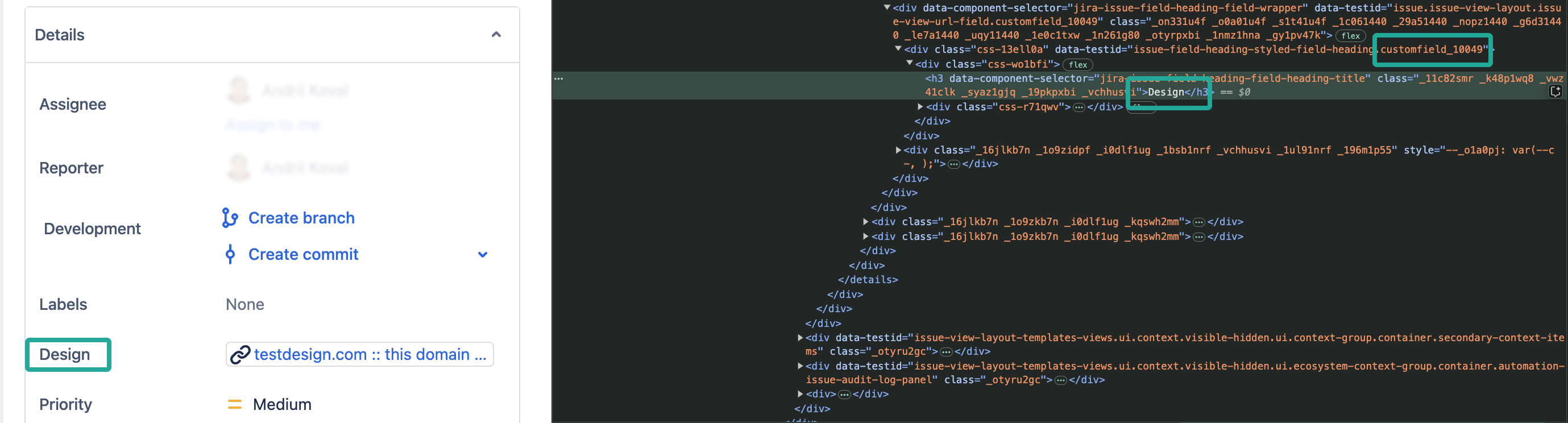
A simple method to obtain a Jira custom field ID without requiring extra permissions is to inspect the relevant Jira issue that includes this field. Follow the next simple steps:

1. Open an issue (Jira ticket) with the custom field for which you want to find the ID.
2. Right-click on the field name and select `Inspect`.
3. On the Developer Tools panel, you will find the name and ID for your custom field.

<figure><img src="https://content.gitbook.com/content/zCh9aABpk7yLeToPr6vk/blobs/A2gP38yLsUTYi9GLidVO/Group%201000001769.png" alt=""><figcaption><p>Jira custom field idApplying resiliency alerts profile to a single cluster</p></figcaption></figure>

{% hint style="info" %}
You can easily set up multiple custom fields within one profile by listing them under `jira_custom_fields`. For example:

```yaml
jira_custom_fields:
  customfield_00000: 'DevOps Team'
  customfield_00001: 'Resource anomaly fix'
  customfield_00002: 'Under-provisioning'
```

{% endhint %}

### :tools: **How to apply Jira Profile**

#### Apply to a single cluster

To apply the **`Profile`** to the cluster, go to the **`Overview`** tab on the left panel -> find the cluster to which you want to apply the **`Profile`** and click **`gear`** button -> go to **`Customizations`** -> find **`Integrations`** and click the **`Ticketing & Bug Tracking`** drop-down list -> select the needed profile.<br>

<figure><img src="https://content.gitbook.com/content/zCh9aABpk7yLeToPr6vk/blobs/xFQz6qyrFEXQgYq5m948/jira%20connect.gif" alt=""><figcaption><p>Applying Jira profile to a single cluster</p></figcaption></figure>

#### Apply to multiple clusters

To apply a profile to multiple clusters from a single view, use the **`Manage Assignments`** feature. \
\
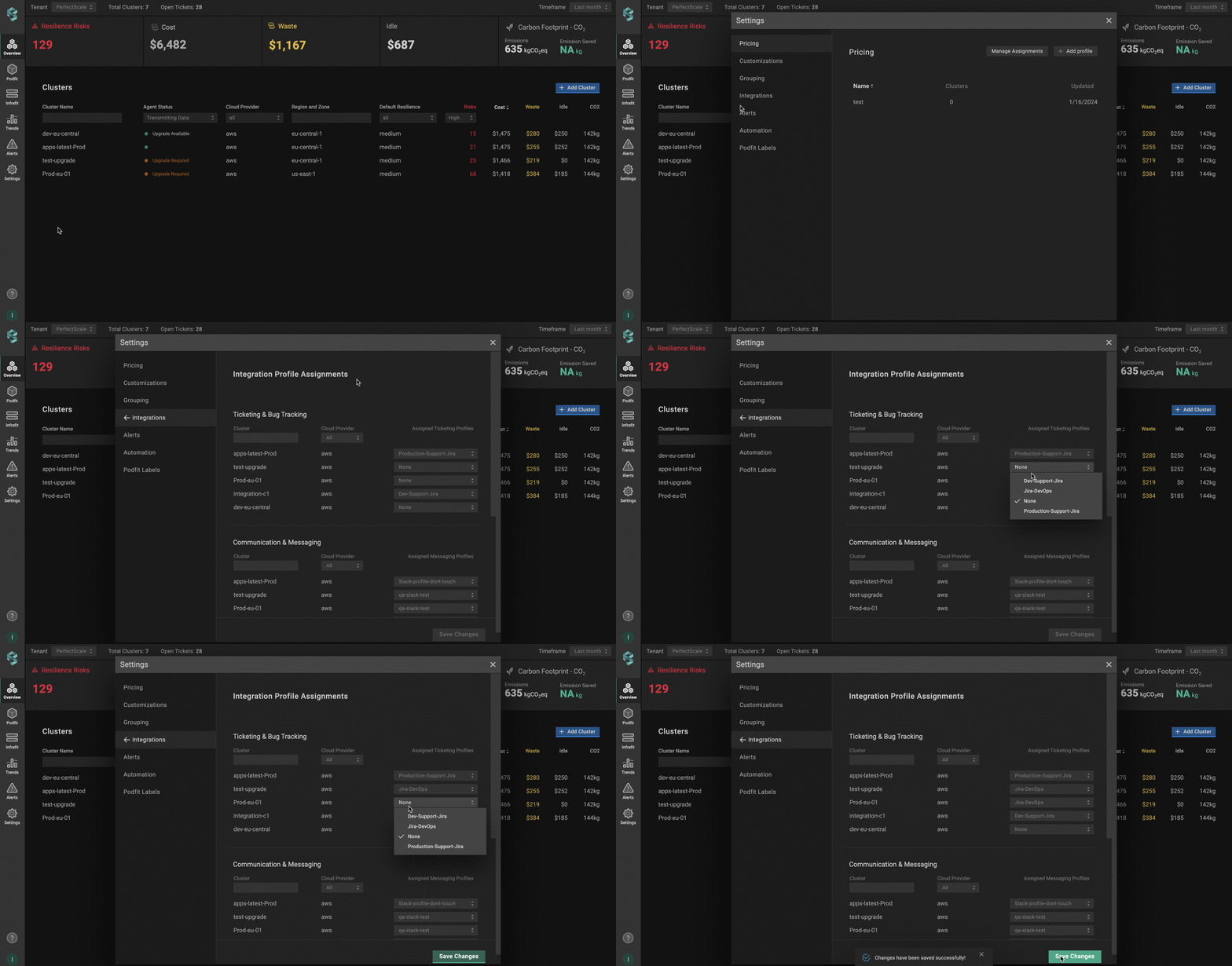
Go to the **`Settings`** tab on the left panel -> select **`Integrations`** -> click the **`Manage Assignments`** button -> apply the profile for the needed clusters in the **`Ticketing & Bug Tracking`** section -> click the **`Save Changes`** button.

<figure><img src="https://content.gitbook.com/content/zCh9aABpk7yLeToPr6vk/blobs/iGBiY6rELLSsMbkwCbLS/Jira_multiple.gif" alt=""><figcaption><p>Applying Jira profile to multiple clusters</p></figcaption></figure>

## Configuring Jira integration with CRD

To enable Jira ticketing using a Custom Resource Definition (CRD), you’ll need to define and apply a Custom Resource (CR) with the required Jira parameters. This approach allows you to manage Jira ticketing directly through Kubernetes manifests.&#x20;

{% hint style="warning" %}
The Custom Resource (CR) must be created in the `perfectscale` namespace.
{% endhint %}

### Setup instructions

1. Navigate to your Jira instance (e.g., <https://mycompany.atlassian.net>)
2. Create a bot user or use an existing user account.

{% hint style="info" %}
We recommend you create a separate JIRA user for PerfectScale.
{% endhint %}

3. Generate an API token for the user.
4. [Copy the API token](https://id.atlassian.com/manage-profile/security/api-tokens) (you will need it for CR configuration).
5. Apply the Jira API token secret.
6. Configure a CR.

{% hint style="info" %}
You may need to use custom fields for the integration. This configuration is optional, and you can learn more about it [here](#how-to-get-jira-custom-field-id).
{% endhint %}

Apply the **Jira API token secret** first:

```yaml
Jira API Token Secret (apply this first)
apiVersion: v1
kind: Secret
metadata:
  name: jira-credentials
  namespace: perfectscale
type: Opaque
stringData:
  api-token: "your-jira-api-token-here"
```

{% hint style="info" %}
Ensure that the secret is created in the same namespace as the exporter -  `perfectscale`.
{% endhint %}

Configure the CR:

```yaml
apiVersion: perfectscale.io/v1
kind: ClusterSettings
metadata:
  name: cluster-settings-main
  namespace: perfectscale
spec:
  profiles:
    integrations:
      - type: jira
        name: infrastructure-tickets
        assigned: true
        value:
          jira_url: "https://mycompany.atlassian.net"
          jira_user: "perfectscale-bot@mycompany.com"
          jira_secret_from:
            secretKeyRef:
              name: jira-credentials
              key: api-token
          jira_project: "INFRA"
          jira_issue_type: "Bug"
          jira_summary: "PerfectScale discovered issue(s) with workload"
          jira_assignee: ""
          jira_resolution: false
          # Optional: custom fields (not included in the default setup)
          # jira_custom_fields:
          #   customfield_10001: "DevOps Team"
          #   customfield_10002: "Resource anomaly fix"
```

⚙️ **CR parameters:**

| Parameter                | Description                                                                                                 |
| ------------------------ | ----------------------------------------------------------------------------------------------------------- |
| **`jira_url`**           | Corporate Jira URL. **Example**: <https://xxx.atlassian.net>                                                |
| **`jira_user`**          | Email address of the user creating the CR.                                                                  |
| **`jira_secret_from`**   | API token to authenticate with an Atlassian cloud product.                                                  |
| **`jira_project`**       | Jira project where you want tickets to be created.                                                          |
| **`jira_issue_type`**    | The desired type of a Jira ticket.                                                                          |
| **`jira_summary`**       | The desired summary of a Jira ticket.                                                                       |
| **`jira_assignee`**      | The default assignee (member ID) of a Jira ticket.                                                          |
| **`jira_resolution`**    | (optional) Set `true` to assign the resolution reason when closing a ticket in the specified jira\_project. |
| **`jira_custom_fields`** | (optional) Specify additional Jira ticket field (field ID) that is not included in the default setup.       |