# Observability

With observability profiles, users can easily access the observability tool to view comprehensive data and usage patterns over a period of time.

PerfectScale **Observability** integration supports the following tools:

* Grafana&#x20;
* DataDog

<figure><img src="https://content.gitbook.com/content/zCh9aABpk7yLeToPr6vk/blobs/8EIcYONzNd13gSwr3Po5/image.png" alt=""><figcaption><p>Observability profile</p></figcaption></figure>

## Configuring Observability with the profile

### :tools: How to create Observability Profile

There are two options for creating a Profile: [from the Settings tab](#from-the-settings-tab) or directly [from the Overview](#from-the-overview-tab).

#### From the **Settings** tab

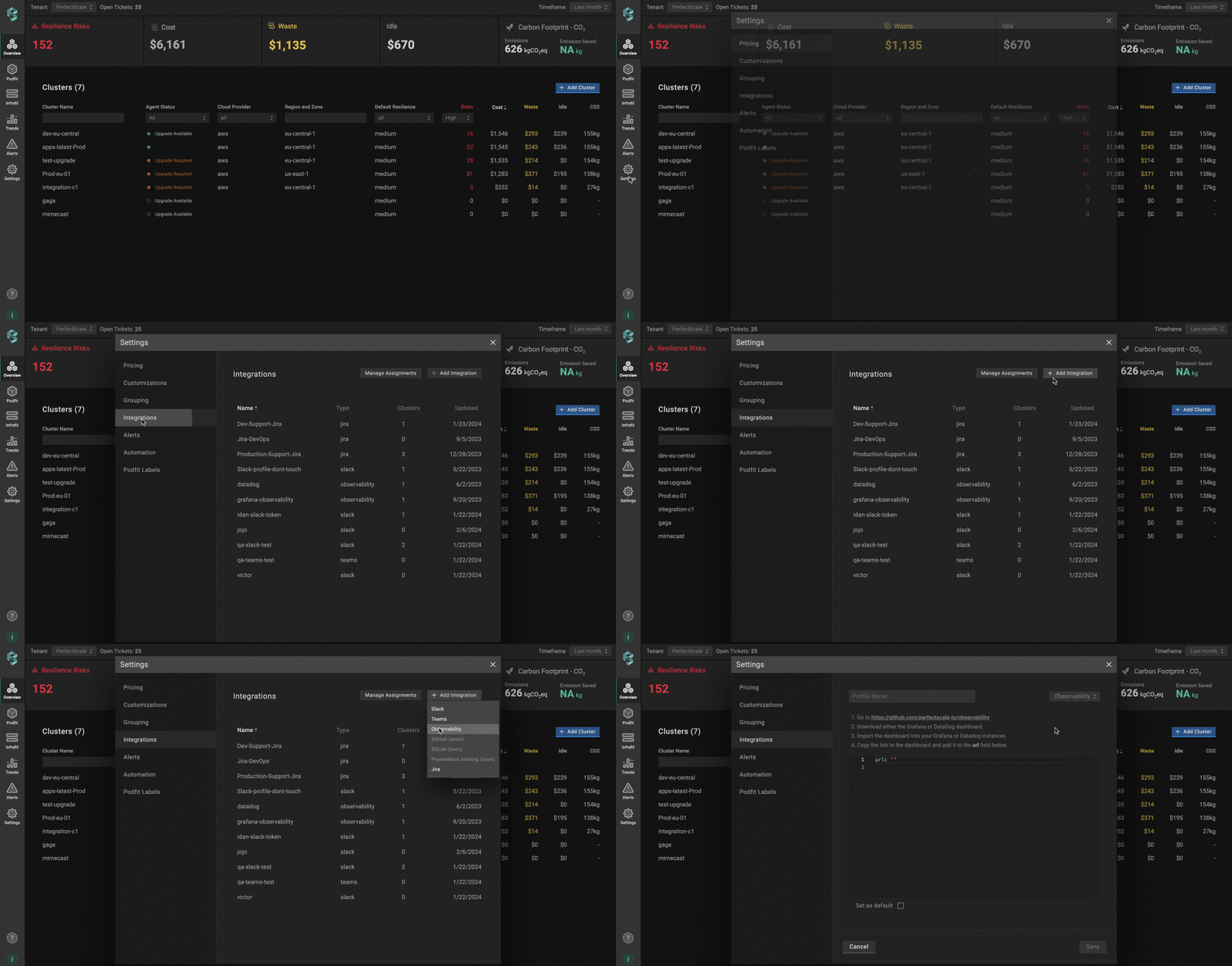
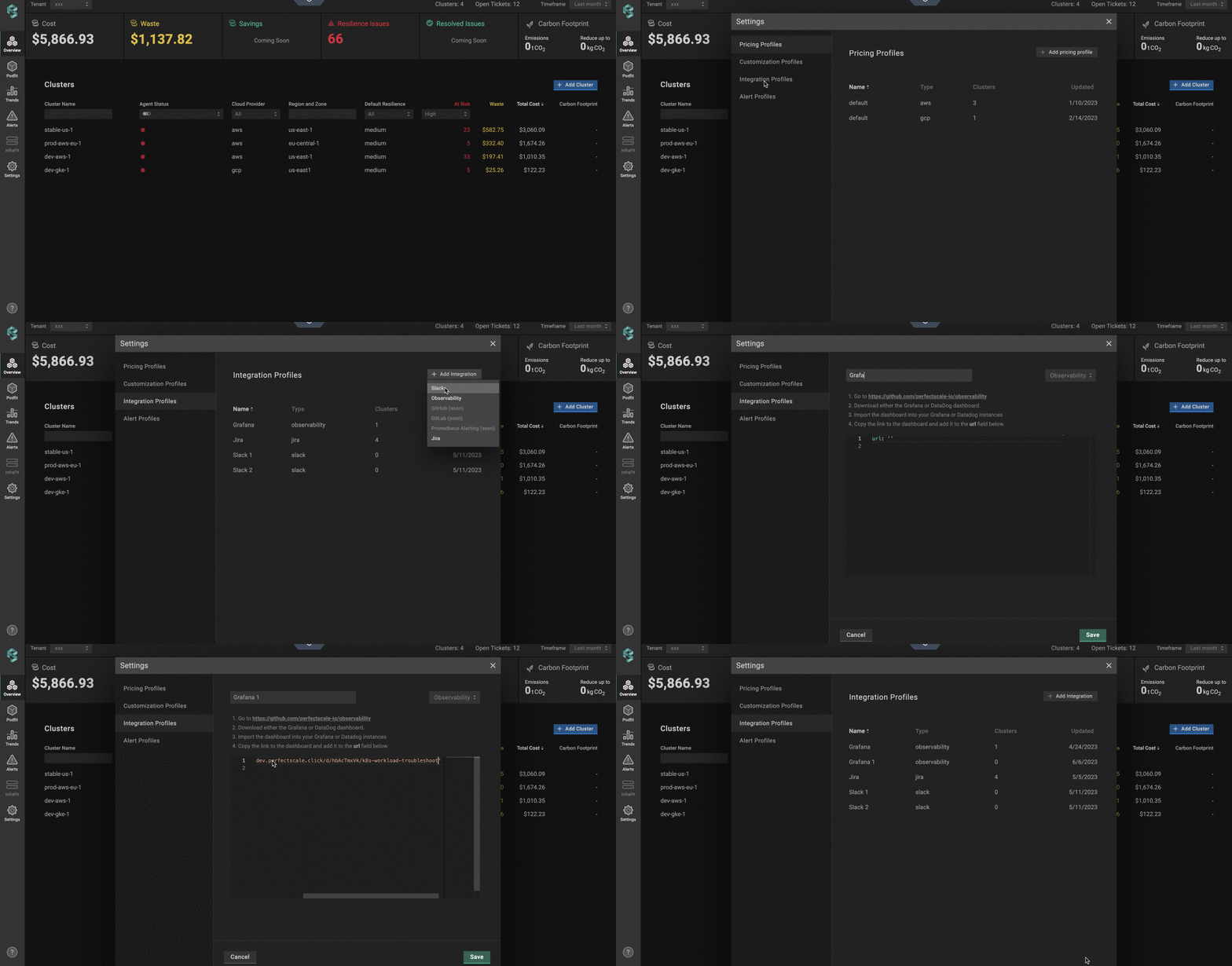
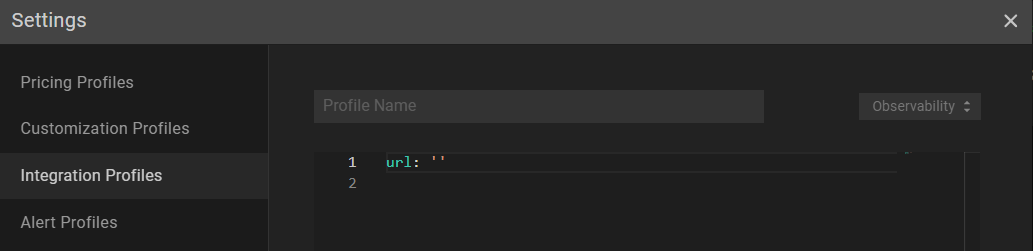
Go to the **`Settings`** tab on the left panel -> select **`Integrations`** -> click the **`+Add Integration`** button and select **`Observability`** from the drop-down -> insert the required data.

<figure><img src="https://content.gitbook.com/content/zCh9aABpk7yLeToPr6vk/blobs/yQRFT2ZeqCDduFqhSZXg/observability_sett.gif" alt=""><figcaption><p>Observability profile from settings</p></figcaption></figure>

#### From the **Overview** tab

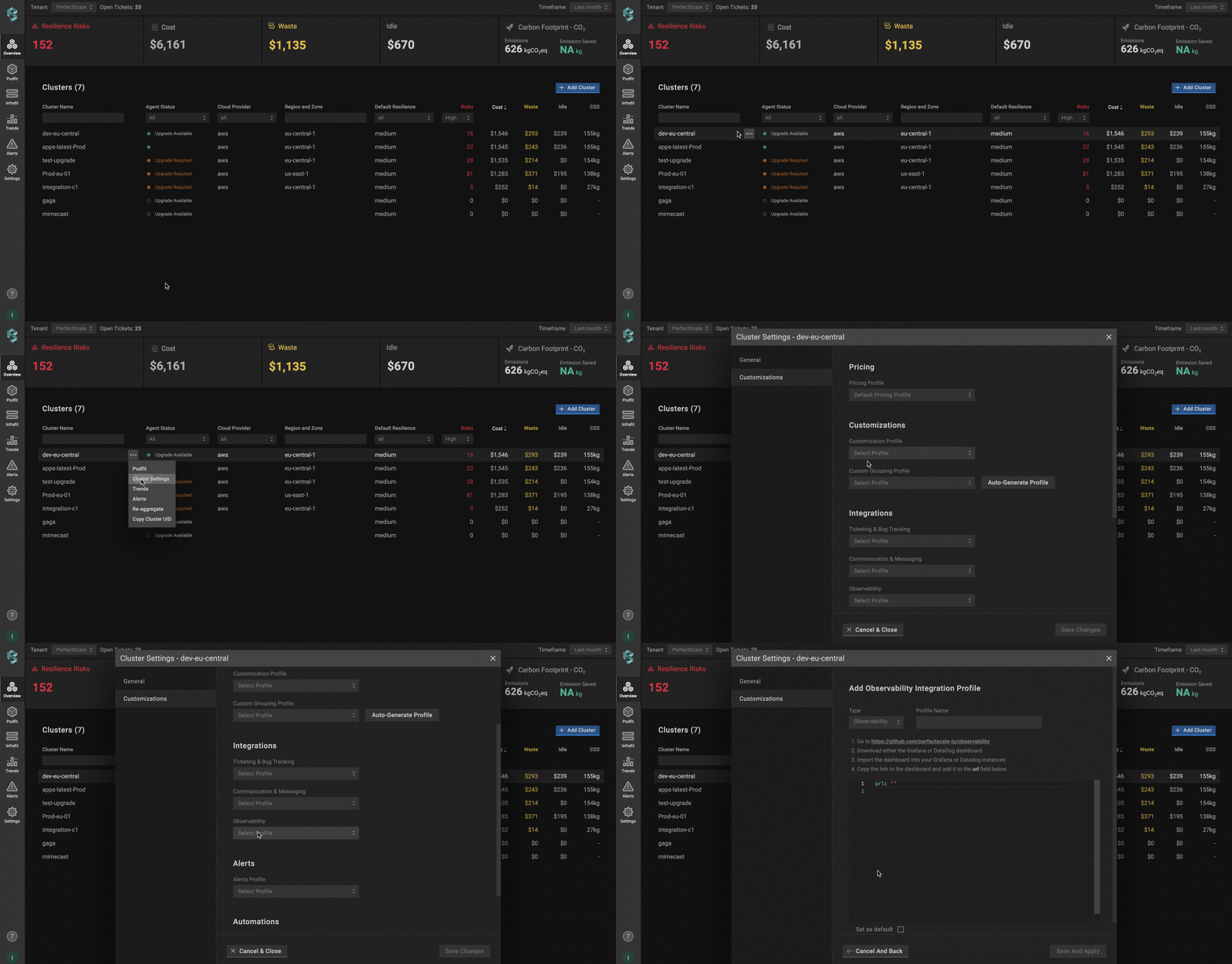
Go to the **`Overview`** tab on the left panel -> find the cluster to which you want to apply the **`Profile`** and click **`gear`** button -> go to **`Customizations`** -> find **`Integrations`** and click the **`Observability`** drop-down list -> click the **`Add New Profile`** button -> insert the required data.

<figure><img src="https://content.gitbook.com/content/zCh9aABpk7yLeToPr6vk/blobs/IGXGJJfWG1aclom41ILI/observability_over.gif" alt=""><figcaption><p>Observability profile from overview</p></figcaption></figure>

#### Observability Profile Configuration

Create **Grafana** or **DataDog URL** in a few steps:

* Go to PerfectScale [GitHub](https://github.com/perfectscale-io/observability/tree/main/dashboards).
* Download either the Grafana or DataDog dashboard.
* Import the dashboard into your Grafana or DataDog instance.
* Copy the link to the dashboard (**Grafana URL, DataDog URL**).

<figure><img src="https://content.gitbook.com/content/zCh9aABpk7yLeToPr6vk/blobs/iH8UTkt5EUuFq6eyCQDQ/OuXq6kW2V0.gif" alt=""><figcaption><p>Observability provile configuration</p></figcaption></figure>

{% hint style="info" %}
Use **`Set as default`** checkbox to automatically assign the profile to the clusters.\
\
:bulb: The manually assigned profile takes priority over the default one.
{% endhint %}

### &#x20;:tools: **How to apply Observability Profile**

#### Apply to a single cluster

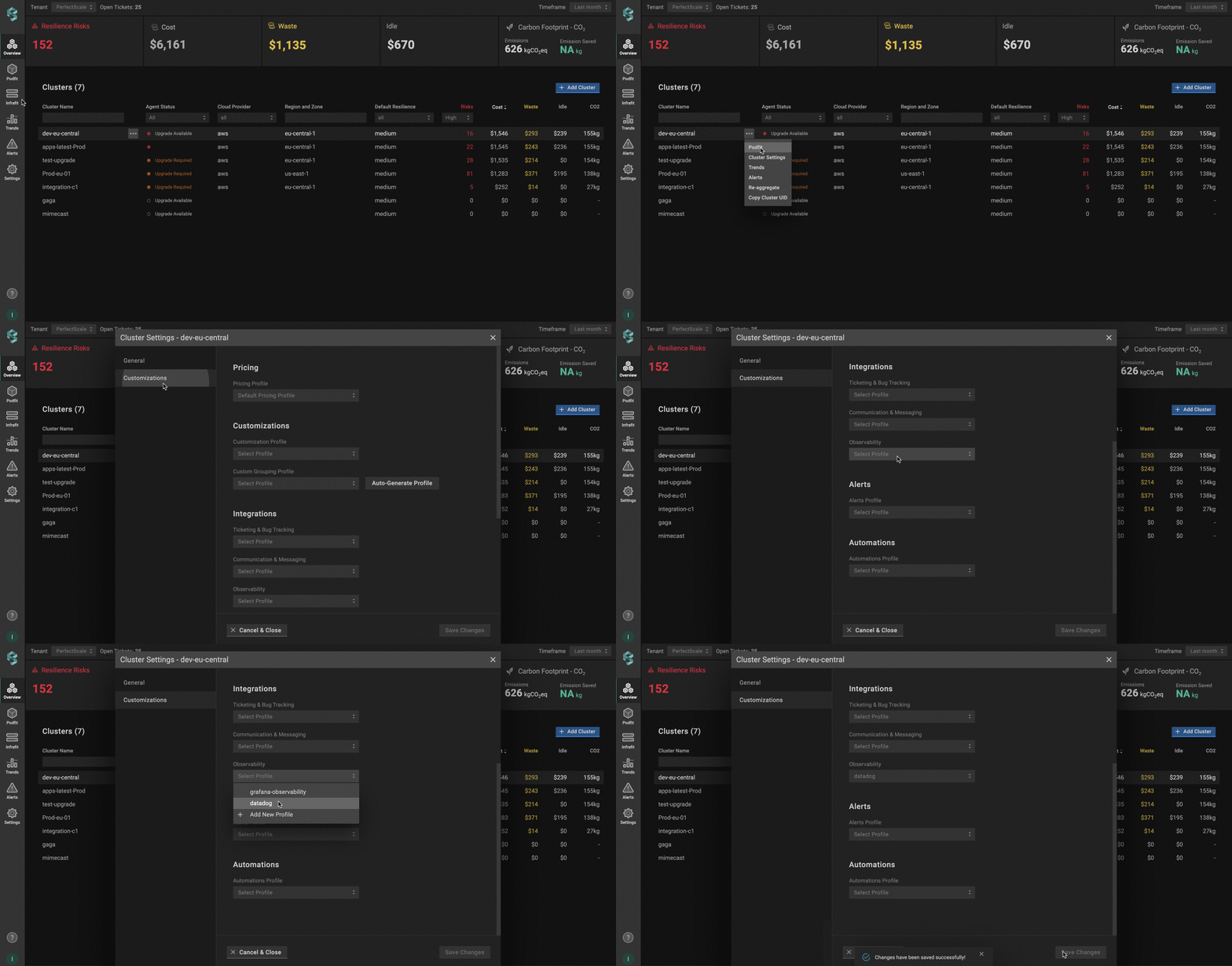
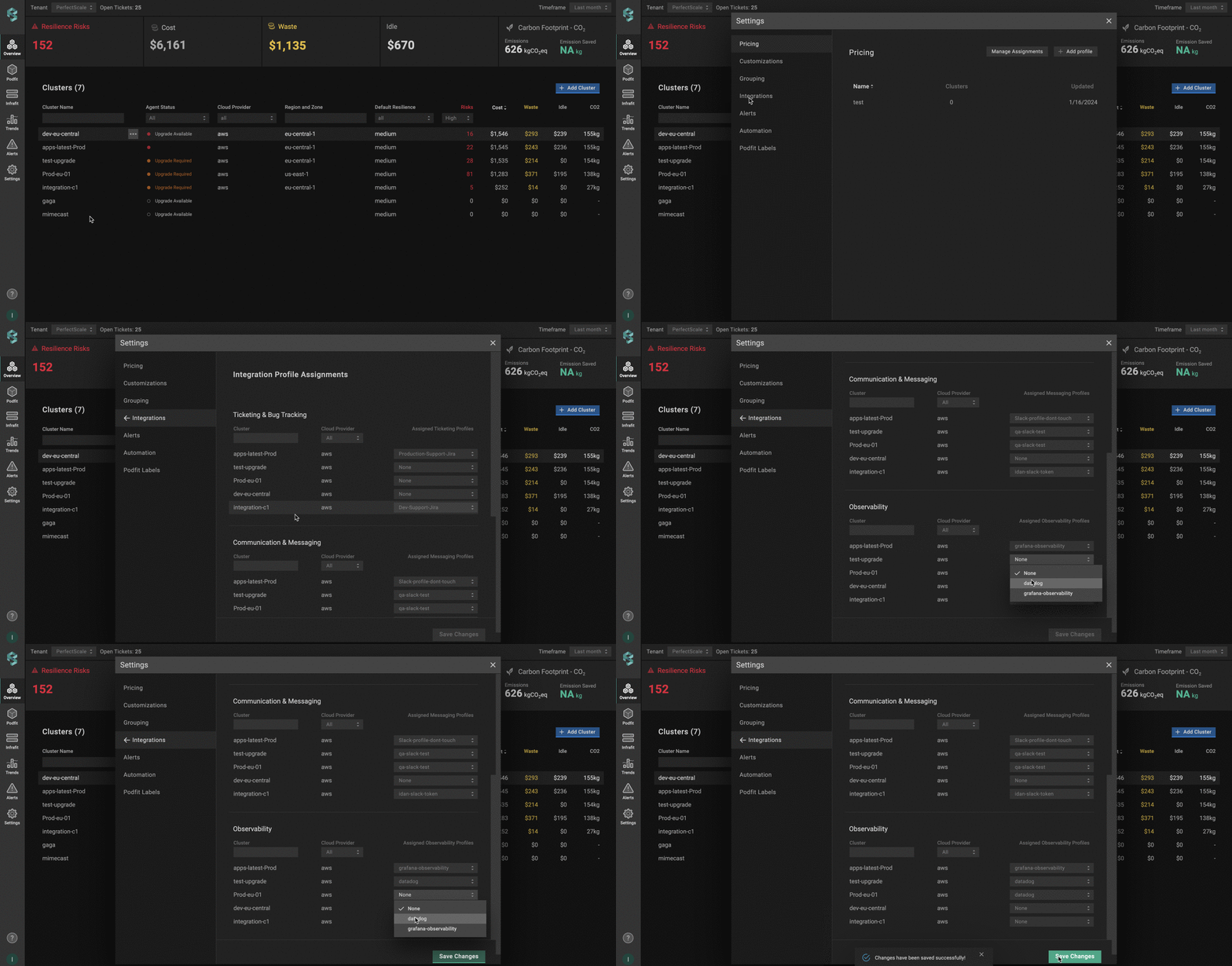
To apply the **`Profile`** to the cluster, go to the **`Overview`** tab on the left panel -> find the cluster to which you want to apply the **`Profile`** and click **`gear`** button -> go to **`Customizations`** -> find **`Integrations`** and click the **`Observability`** drop-down list -> select the needed profile.

<figure><img src="https://content.gitbook.com/content/zCh9aABpk7yLeToPr6vk/blobs/7xFvkBOnkTUdbv3pnVmC/observability_single.gif" alt=""><figcaption><p>Applying observability profile to a single cluster</p></figcaption></figure>

#### Apply to multiple clusters

To apply a profile to multiple clusters from a single view, use the **`Manage Assignments`** feature. \
\
Go to the **`Settings`** tab on the left panel -> select **`Integrations`** -> click the **`Manage Assignments`** button -> apply the profile for the needed clusters in the **`Observability`** section -> click the **`Save Changes`** button.

<figure><img src="https://content.gitbook.com/content/zCh9aABpk7yLeToPr6vk/blobs/0GLtKFEC2TFwx9INkUN1/integration_multiple.gif" alt=""><figcaption><p>Applying observability profile to multiple clusters</p></figcaption></figure>

## Configuring Observability with CRD

To configure Observability integration using a Custom Resource Definition (CRD), you’ll need to define and apply a Custom Resource (CR) with the required parameters. This approach allows you to manage Observability integration directly through Kubernetes manifests.&#x20;

{% hint style="warning" %}
The Custom Resource (CR) must be created in the `perfectscale` namespace.
{% endhint %}

### Setup instructions

1. Go to the repository: <https://github.com/perfectscale-io/observability>
2. Download the dashboard (Grafana or Datadog).
3. Import the downloaded dashboard into your Grafana or Datadog instance.
4. Configure the CR.

```yaml
apiVersion: perfectscale.io/v1
kind: ClusterSettings
metadata:
  name: cluster-settings-main
  namespace: perfectscale
spec:
  profiles:
    integrations:
      - type: observability
        name: custom-observability-platform
        assigned: true
        value:
          # URL to your observability dashboard (Grafana or DataDog)
          url: "https://observability.mycompany.com/dashboard"
```

⚙️ **CR parameters:**

<table><thead><tr><th width="221.1533203125">Parameter</th><th>Description</th></tr></thead><tbody><tr><td><strong><code>url</code></strong></td><td>The link to your observability dashboard (Grafana or Datadog).</td></tr></tbody></table>

## :bulb: How to use Observability

{% hint style="info" %}
In order to utilize the **Observability `Integration Profile,`** it must first be applied to the cluster.
{% endhint %}

To access the detailed data of a specific cluster using an observability tool (for example, Grafana), navigate to the **`Overview`** tab on the left panel and click on the needed cluster.

You will navigate directly to the list of cluster workloads. Select any workload to bring up the workload zoom-in window.<br>

<figure><img src="https://content.gitbook.com/content/zCh9aABpk7yLeToPr6vk/blobs/YeRdV2iSb96hTsFqa5Q6/Group%201000001780.png" alt=""><figcaption><p>View in observability</p></figcaption></figure>

Click on the `Actions` menu and select `View in Observability` to be directly taken to the relevant dashboard of your observability tool.