> For the complete documentation index, see [llms.txt](https://docs.perfectscale.io/llms.txt). Markdown versions of documentation pages are available by appending `.md` to page URLs; this page is available as [Markdown](https://docs.perfectscale.io/2.0-self-hosted-or-perfectscale-documentation/customize-workflow/alerting/financial-alerts.md).

# Financial alerts

Instantly identify and address cost spikes and anomalies to keep your cloud bill in check

## What are financial alerts

PerfectScale Financial Alerts allow users to set up cost and waste alerts, notifying them when exceeding specific thresholds. This enables proactive cost management and resource optimization, helping teams stay within budget and reduce unnecessary spending.

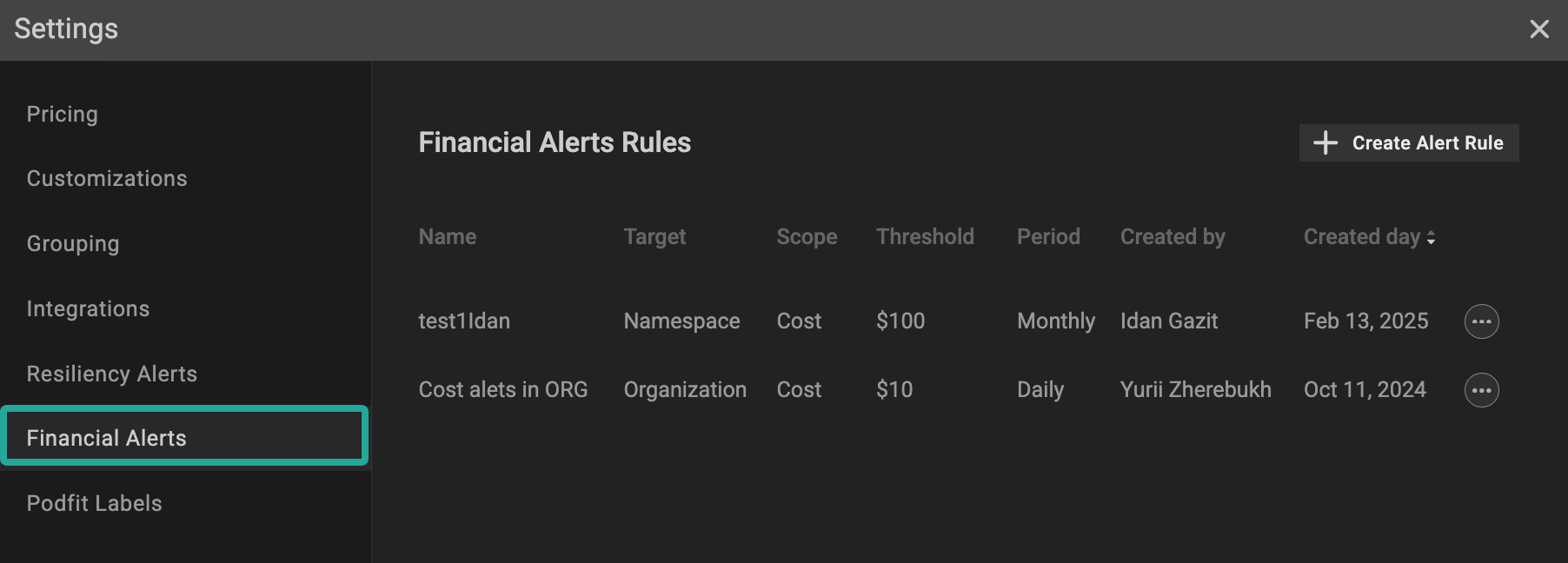
To start receiving financial alerts, create a Financial Alerts Rule.&#x20;

<figure><img src="https://content.gitbook.com/content/zCh9aABpk7yLeToPr6vk/blobs/UQUeLqkEYGRZN2t7A55g/Group%201000001708.png" alt=""><figcaption><p>Financial alerts rule</p></figcaption></figure>

### :tools: **How to create** Financial **Alerts Rule**

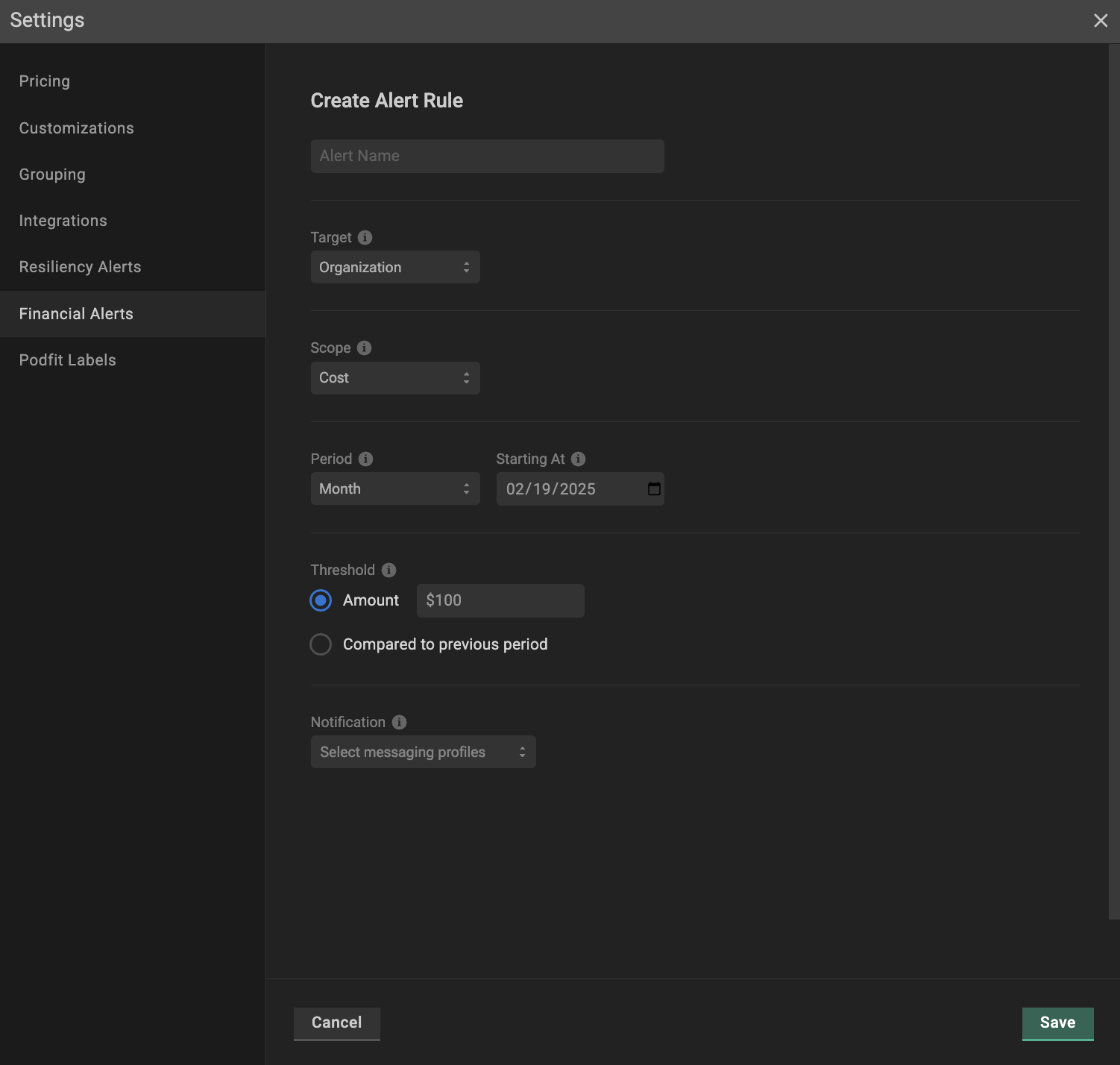
Go to the **`Settings`** tab on the left panel -> select **`Financial Alerts`** -> click the **`Create Alert Rule`** button -> configure the rule -> click **`Save`** button.

#### Financial Alerts profile configuration

<figure><img src="https://content.gitbook.com/content/zCh9aABpk7yLeToPr6vk/blobs/vO8LFyUjI3AZMeNmJLPD/image.png" alt=""><figcaption><p>Financial alerts rule configuration</p></figcaption></figure>

{% hint style="info" %}
When more than one cluster, namespace, etc., is selected in Target, the combined total (SUM) values will trigger alerts.&#x20;
{% endhint %}

**Alert Name**

Name your financial alert rule to seamlessly organize, filter, and analyze alerts on the [financial alerts dashboard](/2.0-self-hosted-or-perfectscale-documentation/configure-alerts/alerts-overview.md#financial-alerts).

**Target**

Defines the scope of monitoring for alerts:

* **Organization** - monitors metrics across the entire account;
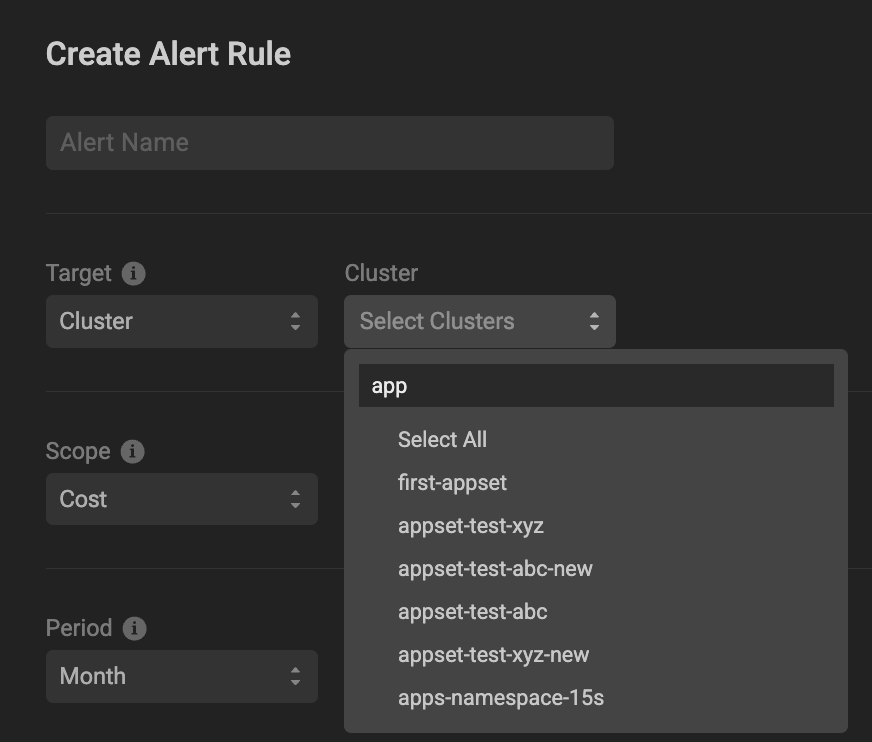
* **Cluster** - monitors metrics of the specific cluster(s). Select cluster(s) from the cluster selector.<br>

  <figure><img src="https://content.gitbook.com/content/zCh9aABpk7yLeToPr6vk/blobs/XKpPG1m0tDb5cC2HRUIj/image.png" alt="" width="375"><figcaption><p>Financial alerts rule for cluster</p></figcaption></figure>
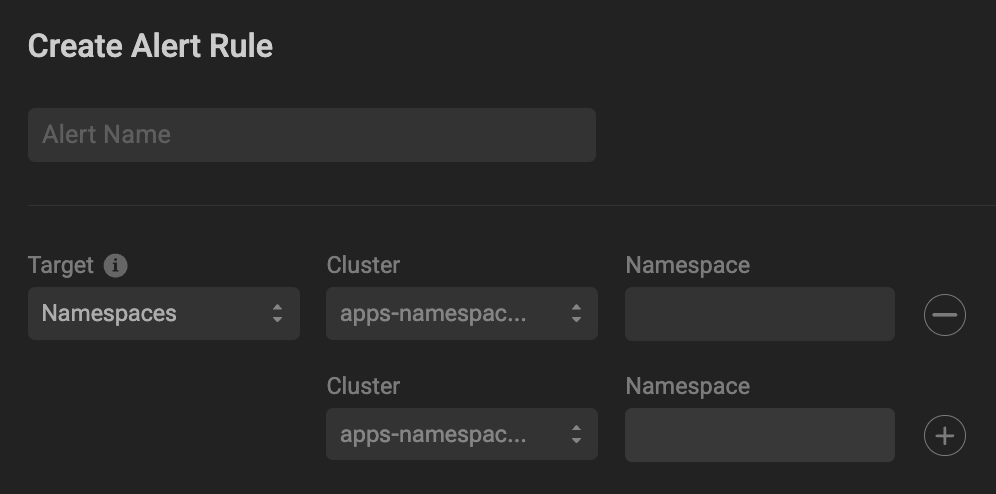
* **Namespace** - monitors metrics of the specific namespace(s). Select the specific cluster and then the namespace(s) from the selector that appears. Use the **`+`** button to select multiple clusters.<br>

  <figure><img src="https://content.gitbook.com/content/zCh9aABpk7yLeToPr6vk/blobs/JZUYbHll9JeyRjyGOwtR/image.png" alt="" width="563"><figcaption><p>Financial alerts rule for namespace</p></figcaption></figure>
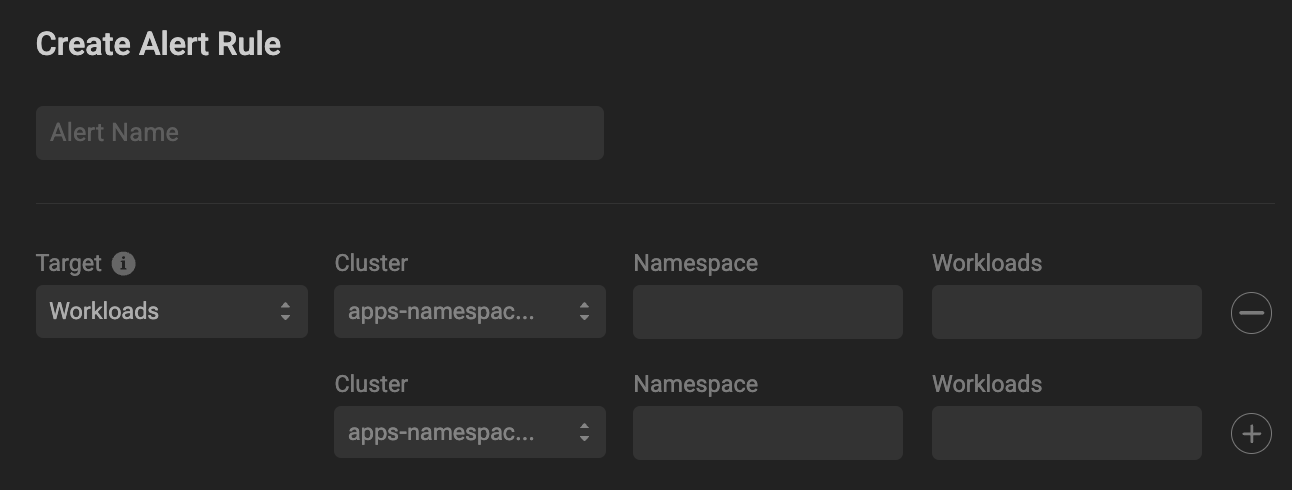
* **Workload** - monitors metrics of the specific workload(s). Select the specific cluster and then specify the namespace(s) and workload(s) from the selector that appears. Use the **`+`** button to select multiple clusters.<br>

  <figure><img src="https://content.gitbook.com/content/zCh9aABpk7yLeToPr6vk/blobs/JgdioNl9K68ipumtRE2O/image.png" alt="" width="563"><figcaption><p>Financial alerts rule for workload</p></figcaption></figure>

**Scope**

Defines the metric to monitor for triggering the alerts

* Cost - track the cost of specified objects in Target. When the defined metric exceeds the defined threshold, an alert will be triggered.
* Waste - track the waste of specified objects in Target. When the defined metric exceeds the defined threshold, an alert will be triggered.

**Period**

Specifies the metric evaluation window (Hour, Day, Week, Month).\
**Example**: If selected `Day` -  PerfectScale will daily evaluate the metric and trigger an alert if the threshold is exceeded.

**Starting At**

Specifies the start date for the metric evaluation period.&#x20;

**Threshold**

Specifies the conditions that will trigger an alert.&#x20;

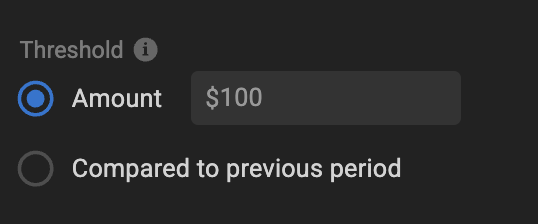
* **Amount** - defines a specific monetary value exceeding what will trigger an alert.<br>

  <figure><img src="https://content.gitbook.com/content/zCh9aABpk7yLeToPr6vk/blobs/iLwFPaiN0q7aGhJgsXub/image.png" alt="" width="269"><figcaption><p>Financial alerts rule threshold1</p></figcaption></figure>
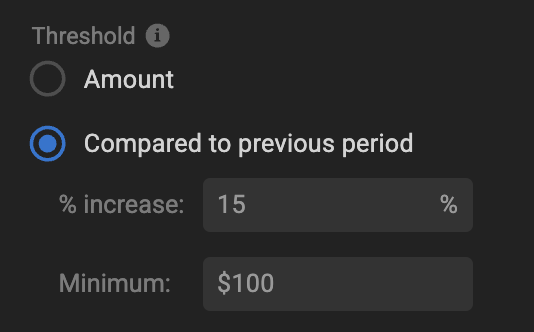
* **Compared to the previous period** - specifies the max deviation of the value to trigger the alert compared to the previous period based on the selected evaluation window. Set a maximum allowed percentage increase and a minimal trigger value as thresholds.<br>

  <figure><img src="https://content.gitbook.com/content/zCh9aABpk7yLeToPr6vk/blobs/2lMrqTOSnXDhKCTrlrbs/image.png" alt="" width="267"><figcaption><p>Financial alerts rule threshold2</p></figcaption></figure>

**Notification**

{% hint style="info" %}
If the notification channel is not specified, financial alerts will be only displayed on the [Financial Alerts dashboard](/2.0-self-hosted-or-perfectscale-documentation/configure-alerts/alerts-overview.md#financial-alerts).
{% endhint %}

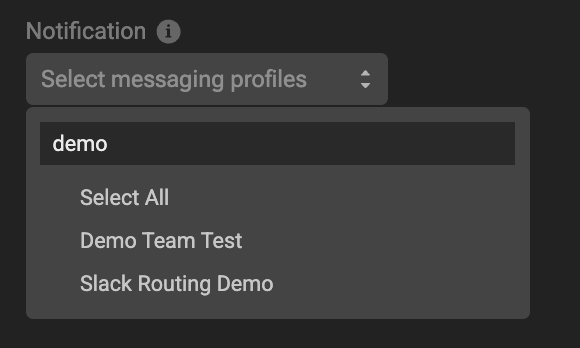
By default, PerfectScale automatically publishes alerts to your [Financial Alerts dashboard](/2.0-self-hosted-or-perfectscale-documentation/configure-alerts/alerts-overview.md#financial-alerts). Additionally, you can configure alert routing directly to the preferred communication channel (Slack, MS Teams, etc.) in just two simple steps:

1. Create the profile. Learn more about available communication integrations [here](/2.0-self-hosted-or-perfectscale-documentation/customize-workflow/communication-and-messaging.md).
2. Select the relevant profile in the Notification drop-down list when configuring the Financial Alerts Rule.<br>

   <figure><img src="https://content.gitbook.com/content/zCh9aABpk7yLeToPr6vk/blobs/CF4aDlHh3Bw2ZurkODQf/image.png" alt="" width="290"><figcaption><p>Notification channel for financial alerts rule</p></figcaption></figure>

{% hint style="warning" %}
PerfectScale does not support Slack profiles with the configured routing by label or by ID for financial alerts. In that case, alerts will be sent the default&#x20;
{% endhint %}